Windows Ethernet Settings That Fix Sluggish Wired Connection Speeds
Slow Ethernet despite a wired connection? A few hidden Windows network adapter settings may be the cause.
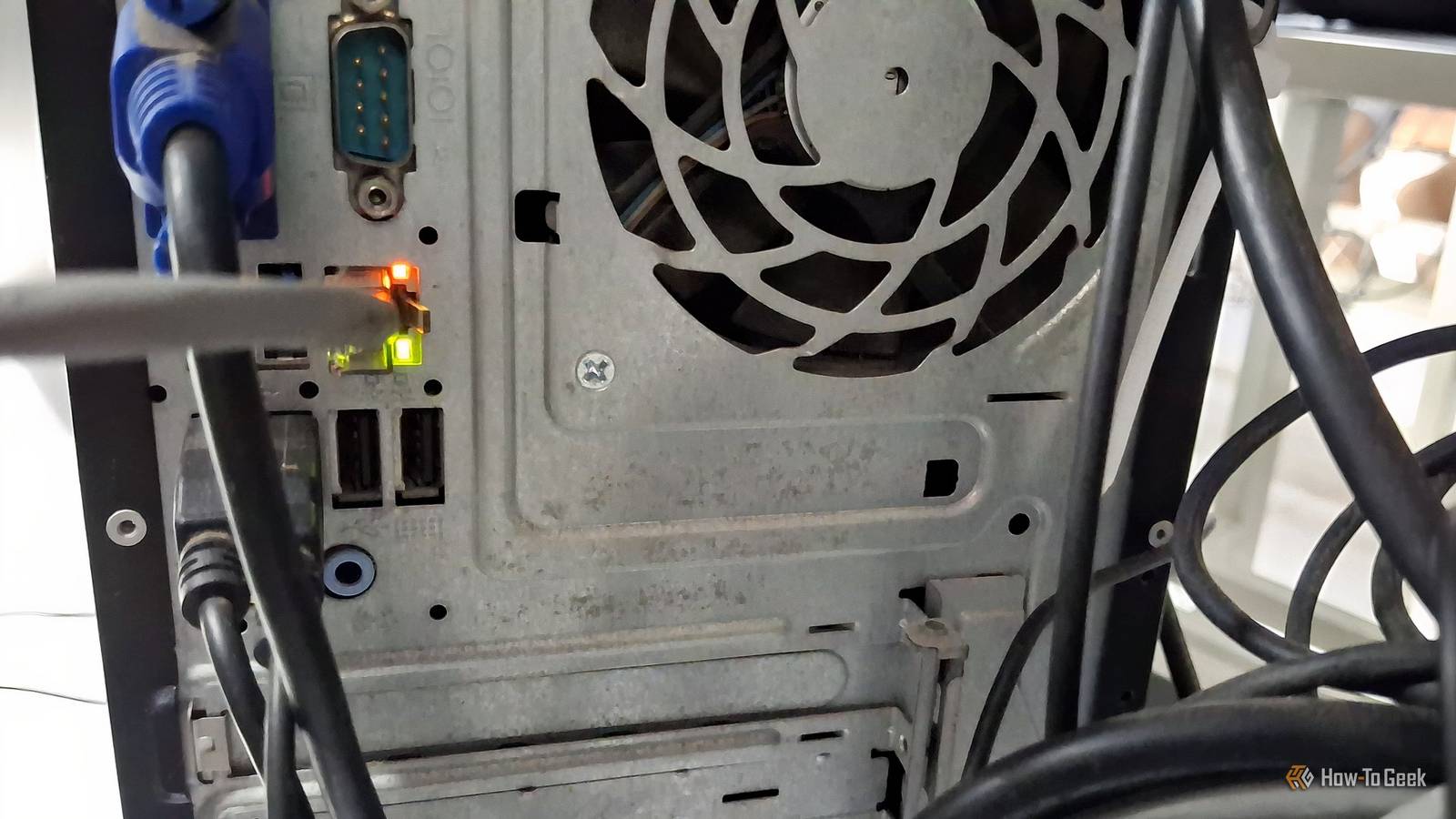
A direct Ethernet line should be faster than a Wi-Fi connection. Downloads taking forever and web pages slow to load can sometimes trace back to a handful of network adapter settings that affect how your PC handles its wired connection.
Turn off Energy-Efficient Ethernet
It might be the biggest hidden culprit
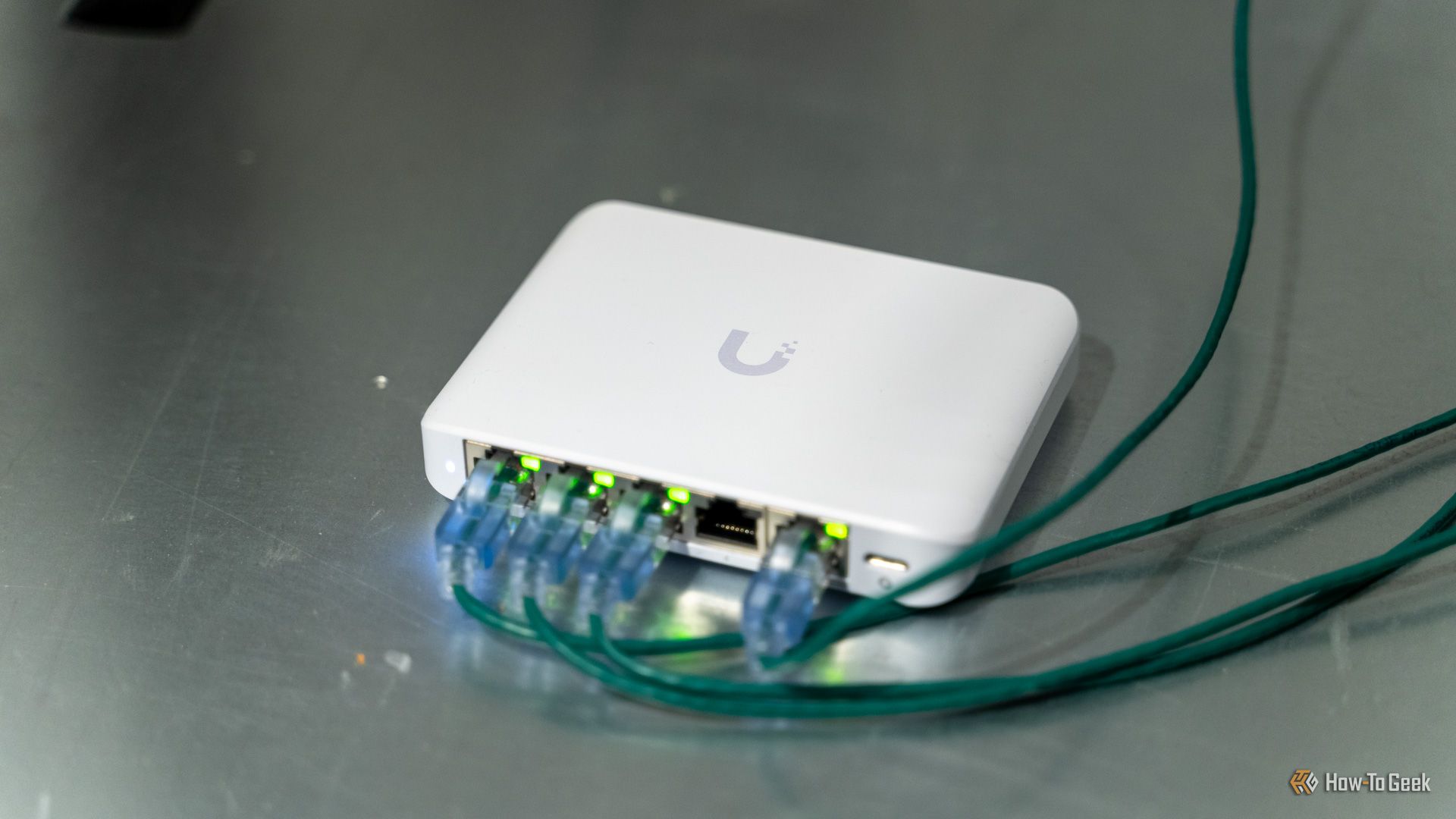
Energy-Efficient Ethernet, or EEE for short, is a set of enhancements to reduce your network adapter’s power consumption when there’s little or no network activity. However, in some cases, it can introduce inconsistent transfer speeds, higher latency, or brief pauses as the connection transitions between low-power and active states.
If your Ethernet connection feels erratic rather than consistently slow, disabling this feature is a quick troubleshooting step worth trying.
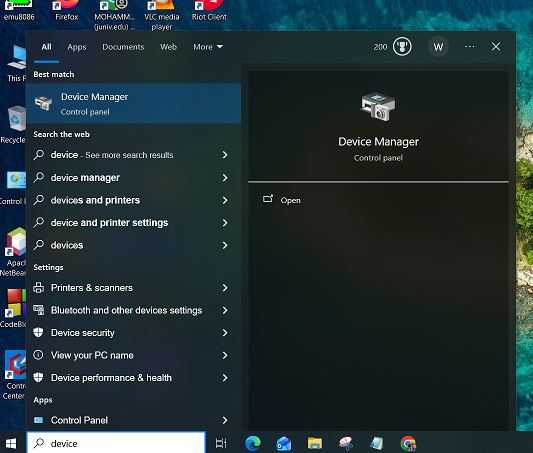
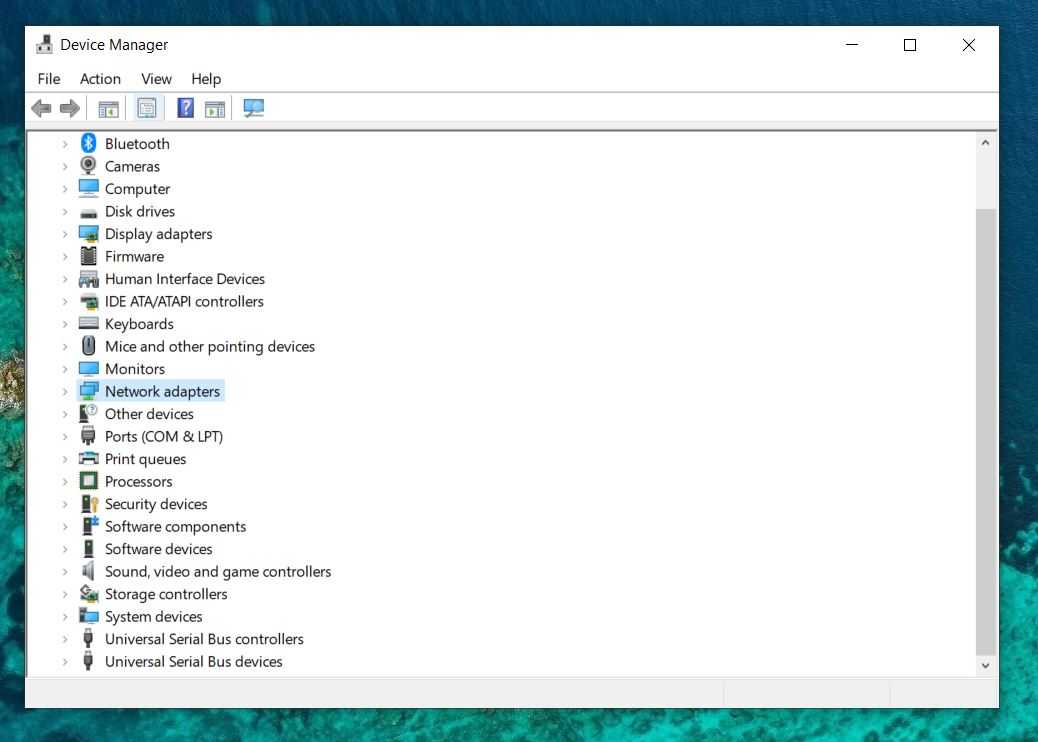
To do so, open Device Manager, expand Network adapters, right-click your Ethernet adapter, and select Properties. Under the Advanced tab, look for an option named Energy-Efficient Ethernet and set it to Disabled.
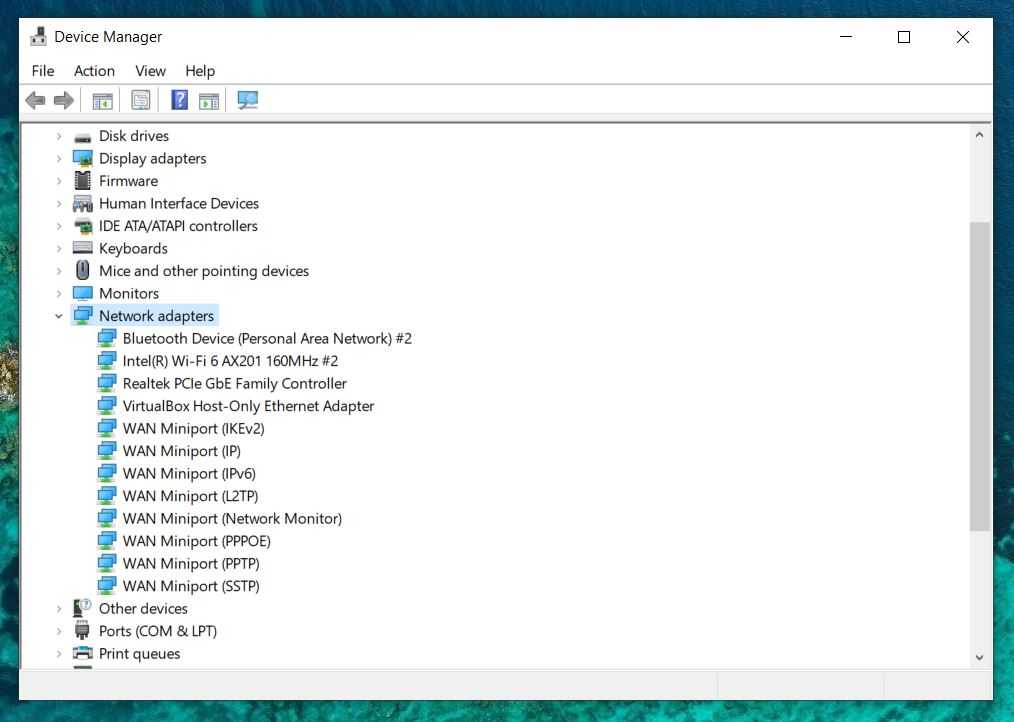
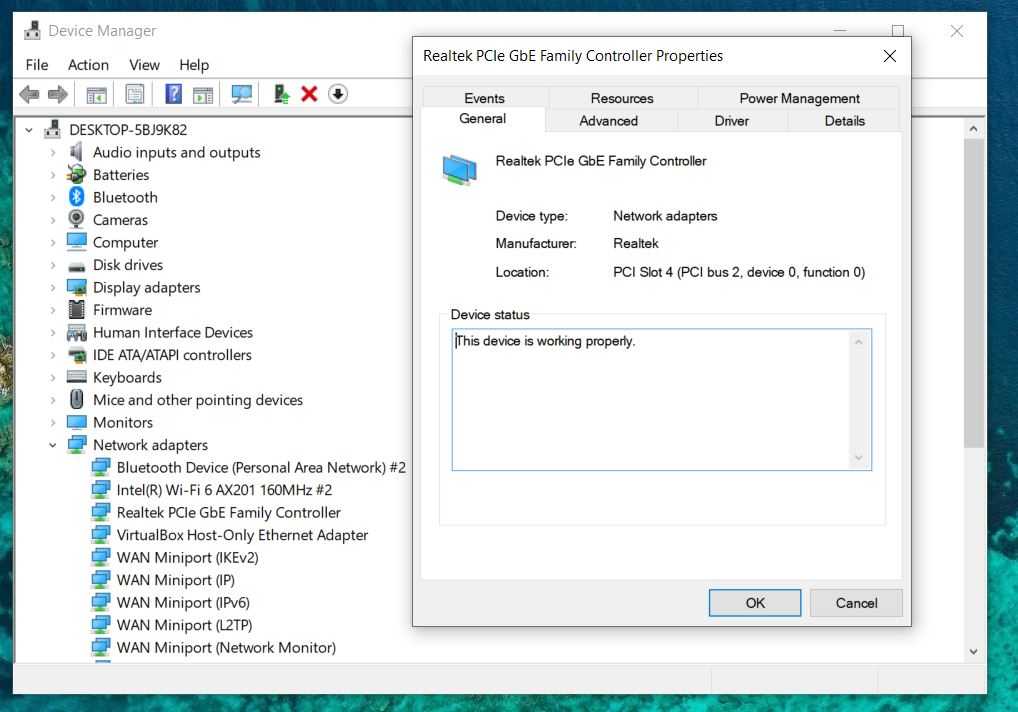
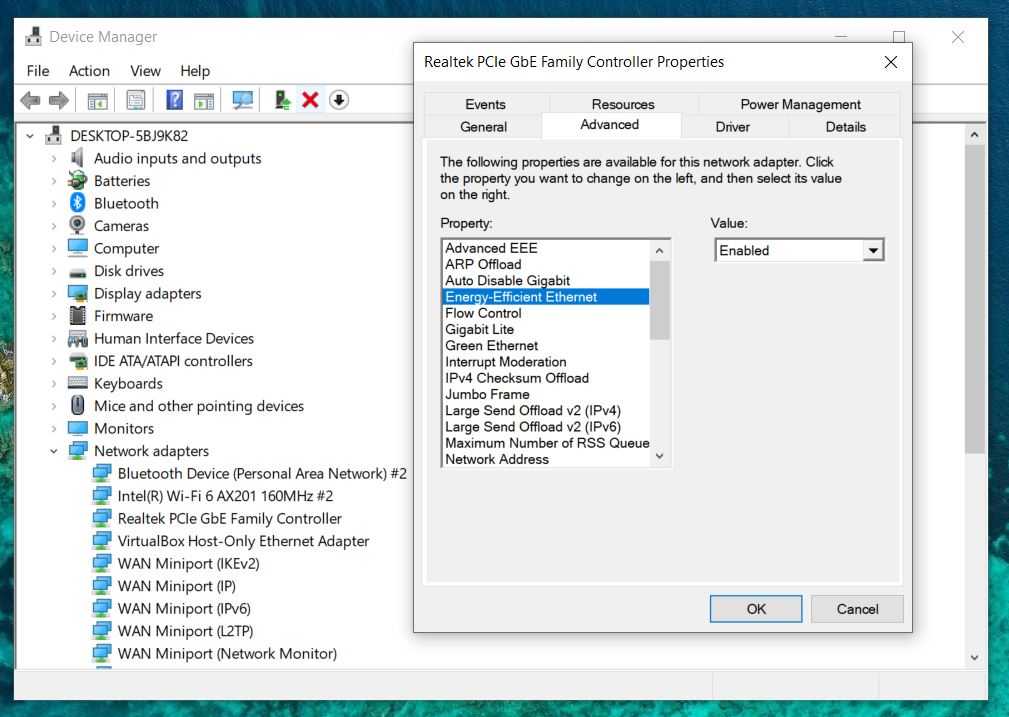
Keep in mind that not every network adapter exposes this setting, so don’t be surprised if you can’t find it. While disabling EEE may slightly increase power consumption, the difference is negligible on most desktop PCs.
Stop Windows from Turning Off Your Network Adapter
It’s a trade-off between power and network efficiency
Windows can be configured to power down your network adapter during periods of inactivity to save energy. While useful on laptops running on battery, this behavior can disrupt an Ethernet connection on a desktop by causing brief disconnections or speed drops when the adapter wakes back up.
To prevent this, open Device Manager, expand Network adapters, right-click your Ethernet adapter, and select Properties. Go to the Power Management tab and uncheck Allow the computer to turn off this device to save power, then click OK.
This ensures Windows keeps the adapter fully active at all times, eliminating any interruptions caused by the adapter cycling in and out of a low-power state.