How I Use Gemini to Manage My Google Keep Notes
Connecting Gemini to Google Keep automates list building and note retrieval, saving time on everyday task management.
Google Keep is where I dump everything I need to remember. Grocery items, article ideas, errands, and random thoughts all end up in different notes. Finding anything later is a whole other problem.
I never thought I needed AI to manage my notes. I could make lists and check things off myself, right? But I’ve been using Gemini to handle more of my daily tasks, and I started wondering why I was still managing my messy Keep notes the old-fashioned way. So I gave Google Keep a brain.
I Let Gemini Build My Lists
No More Typing Every Item Myself
I usually remember groceries when I’m nowhere near the kitchen, so I add them to Keep whenever I get a chance. The same goes for packing lists before a trip or random tasks I need to finish for work.
That’s where Gemini comes in.
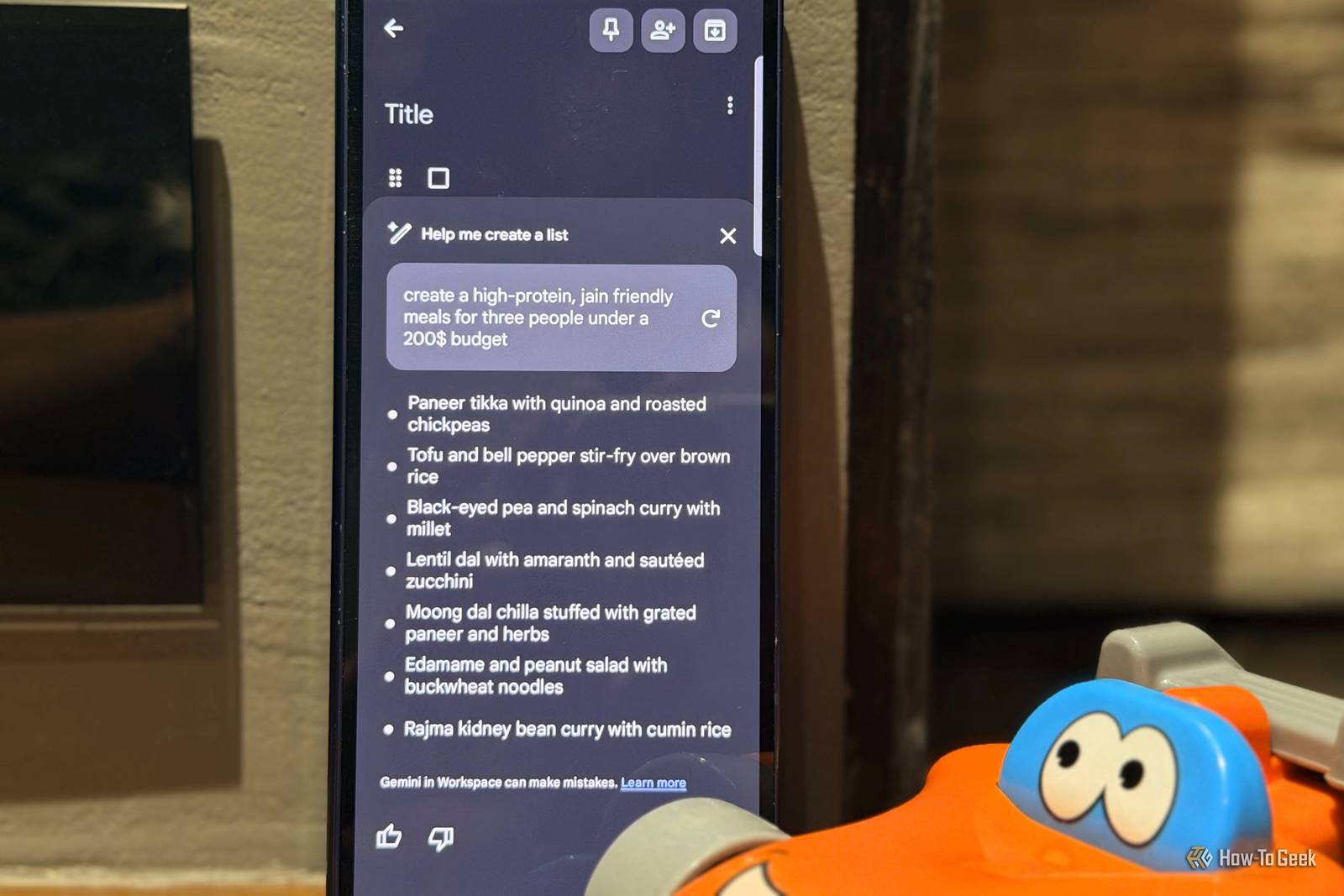
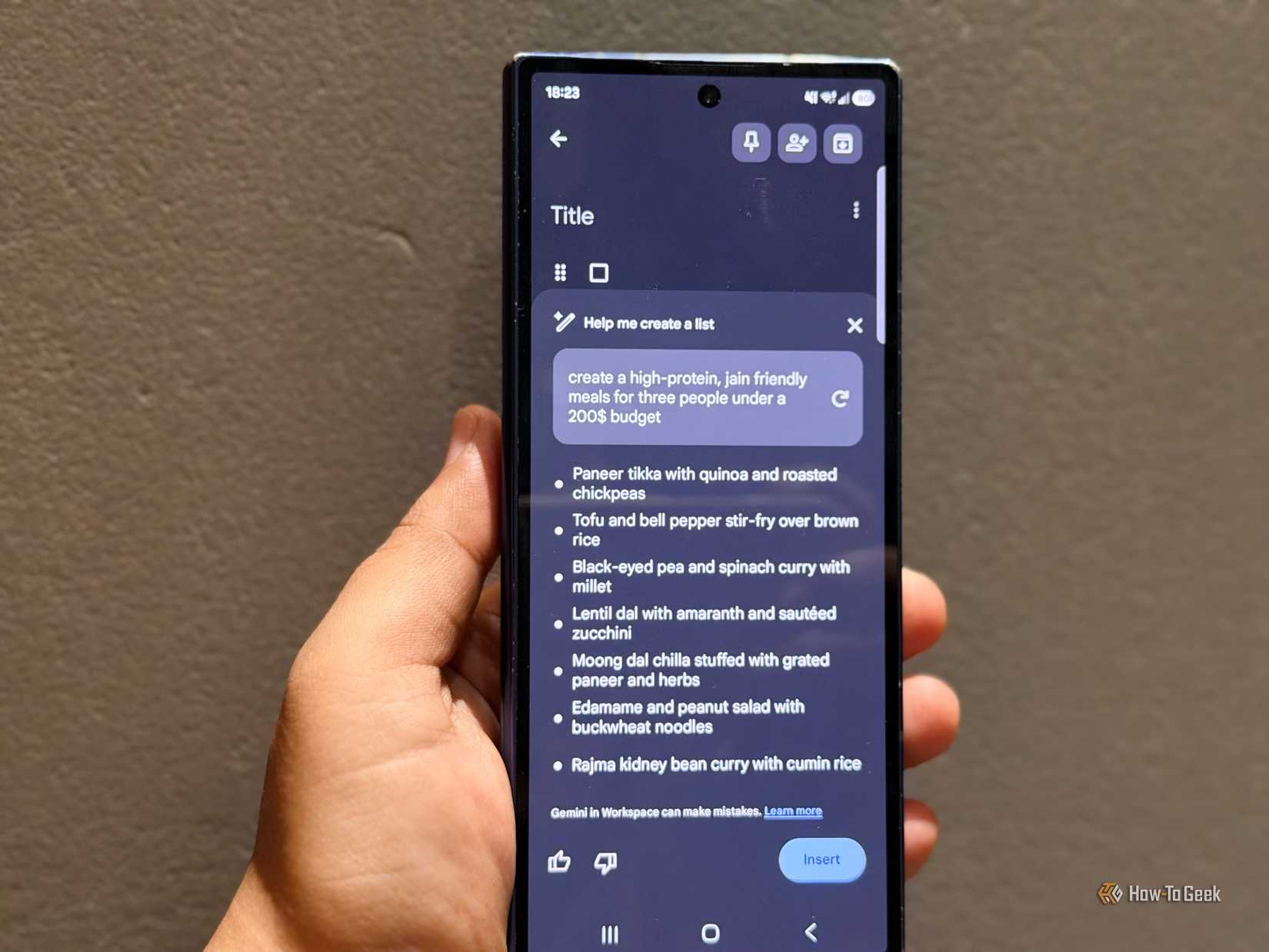
Google Keep has a feature called Help me create a list that turns my request into ready-made checklists.
To try it, I open Google Keep, tap the Create (+) button, and choose Help me create a list in the bottom-right corner.
Then I enter a prompt like, “Create a grocery list for a week of high-protein, Jain-friendly meals for three people under a $200 budget.”
Trip planning is where I’d use this the most. Instead of typing out every item, I just enter, “Create a packing list for a two-day family trip to Delhi with my husband in December.” Gemini can suggest essentials I might overlook, such as a jacket for cooler weather.
Keep turns my prompt into a checklist I can review and save. Now, I spend less time making lists and more time getting ready for the trip.
I Connected Gemini Through Google Workspace
My Notes and AI Finally Work Together
I already use Gemini for planning and finding information, so connecting it to Google Workspace felt like the next step. It lets me bring my Google Keep notes into the conversation instead of jumping between apps to find what I need.
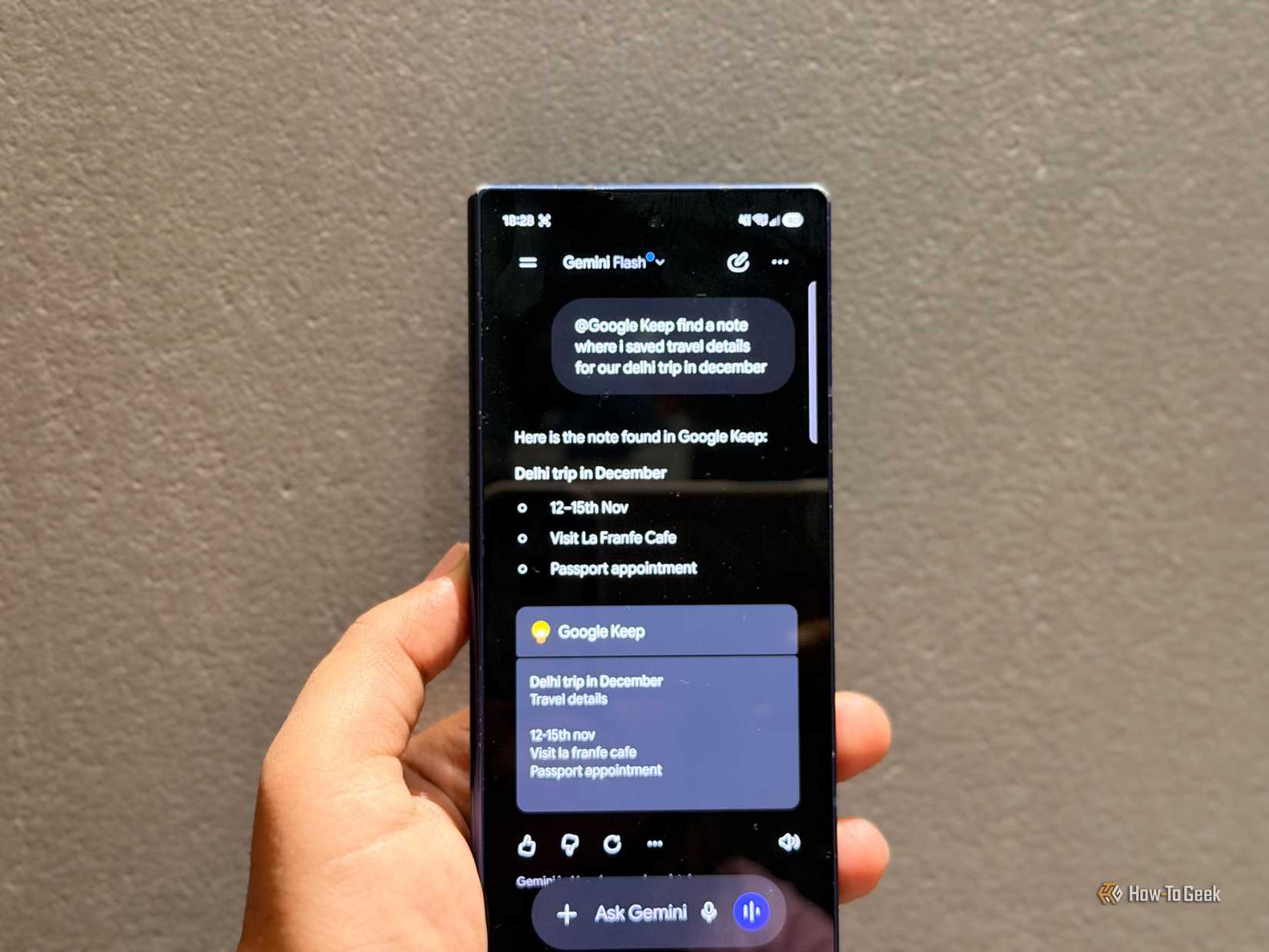
To set it up, I open Gemini, go to Settings, select Apps, and connect to Google Workspace. I make sure Google Keep access is enabled, then start a chat and use @Google Keep in the Gemini app.
For example, I save article ideas in Keep whenever something interesting pops into my head. Later, I can ask Gemini to help me find those ideas or summarize notes before I start writing.
I can ask “@Google Keep, find the note where I saved travel details for our Delhi trip in December” instead of scrolling through all my notes.
My notes are already there — now I have another way to find and use them.
I Stopped Rebuilding My Lists
Gemini Can Add What I Forgot to Include
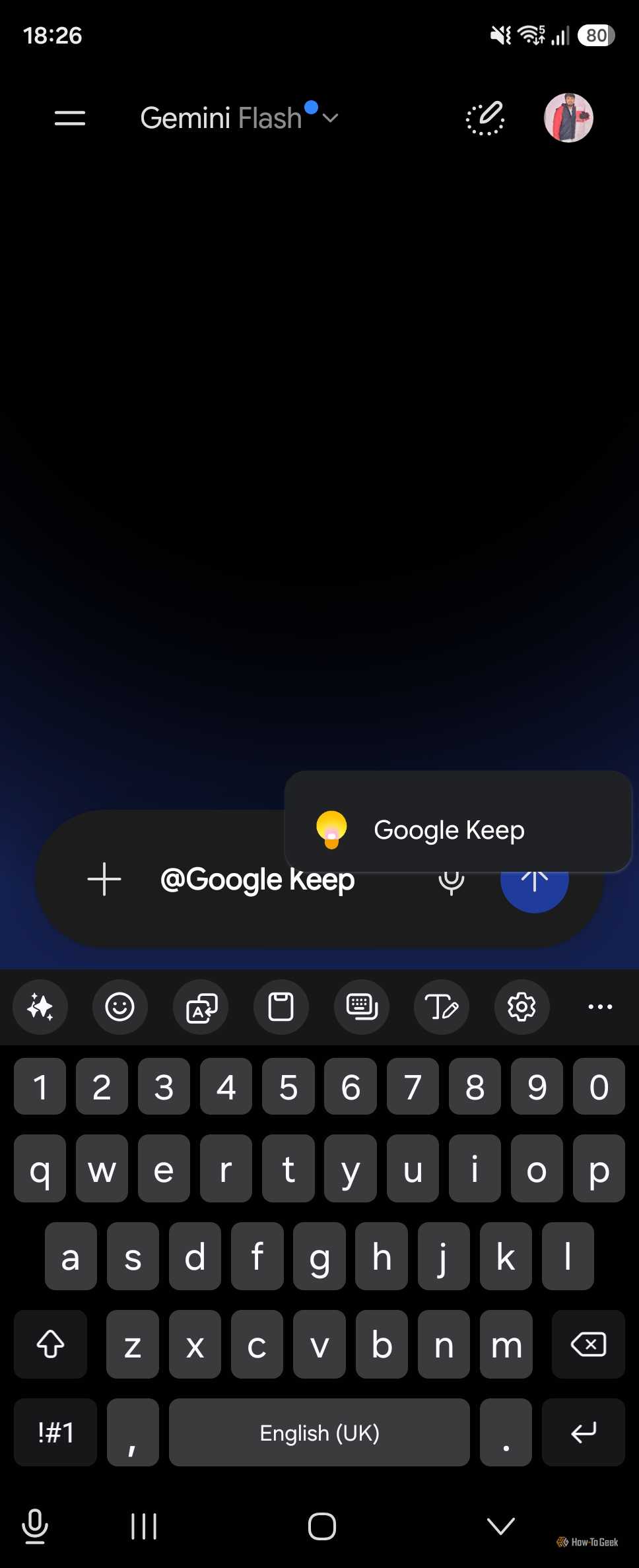
Once a list exists in Keep, Gemini can also help extend it. Rather than opening a note and manually adding forgotten items, I can ask Gemini to suggest additions based on what’s already there. For a packing list missing toiletries or chargers, a quick prompt surfaces those gaps without starting from scratch.
This combination of automatic list creation and AI-assisted updates means my notes stay useful without requiring constant manual upkeep — and that’s ultimately what made me stick with this workflow.