Microsoft Workaround for RGB Driver Game Crashes on Windows 11
Microsoft has issued a registry workaround for game crashes caused by RGB lighting drivers after the KB5121003 update on Windows 11.
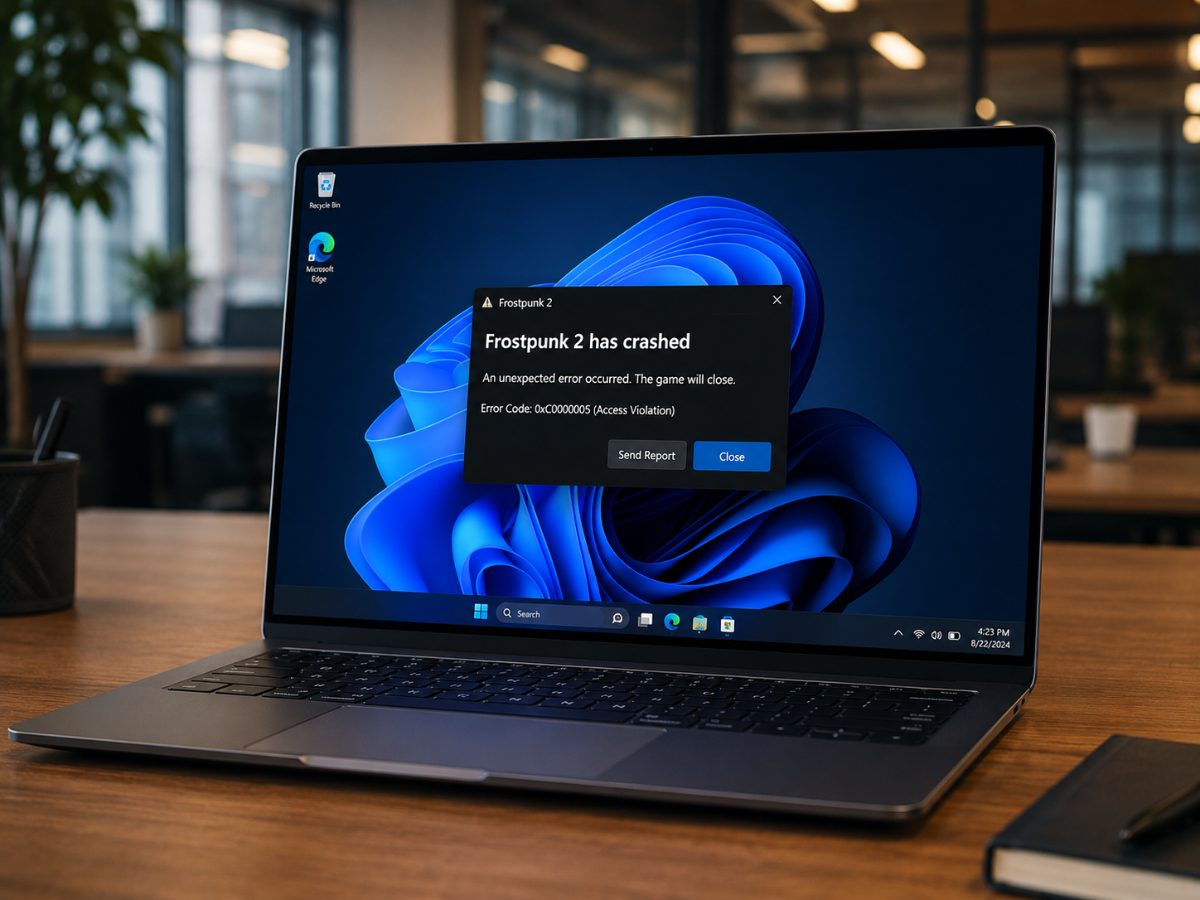
Microsoft has published a workaround for game crashes on Windows 11 that started after the KB5121003 update. The company has traced the problem to RGB lighting drivers.
The issue can cause games to freeze, restart the PC, or show an EXCEPTION_ACCESS_VIOLATION error. According to Microsoft, the crashes are linked to peripherals or internal components with RGB lighting that install drivers named like inpoutx64.
There is no permanent fix yet, but the registry workaround described below may help until one is available. Games reported to be affected include ARC Raiders, MARVEL Tkon: Fighting Souls, and THE FINALS.
Microsoft’s RGB Driver Finding and Registry Workaround
Microsoft’s acknowledgment in Windows Release Health reads: “Following the release of Windows updates on August 11, 2026 (KB5121003) and later, Microsoft received reports of issues involving inability to run certain games as expected.”
The company continued: “Ongoing investigation indicates that this issue is related to peripherals or internal device components which have RGB lighting features. Such devices may install drivers or code components with file names similar to inpoutx64. In systems where these drivers are found, the issue is then triggered by launching certain games.”
Reported symptoms include games freezing, closing unexpectedly, showing the EXCEPTION_ACCESS_VIOLATION error, or the device restarting without warning.
Microsoft’s workaround disables the affected driver using the Windows registry. Be sure to back up the registry before making any changes so you can undo them if needed:
- Open the Windows registry by opening the Start menu, typing “regedit,” and selecting Registry Editor from the results.
- Navigate to the key
HKEY_LOCAL_MACHINE\SYSTEM\CurrentControlSet\Services\inpoutx64, either using the folders on the left or by typing the path directly into the address bar. - On the right side, find the value named Start, double-click it, and enter the number 4 under Value data.
- Close the window and restart the computer.
RGB Feature Tradeoff and Fix Status
Microsoft warns that disabling this registry key may cause problems with RGB features on your devices or with the software that controls them.
Users who experience such issues and want to restore that functionality can re-enable the driver by restoring the registry key to its previous value, following Microsoft’s guidance on backing up and restoring the registry in Windows.
The workaround is available for users affected by the crashes, but Microsoft has not released a permanent fix. Users can apply the registry change for now and check Windows Release Health for updates as the investigation continues.