How to Use Endstate to Rebuild Your Windows PC After Reinstall
Endstate is a free, open-source app manager that captures your installed apps and settings, then restores them in one click after a clean Windows install.
I prefer to clean install Windows 11 whenever a major update is due, because it keeps my PC fast and clears out the junk that’s often hard to find any other way. The downside is reinstalling the hundreds of apps I have on my PC.
While I can rebuild my Windows setup using a Winget software snapshot, it can’t restore app settings and lacks a GUI. Instead, I used Endstate, an open-source app manager that captures your app list and settings and makes restoring them a one-click affair after a clean install.
What’s Endstate and How It Works
An open-source app manager that goes beyond a plain app list
Endstate is a free, open-source application manager built on top of Winget and Chocolatey. Where Winget’s export and import commands only handle the app list itself, Endstate adds a settings layer on top. It scans your PC for installed apps, captures their configuration files and preferences, and bundles everything into a single portable file you can carry to a new machine or a fresh Windows install.
The app is built in Go by developer Hugo Ander Kivi and is licensed under Apache 2.0. It uses Winget as its primary package manager for Windows, with optional Chocolatey support for apps outside Winget’s repository. Under the hood, it follows a declarative model where you describe the desired state of your machine, and Endstate figures out the steps to get there.
What sets it apart from a plain winget export is the settings restoration. Endstate currently supports capturing and restoring settings for a growing list of apps, including tools like Notepad++, Visual Studio Code, 7-Zip, Audacity, Microsoft Office, and more. For apps without a dedicated settings module, it falls back to Winget or Chocolatey for installation, so you don’t lose any coverage. You still get every app reinstalled; you also get your preferences back for the ones Endstate knows about.
Endstate is a newer, community-driven tool without Microsoft’s backing, and its settings support is limited to its module catalog rather than being universal. But for anyone who regularly clean installs Windows, even partial settings restoration saves a lot of post-install tedium.
Creating an Endstate Software Snapshot
Scan your PC and save everything to one file
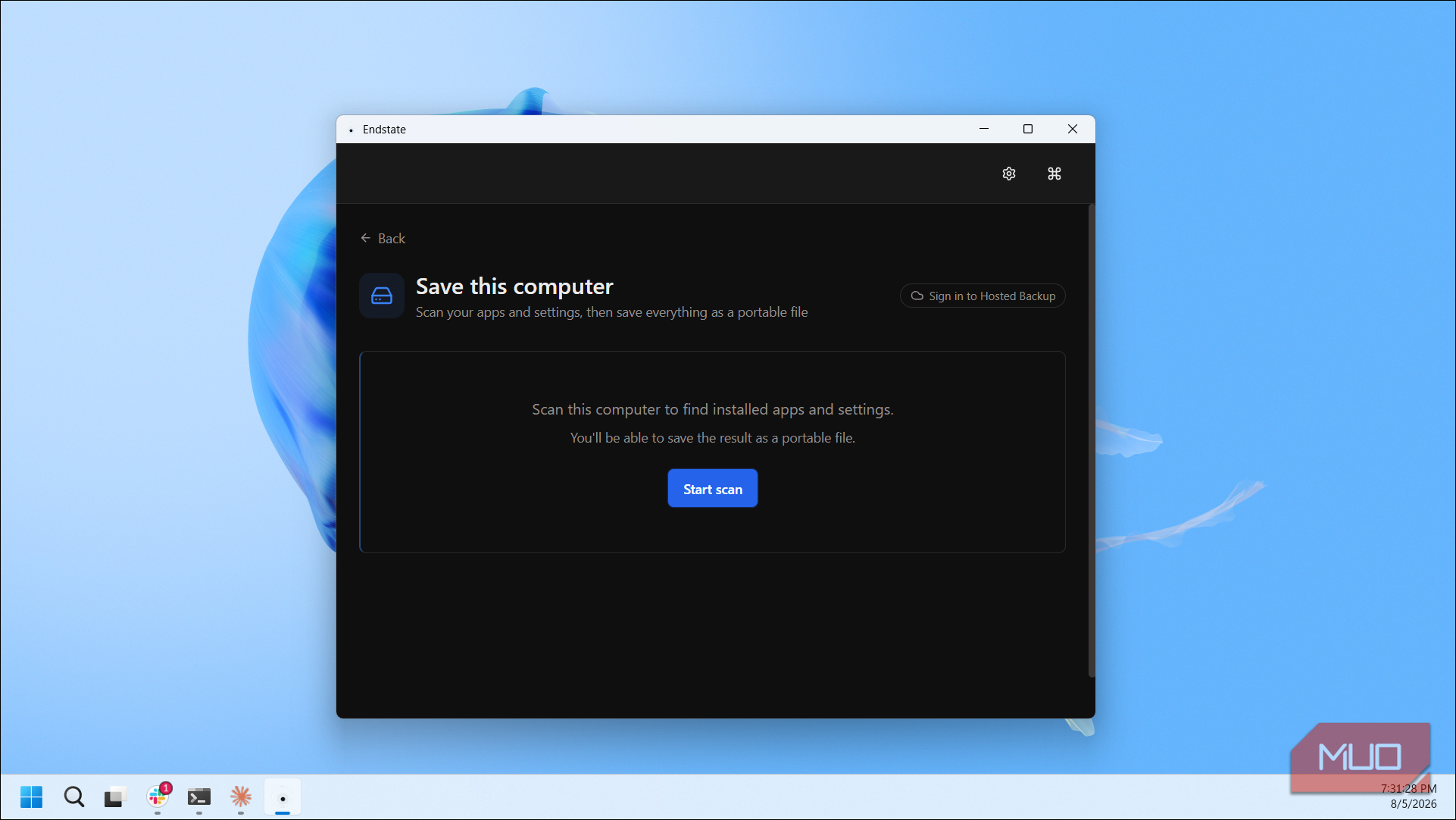
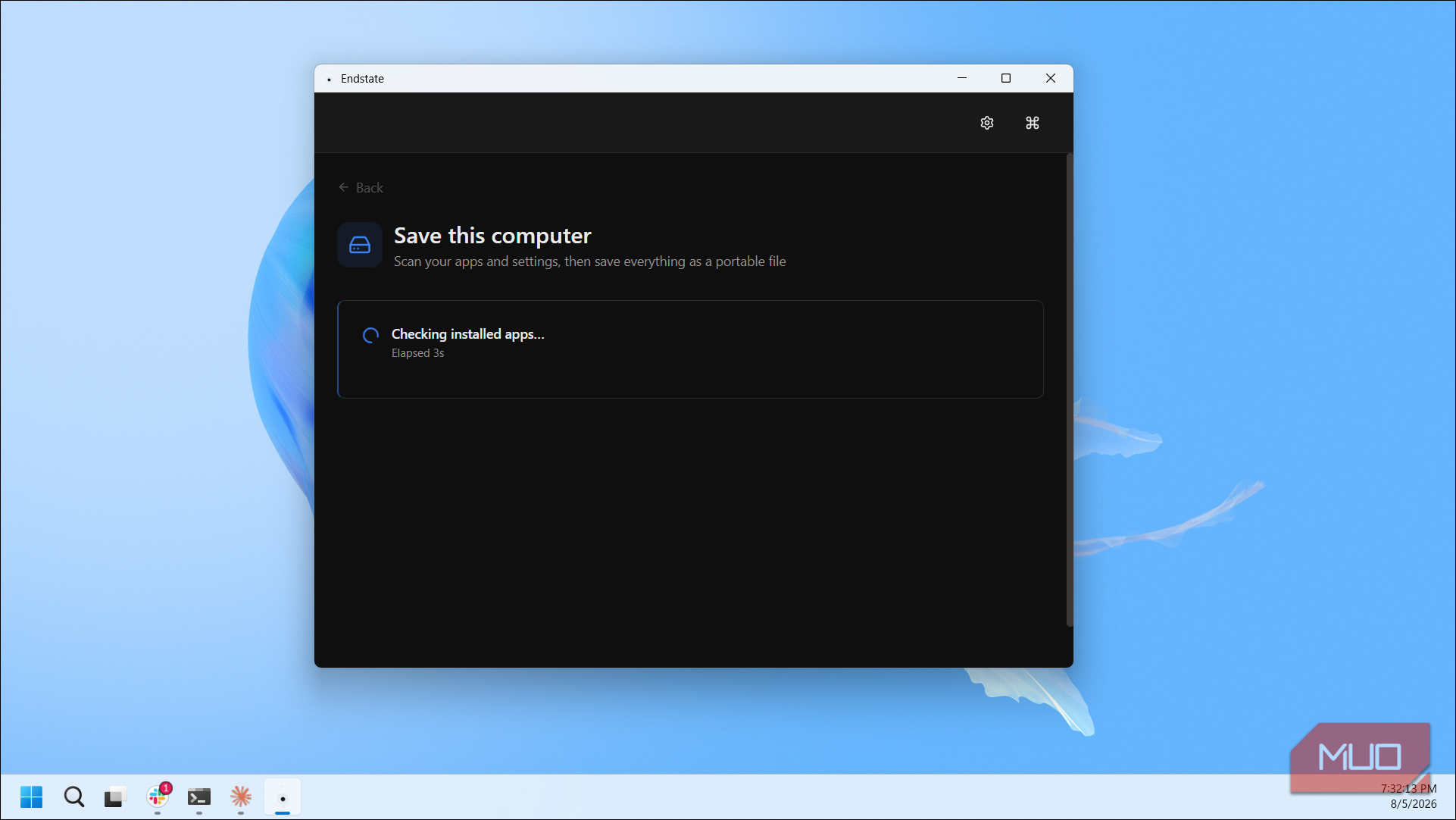
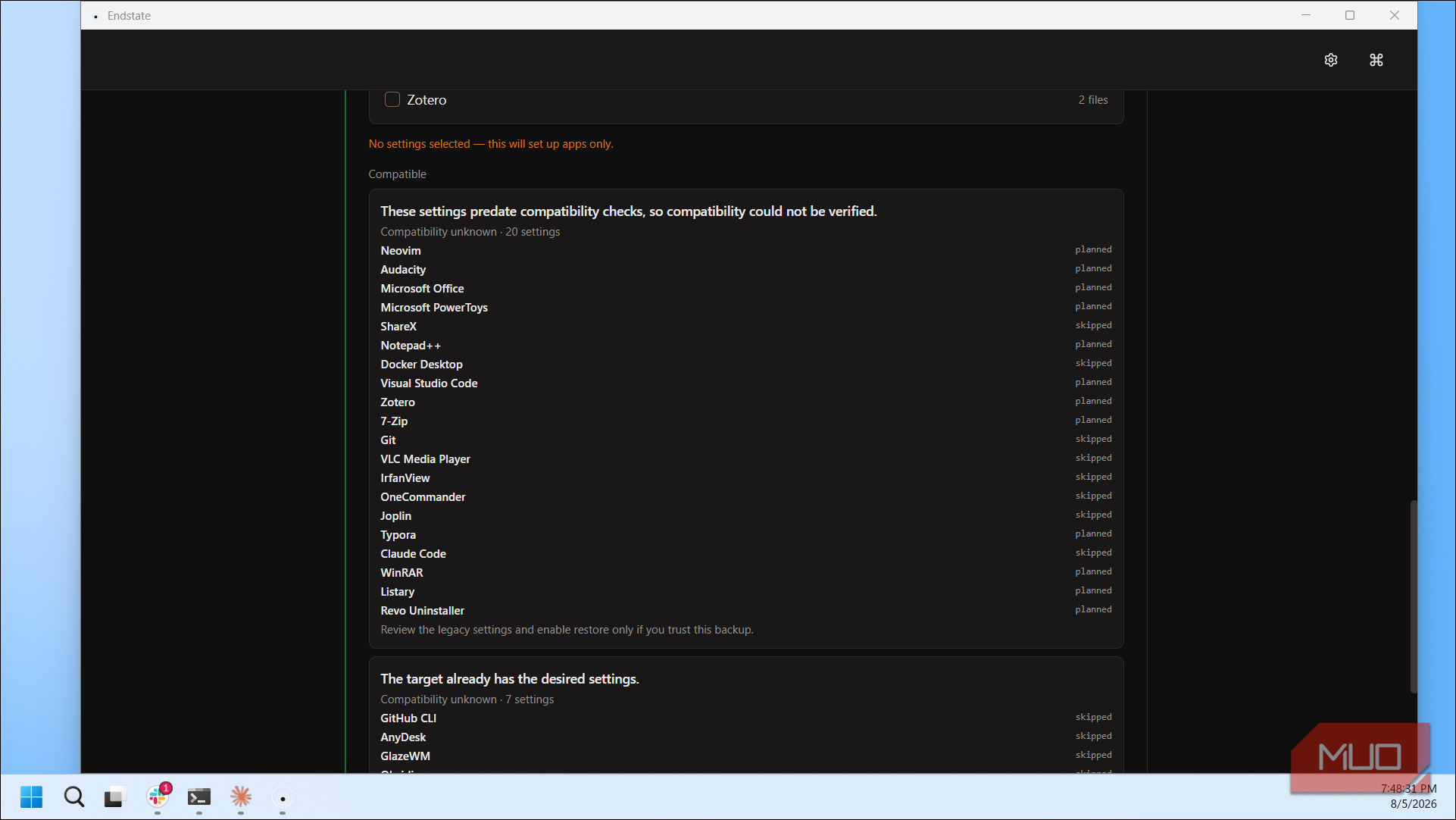
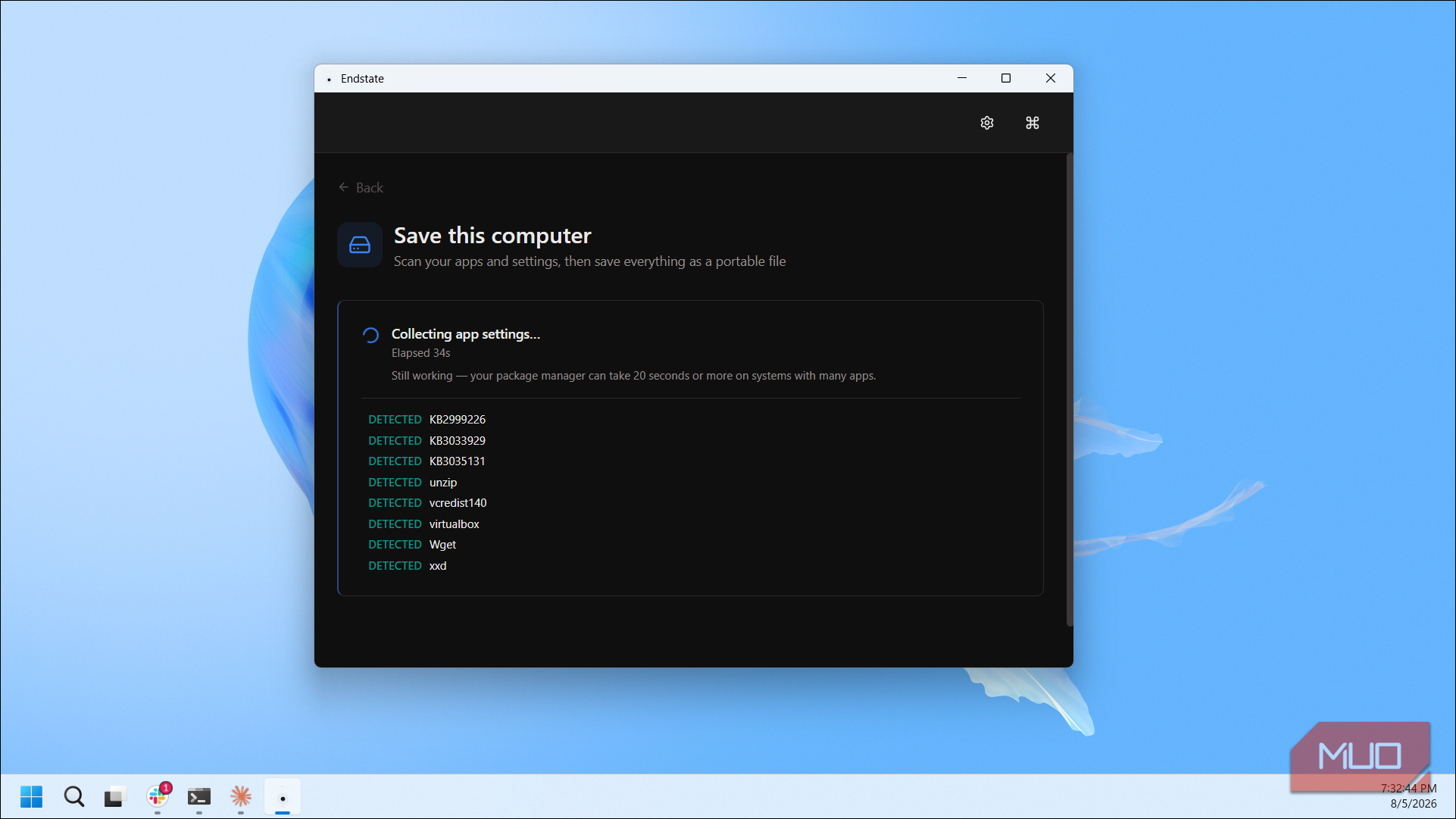
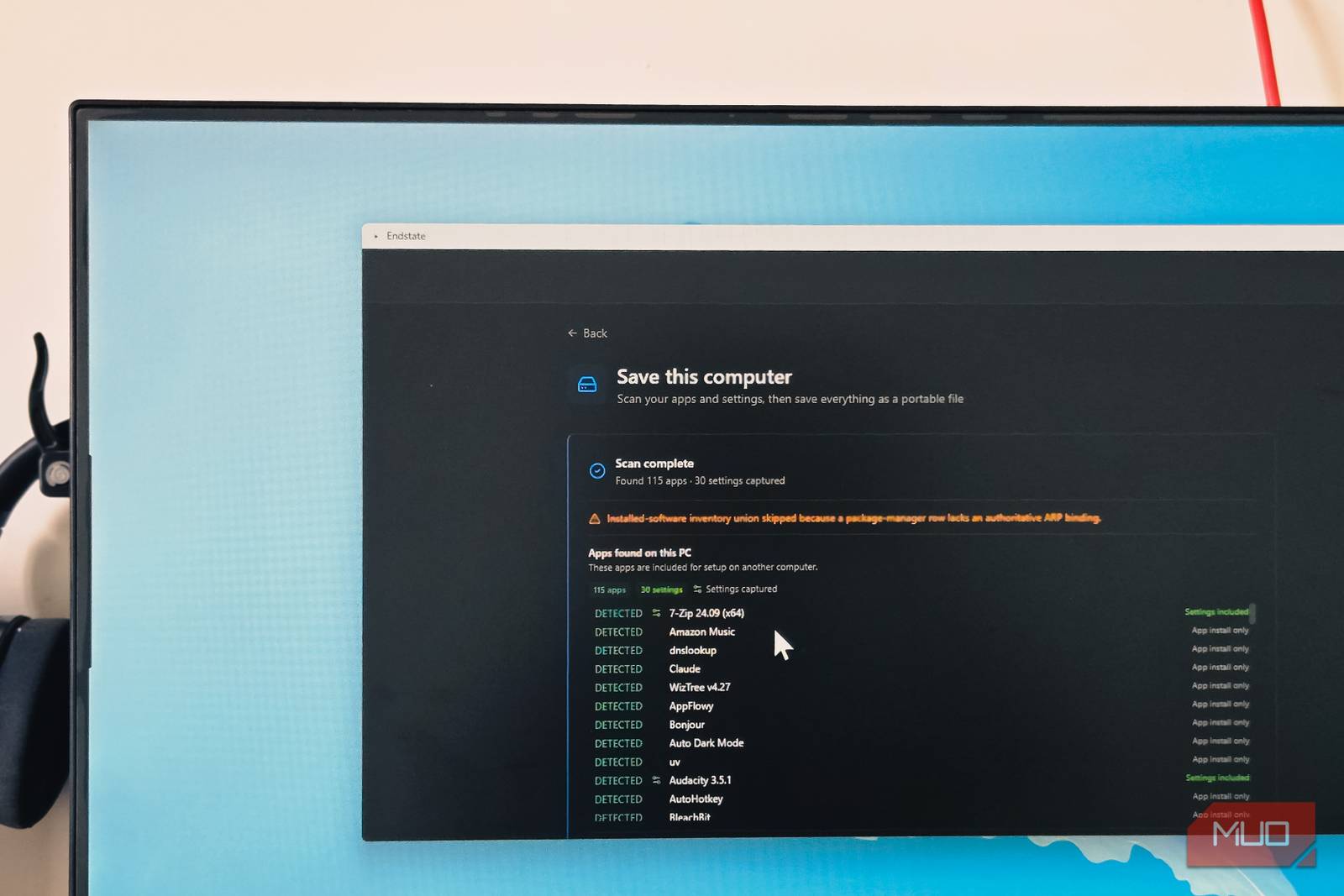
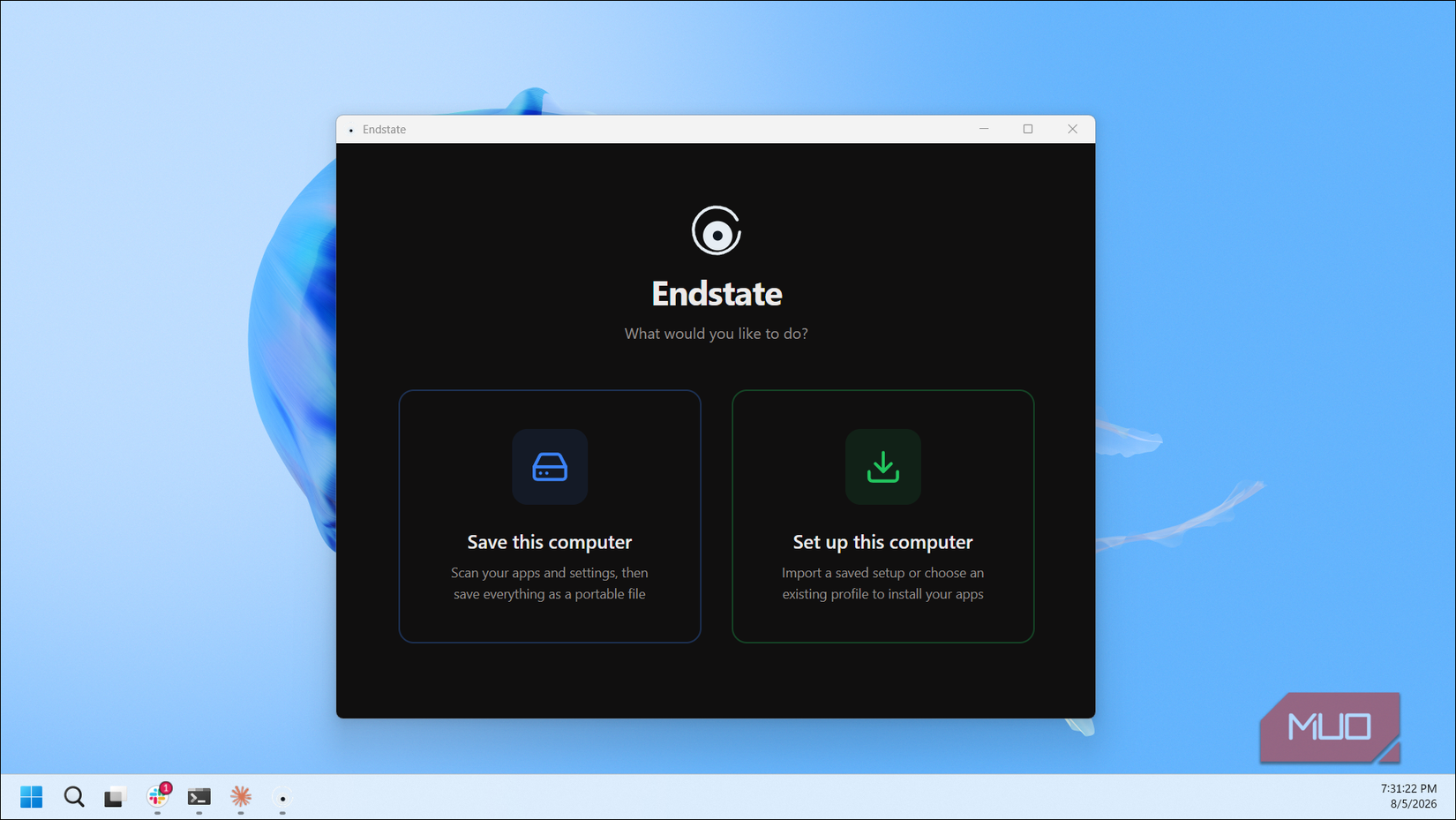
To create a snapshot, open Endstate and choose the Save option from the startup screen. Click Start Scan to let the app detect all installed applications on your PC. Once the scan completes, Endstate displays a list of found apps along with their compatibility status, indicating which ones have dedicated settings modules and which will be handled by Winget or Chocolatey as a fallback.
Review the list, confirm your selections, and let Endstate collect the app settings. When the process finishes, it saves everything to a single portable file that you can store on an external drive or cloud storage. That file is all you need to restore your entire setup on a fresh Windows installation.
Restoring Your Setup After a Clean Install
One file, one click to get back to where you were
After performing a clean install of Windows, download and run Endstate on the new system. Choose the Setup option from the startup screen and point it to the snapshot file you saved earlier. Endstate reads the file, installs each app through Winget or Chocolatey, and then applies the captured settings for every supported application automatically.
The restore process handles the entire queue without requiring manual intervention for each app. Once it completes, supported apps like VS Code and Notepad++ will already have your extensions, themes, and preferences in place, saving the repetitive configuration work that usually follows a clean install.
Endstate won’t cover every application on your system with full settings fidelity, but its combination of broad app installation support and selective settings restoration makes it one of the most practical tools available for anyone who reinstalls Windows on a regular basis.