How to Stop Google From Using Your Search Data to Train AI
Google now saves search data including images and voice recordings to train its AI. Here's how to turn it off in three steps.
Quick Answer: To stop Google from using your search data to help train its AI, go to myactivity.google.com, open Search Services History, and turn off Save Media, Search History, and Personalized Recommendations. You can also choose “Turn off and delete activity” to remove past search data and prevent future searches, uploads, and recordings from being saved.
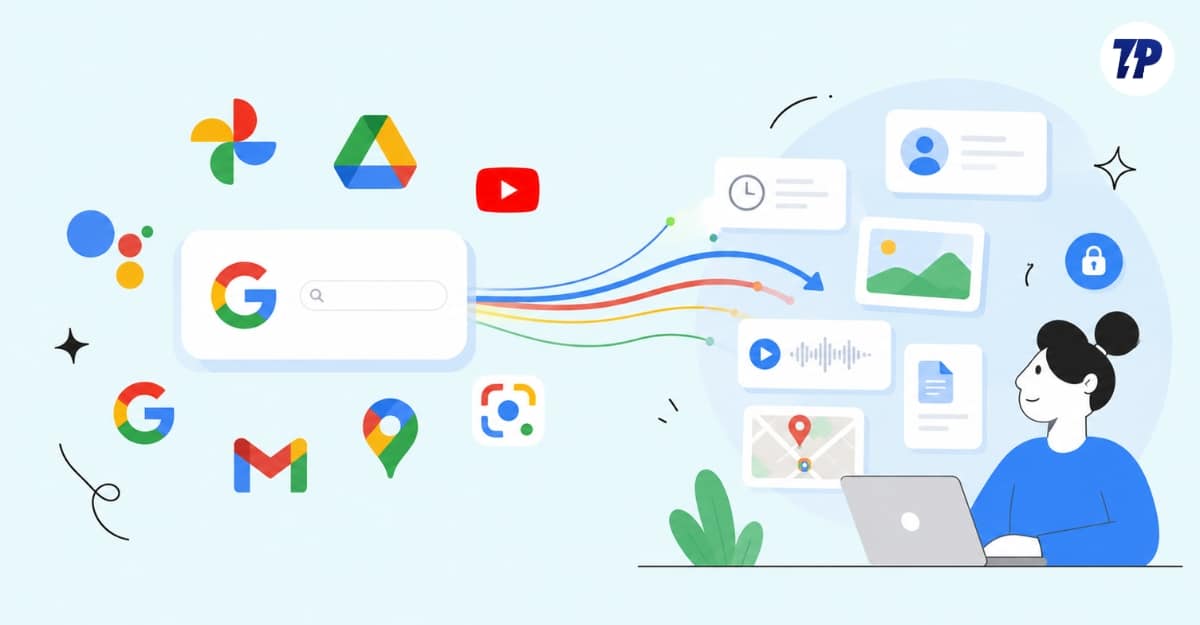
Google recently announced that it will save your search interaction data — including images you upload to Google Lens, voice recordings from real-time live search tools, photos used for visual results, audio used in Google Translate, and all other queries and interactions — under a new, separate search history setting.
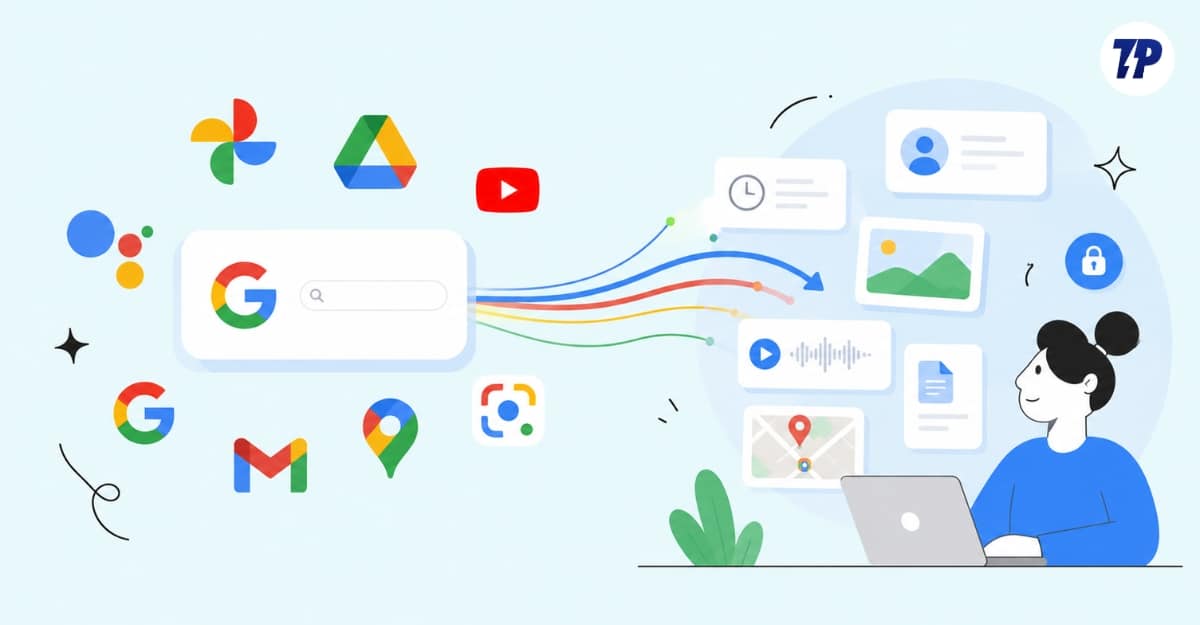
These search history settings were previously inside the Google app and web and app activity. Google has now separated them under the new Google Search History Settings and collects more data formats than before.
Google Search Services history is automatically enabled if your web and app activity is turned on. Google notifies users by email, but most miss it, leaving this option on for most accounts.
Information collected under this new setting can sometimes be sensitive. Many people upload personal images and images containing sensitive information to Google Lens for visual search.
If you don’t want Google to save your search history, you can turn it off from your Google account activity settings. You need to turn off three different controls to prevent Google from using your data for training its services and for personalization:
- Turn off the Save Media option so Google won’t save media you used for search.
- Turn off Search History settings so Google won’t save your search activity.
- Turn off Search Personalization settings.
Turn Off Save Media
Google Search Services history now includes a sub-setting to save media you upload. When enabled, all media uploaded to Google search service products — such as images sent to Google Lens or voice recordings used for Google Search live — will be saved by Google and used for training its products and services.
You can turn off Save Media while keeping Search History enabled, which allows Google to save your activity but not the media you upload.
Step 1: On your mobile or desktop, visit myactivity.google.com/myactivity
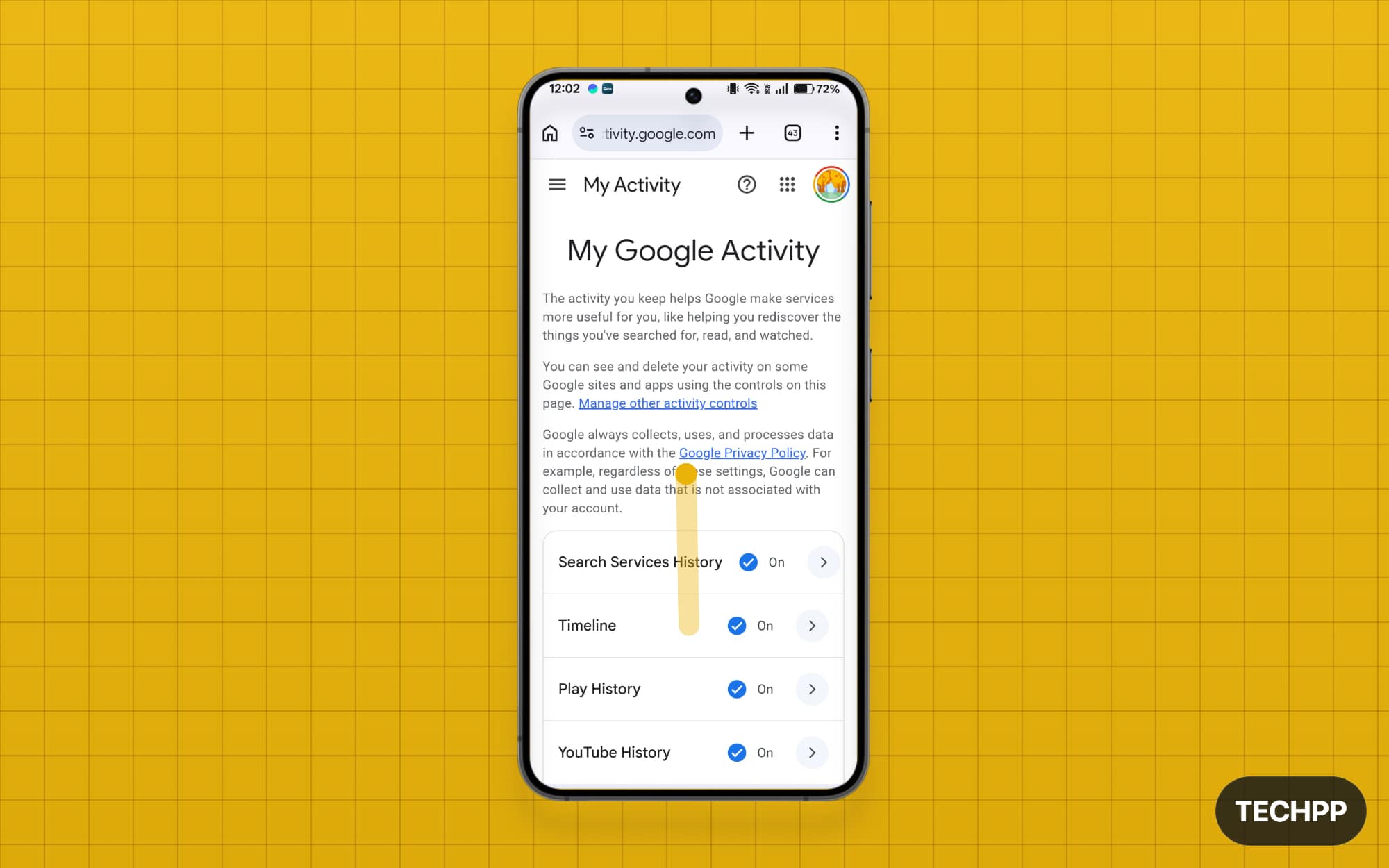
Step 2: Scroll down and tap on Search Service History.
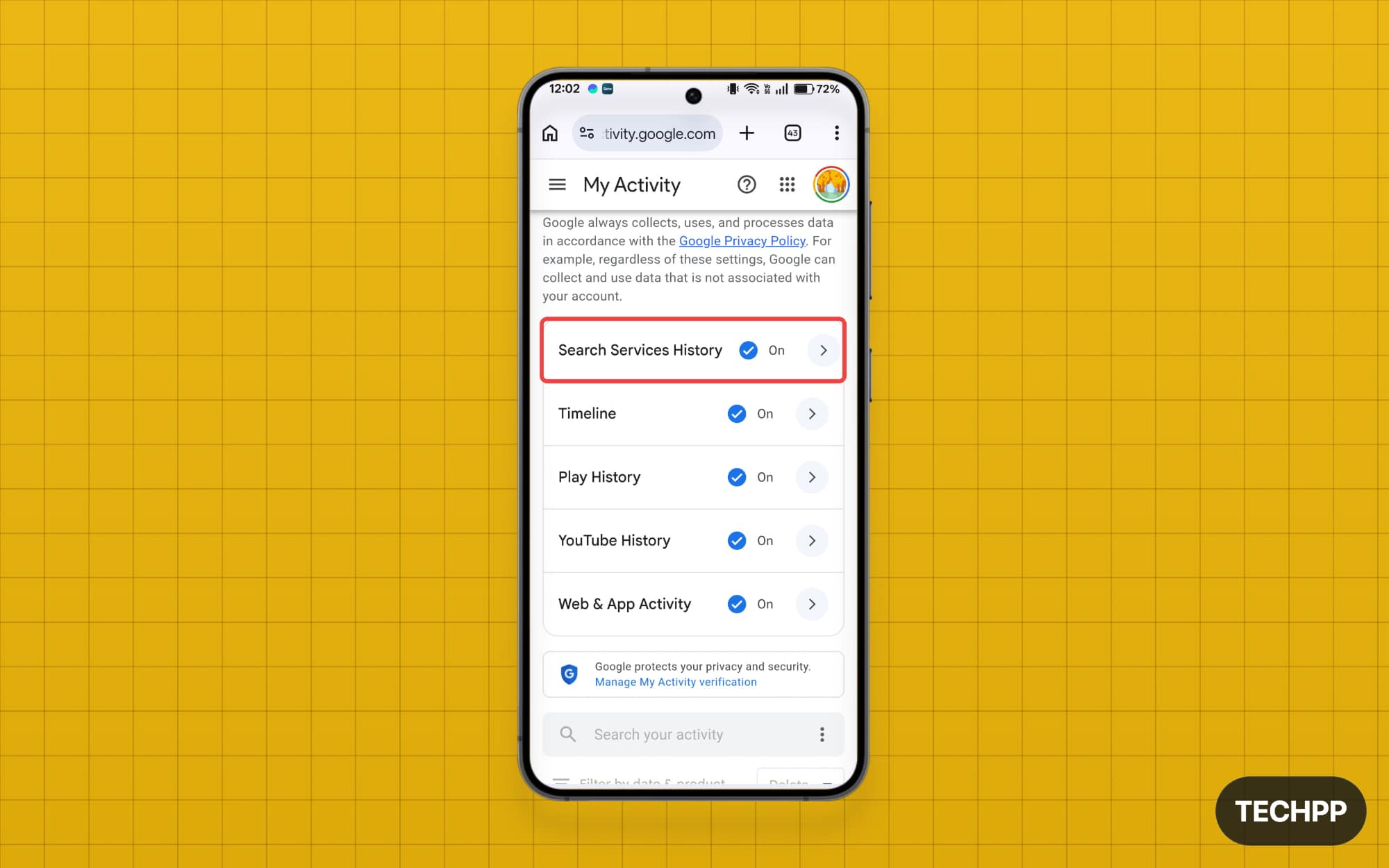
Step 3: Scroll down and, under Search Services History settings, find the Save Media option. If it is enabled, uncheck it to turn it off.
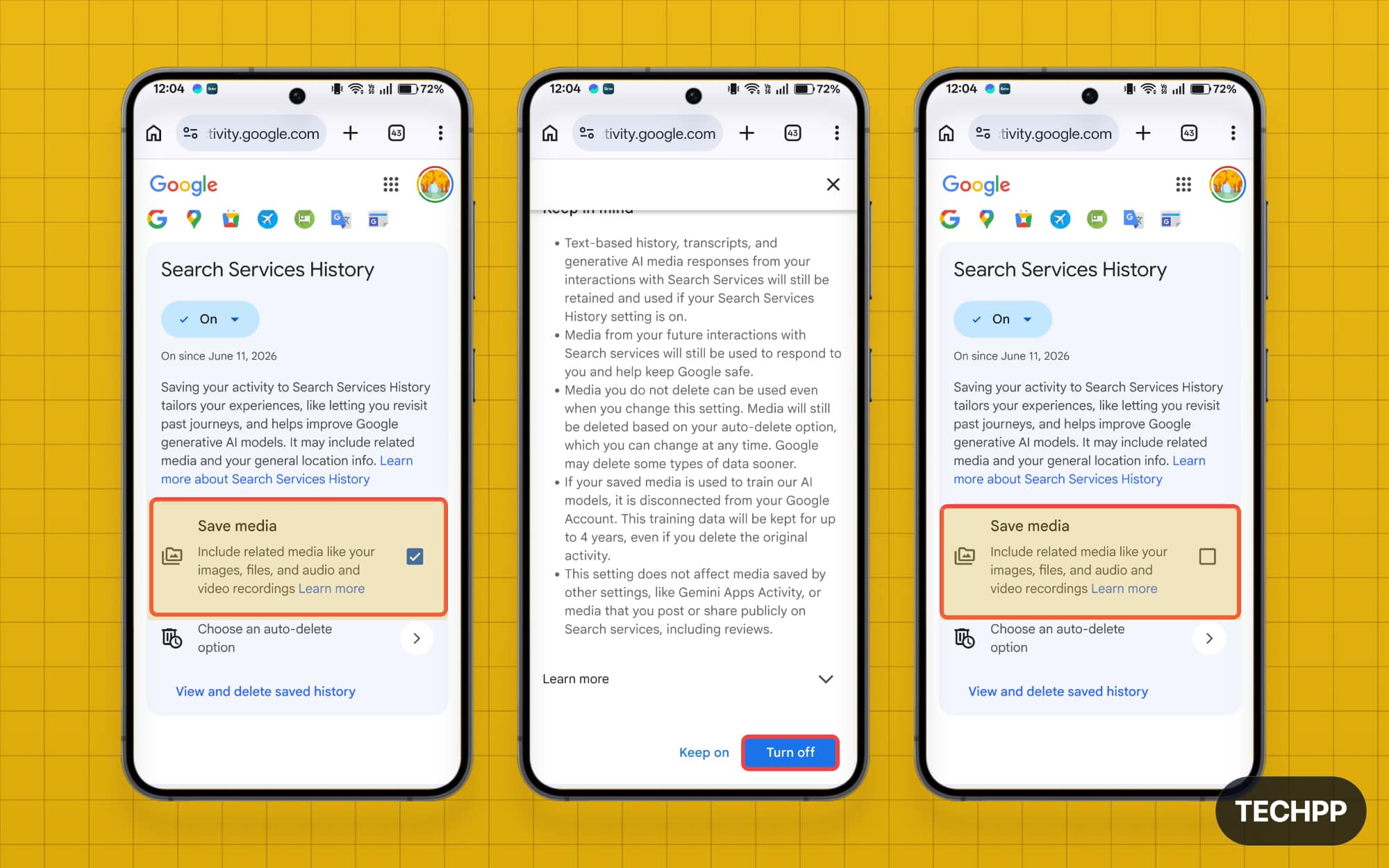
Turn Off Google Search Services History
When Search Services History is enabled, Google saves all your search services activity, including data from Google Lens, Google Translate, and more. Turning this off stops Google from saving your activity across these apps. It also disables the Save Media setting, so Google won’t save your uploaded media either.
Step 1: On your mobile or desktop, visit myactivity.google.com/myactivity
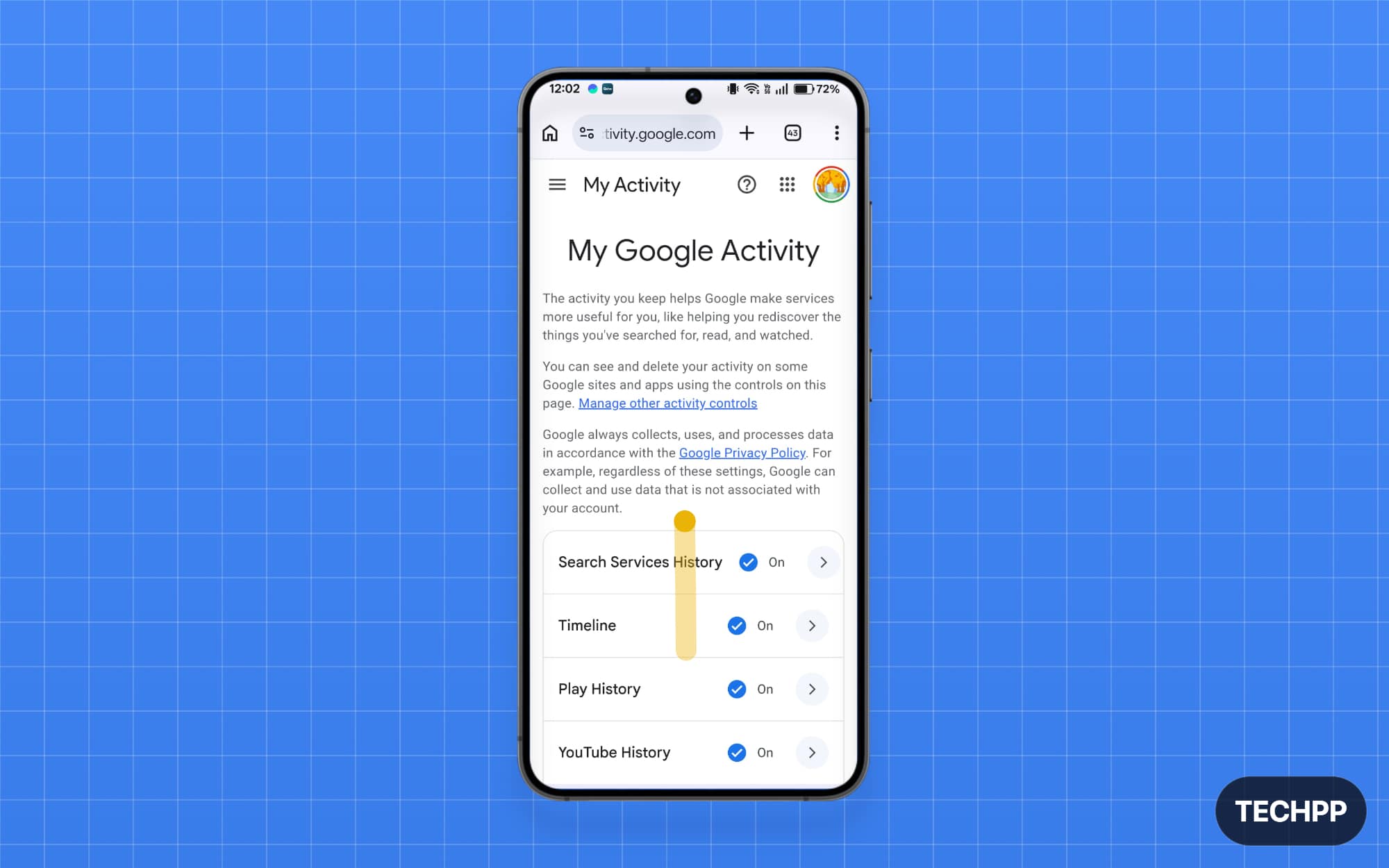
Step 2: Scroll down and tap on Search Service History.
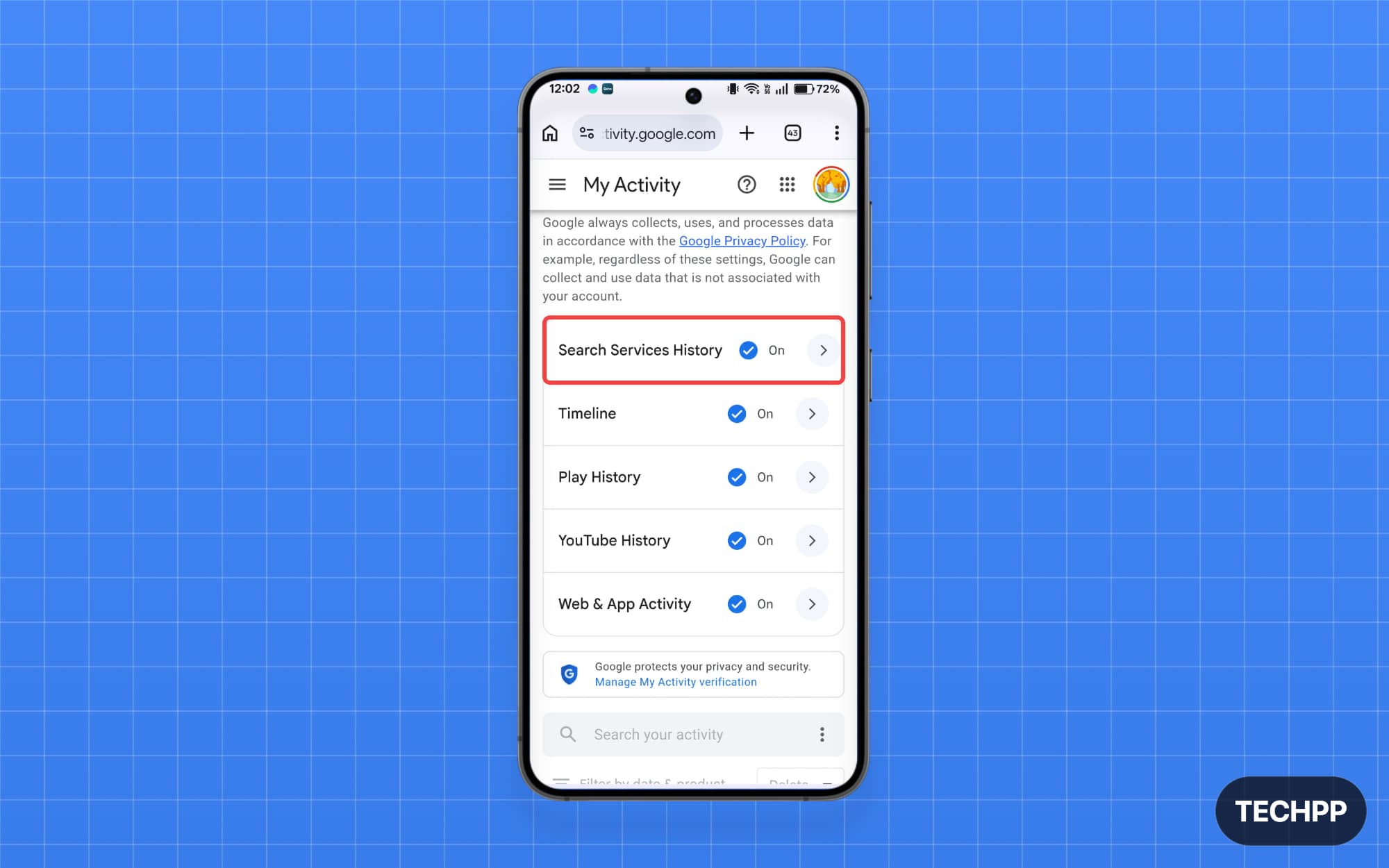
Step 3: Under Search Service History, tap the drop-down and select one of the following options:
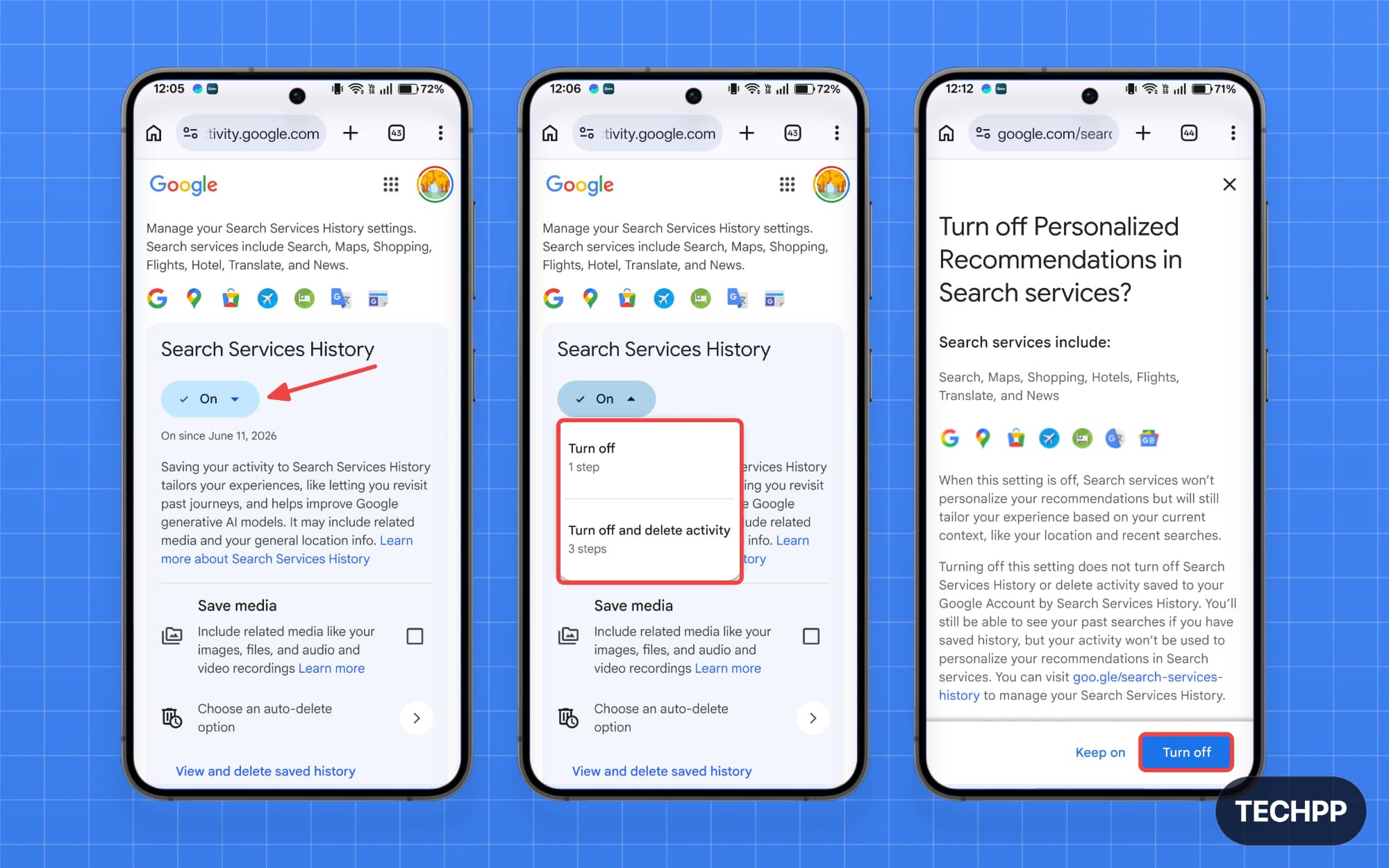
- Turn off: From now on, Google won’t save your data.
- Turn off and delete activity: Google won’t save your search activity and will also delete your past search activity.
Turn Off Personalized Recommendations
Personalized Recommendations is the setting that allows Google to use your collected search history and service data to offer personalized ads and recommendations.
Turning this off prevents Google from using your search data for personalization. Note that this is an independent setting — it won’t affect Search Services History. If you only turn off Personalized Recommendations while leaving Search Services History on, Google can still use your search data to train its services.
Step 1: On your mobile or desktop, visit myactivity.google.com/myactivity
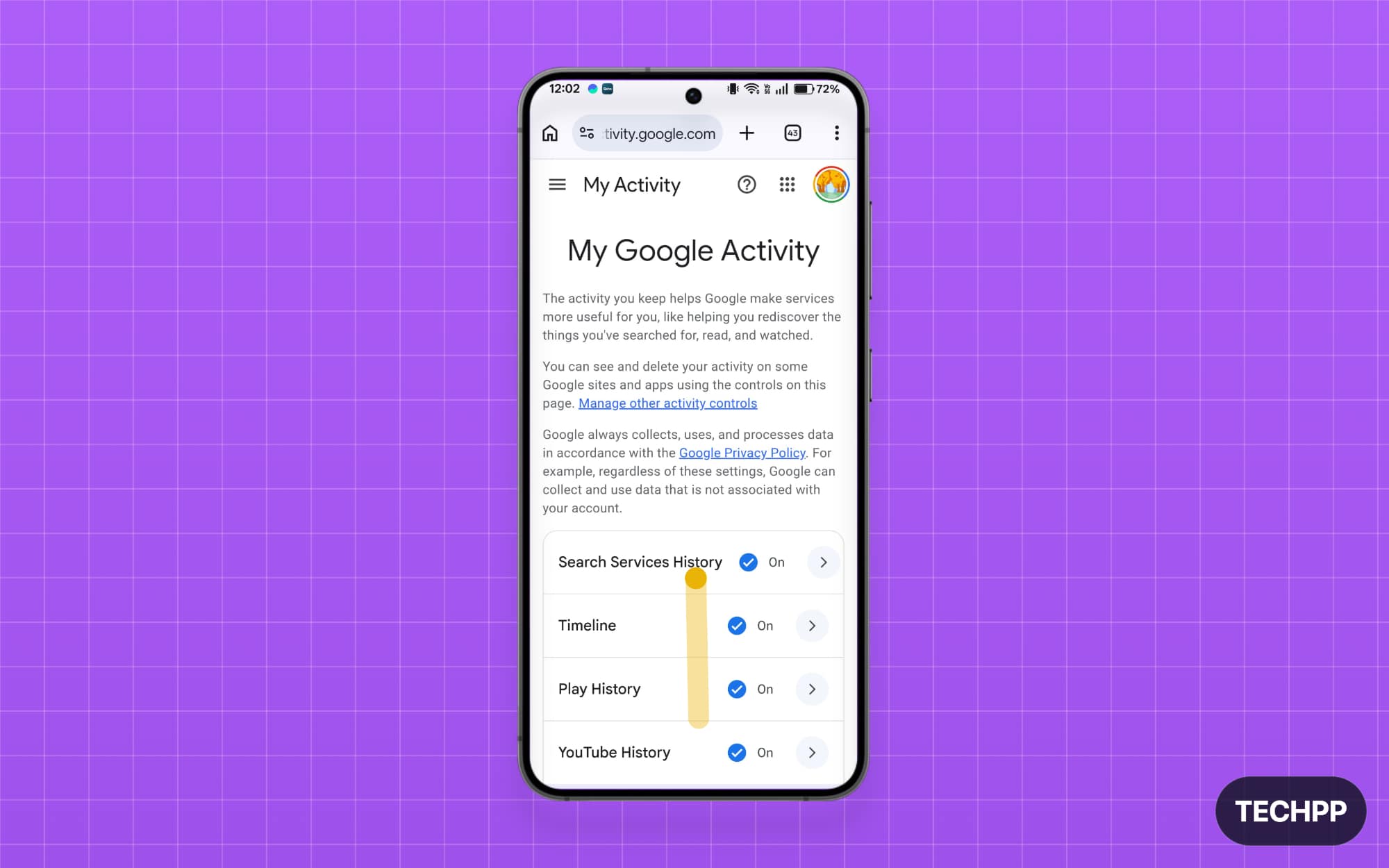
Step 2: Scroll down and tap on Search Service History.
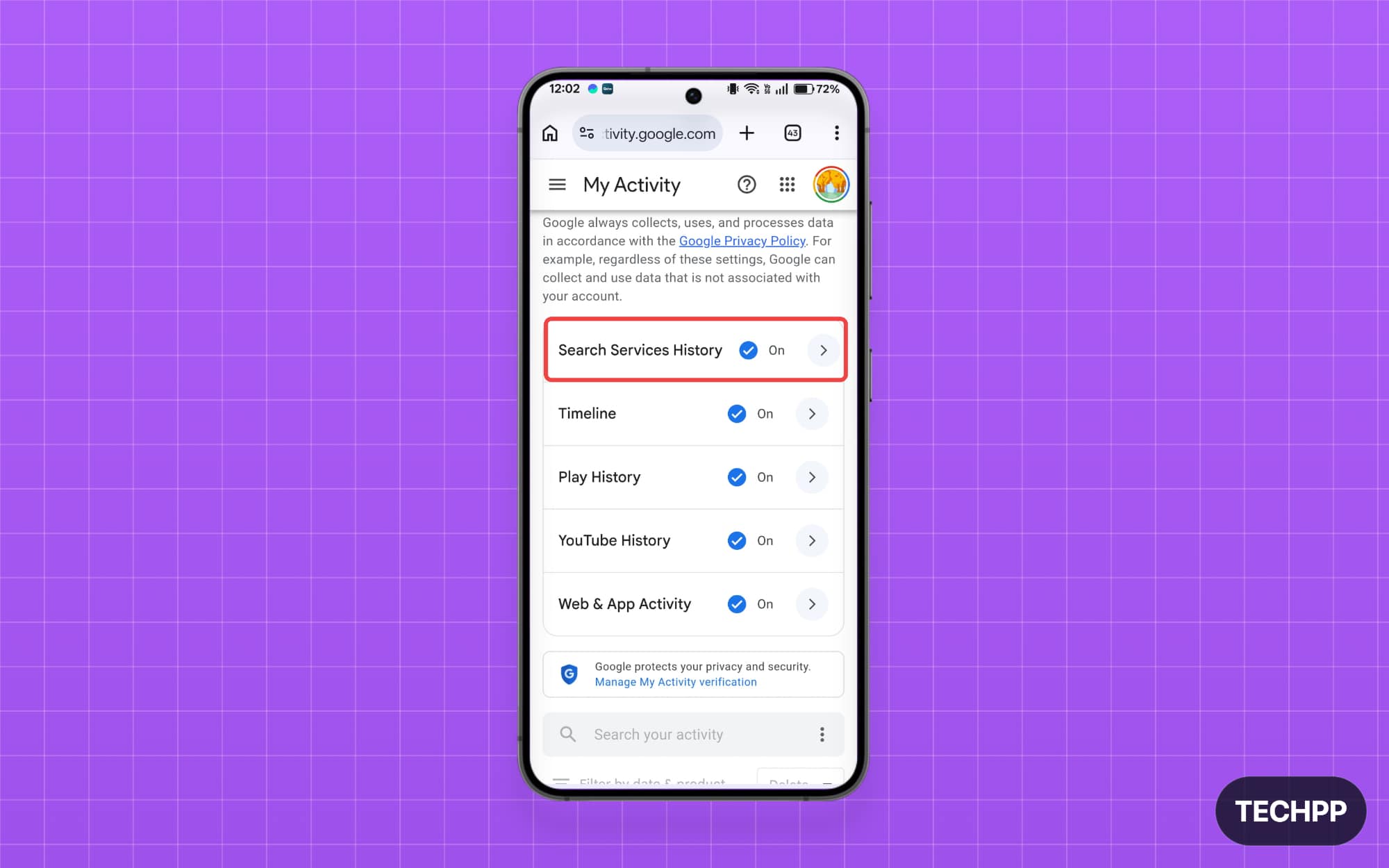
Step 3: Scroll down and tap on Search Services Personalization settings.
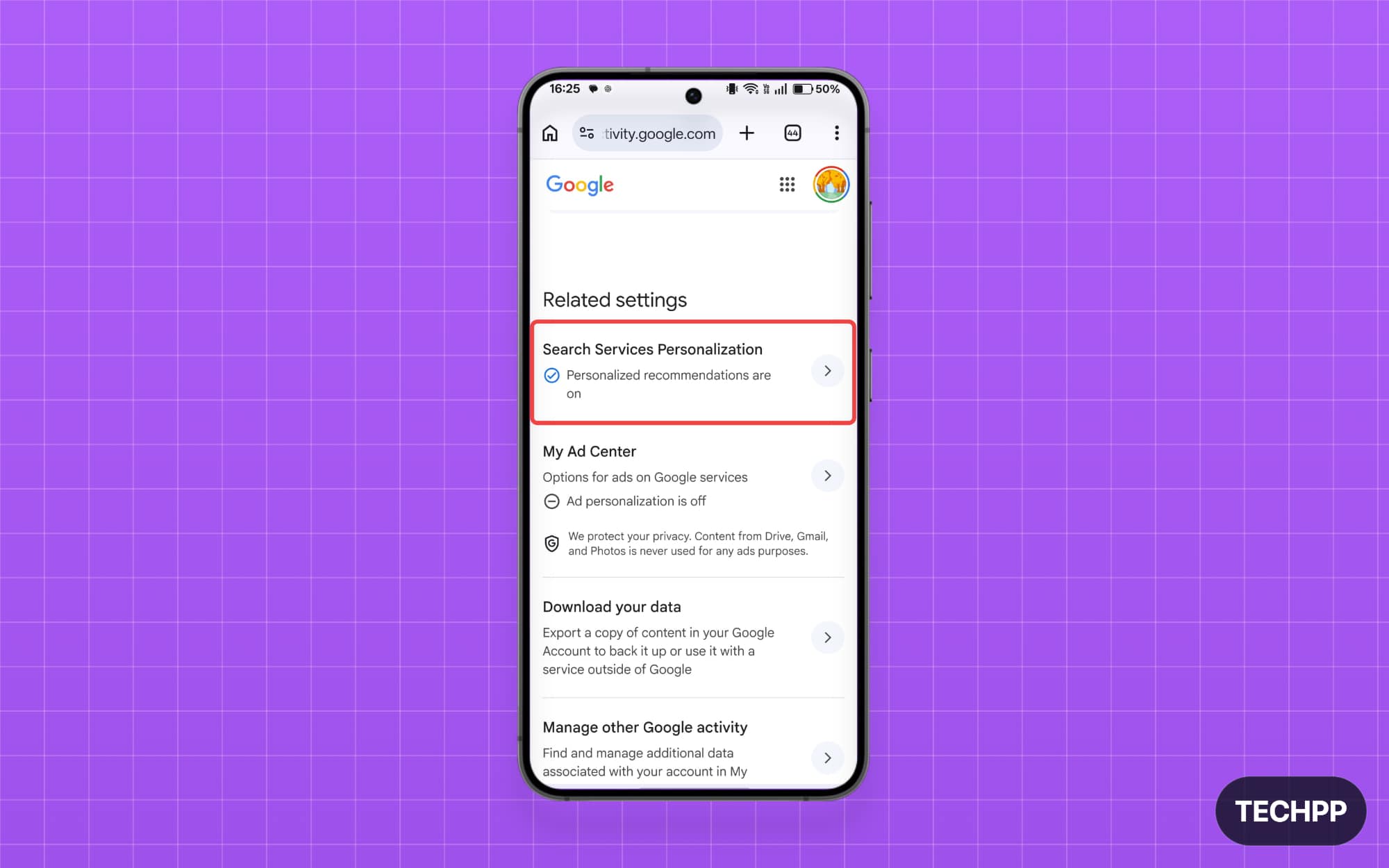
Step 4: Tap on Personalized Recommendations and turn it off.
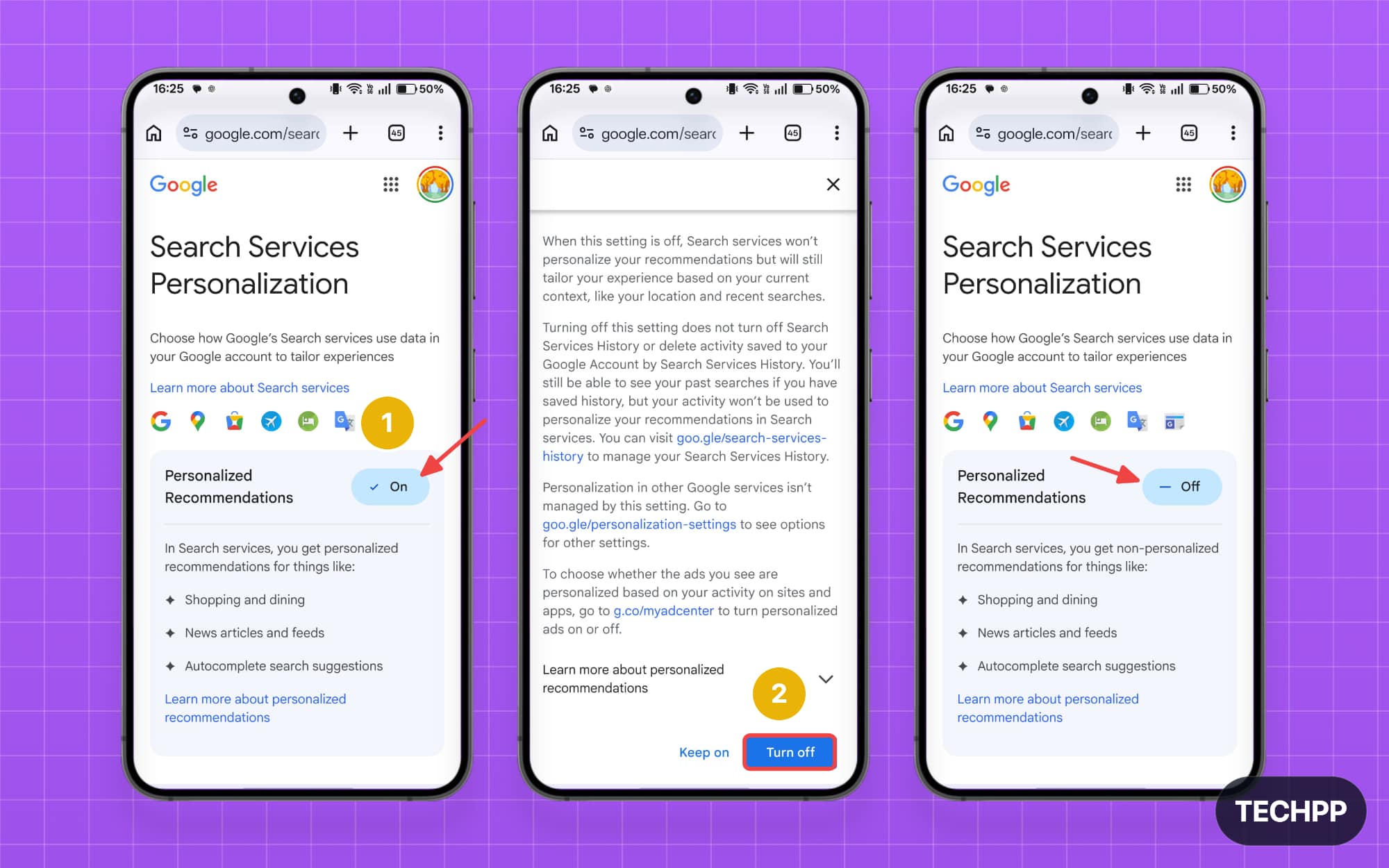
Note that if you had already turned off Web and App Activity settings, or had previously turned off Google Search History saving, the new option will not be enabled by default.
Keep Your Search Activity Private
Many companies are aggressively collecting user data to train their AI models. Meta recently announced it will use third-party website data to personalize feeds inside its apps. Google, with this latest change, is now collecting more data formats than it previously did by default.
Google does allow you to turn off data sharing, but most people never do so because privacy policies are long, technical, and difficult to understand. Taking a few minutes to adjust these three settings is an easy way to limit how much of your search data Google collects and uses. For a broader look at what Google collects and how to control it, the All Google Account Privacy Settings Explained guide covers the full picture.