How to Install the 123Movies Add-On on Kodi
A complete guide to installing the 123Movies add-on on Kodi, including VPN recommendations and important archival notices about repository availability.
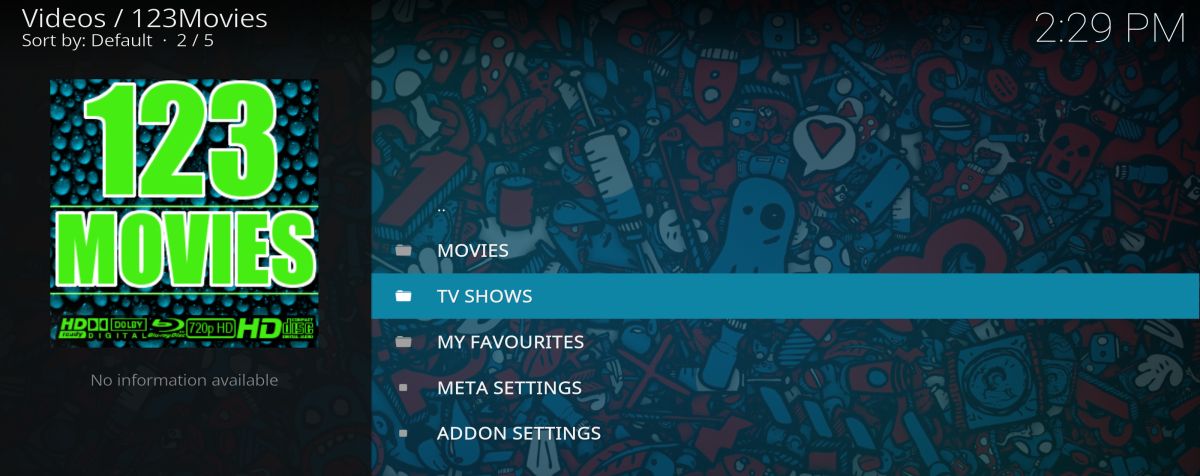
Kodi makes it easy to watch movies and TV shows from the comfort of your laptop, PC, mobile device, or tablet. It’s free to download, completely open source, and has built-in functionality to support third-party add-ons that extend its abilities even further. If you’re looking to get the most out of the 123Movies Kodi add-on, you’ve come to the right place — though the experience does come with a few bumps in the road.
Third-party add-ons turn Kodi into a media center powerhouse, though their reliability can be variable. Issues such as broken links, slow websites, mislabeled streams, and videos that go offline for no apparent reason plague many of these services. And thanks to the efforts of content publishers and politicians, some add-ons can even disappear without warning. If your favorite Kodi extension stops working, you can always find a replacement. One multi-purpose Kodi add-on that gained popularity was 123Movies, a simple plug-in that aimed to put popular movies and TV shows at your fingertips — though as with most third-party add-ons, its current availability should be verified before you attempt to install it.
Before Installing Kodi: Get a Good VPN
Kodi is a reliable program that tens of thousands of users safely install and run every day. The software itself doesn’t present any dangers, but some of the content Kodi grants access to can raise some red flags. Internet service providers often monitor your traffic, look for certain patterns of activity, and report those events to companies and government agencies. Streaming movies and TV shows through Kodi is often one of those watched activities, so if you plan on using Kodi, you’ll want to take a few precautions.
Fortunately it’s extremely easy to cover your tracks and use Kodi safely and anonymously. All you have to do is install a virtual private network. VPNs function like a tunnel between your computer and the internet. Data that leaves your device gets encrypted so no one, not even your ISP, can monitor your activity. That encrypted information passes through the VPN’s servers where it’s anonymized and eventually returned to your computer. Everything you do while connected to a VPN is private, so you can surf and stream whatever you like without worry.
Recommended VPN: IPVanish
There are hundreds of VPNs on the market, each one promising the fastest speeds, the highest encryption, and the most features. It can be tough to choose the right one for your needs, especially if you’re just getting into video streaming through Kodi. Using a reliable VPN is particularly important when running the 123Movies Kodi add-on, as it keeps your streaming activity private.
One of the most reliable and consistently fast VPNs is IPVanish. The service has been around for years and features custom apps for tons of devices, including desktop operating systems, smartphones, and tablets. Basically, if you can install Kodi on it, you can pair it with the IPVanish software for the best in private streaming.
IPVanish’s extensive network of over 750 servers in 60 different countries offers fast connections around the world. The company’s ultra-secure L2TP and OpenVPN protocols use 256-bit encryption as standard, helping keep your data safe in transit. This level of security is ideal for anyone using the 123Movies Kodi add-on regularly. For more information on how VPNs work, the Electronic Frontier Foundation offers a helpful overview of online privacy tools.
Download Kodi Safely Before Installing Any Add-On
Before you install any add-on, make sure you’re running an official, up-to-date build of Kodi itself. The safest place to download Kodi is directly from the official website at kodi.tv, or from your platform’s official app store — for example, the Google Play Store on Android. Kodi supports a wide range of platforms, including Windows, macOS, Linux, Android, iOS/tvOS, Raspberry Pi, and various Android TV devices.
It’s important to avoid downloading Kodi from random APK sites, unofficial mirrors, or third-party app stores. These sources may bundle modified or outdated versions of Kodi that introduce security risks to your device. Starting with the official build ensures you have the correct version and the most current security patches before you add anything on top.
Kodi’s Official Position on Third-Party Add-Ons
There are a few important things to understand about Kodi before you follow any third-party add-on install guide. First, the official Kodi application does not include any movies, TV channels, or streaming sources by default. Out of the box, Kodi is simply a media player — it only plays content you point it at.
Second, 123Movies is a third-party add-on and is not developed, distributed, or supported by Team Kodi. The official Kodi forums and support services do not provide assistance for third-party add-ons, and they explicitly do not support add-ons that access pirated or illegally sourced content.
The practical takeaway: if 123Movies stops working, you should not expect any help from official Kodi channels. If you’re looking for a reliable, supported streaming experience, consider legal add-ons available directly from the official Kodi repository, or use Kodi to organize and play your own personal media library.
How to Install 123Movies on Kodi
⚠️ Archival Notice: The installation steps below were accurate as of 2017 and are preserved here for reference. The source URL (https://muckys.mediaportal4kodi.ml) and the repository file (repository.mdrepo-1.0.2.zip) referenced in this guide are historical and should be verified before you attempt to follow these steps. As of the time of this update, this repository is very likely offline or no longer maintained. If the source URL fails to connect, repeated retries will not fix the problem — this typically indicates the repository is permanently offline. Treat this section as an archival guide rather than a currently working walkthrough.
Prerequisites for modern Kodi builds: Before attempting the steps below, make sure you are running the current stable release of Kodi. You will also need to enable third-party add-on installation, which is turned off by default. To do this, go to Settings > System > Add-ons and toggle Unknown sources to on. Note that exact menu names and the location of this setting vary between Kodi versions, and the screenshots in this article reflect an older interface that may look different from what you see today.
Most Kodi add-ons are independently distributed and can be installed from a wide variety of sources. Repositories such as SuperRepo, for example, host a massive number of add-ons, allowing you to add a single source to install loads of extras.
The 123Movies Kodi add-on does things a bit differently, however. While you can install the extension from any repo, you must have a specific one present in your sources file for the add-on to work. Since that repository is required anyway, the installation steps below are simplified so you can get 123Movies up and running as quickly as possible.
Installing 123Movies on Kodi:
- Open Kodi on your local device.
- Click on the gear icon to enter the System menu.
- Go to File Manager > Add Source (you may need to click the double-dot to move to the top of the directory).
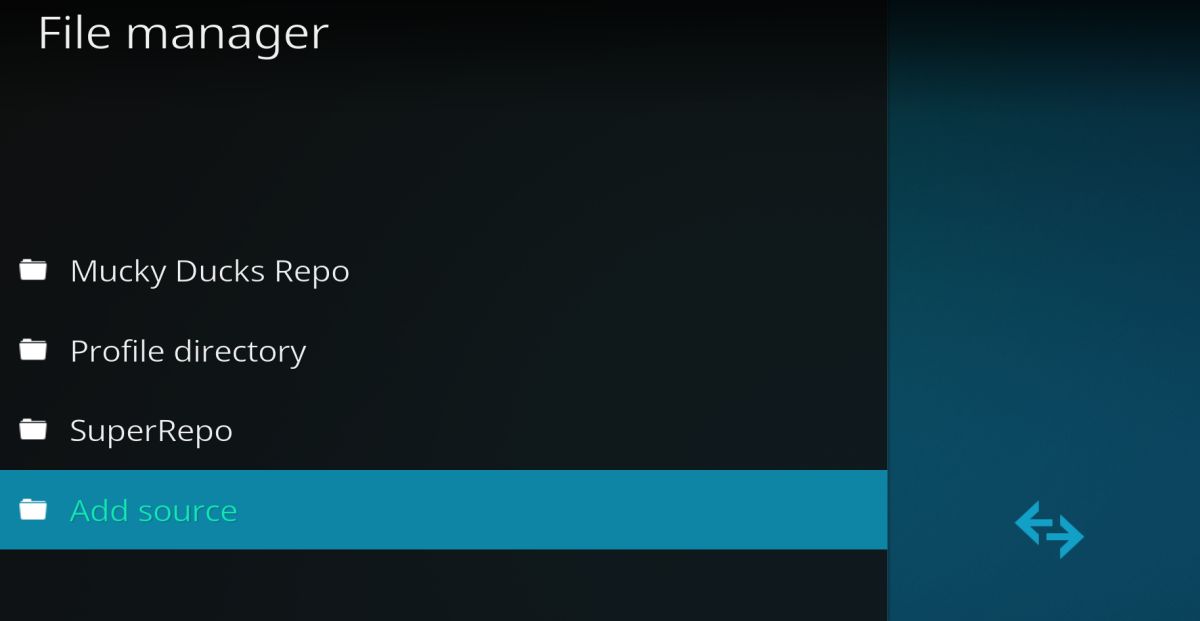
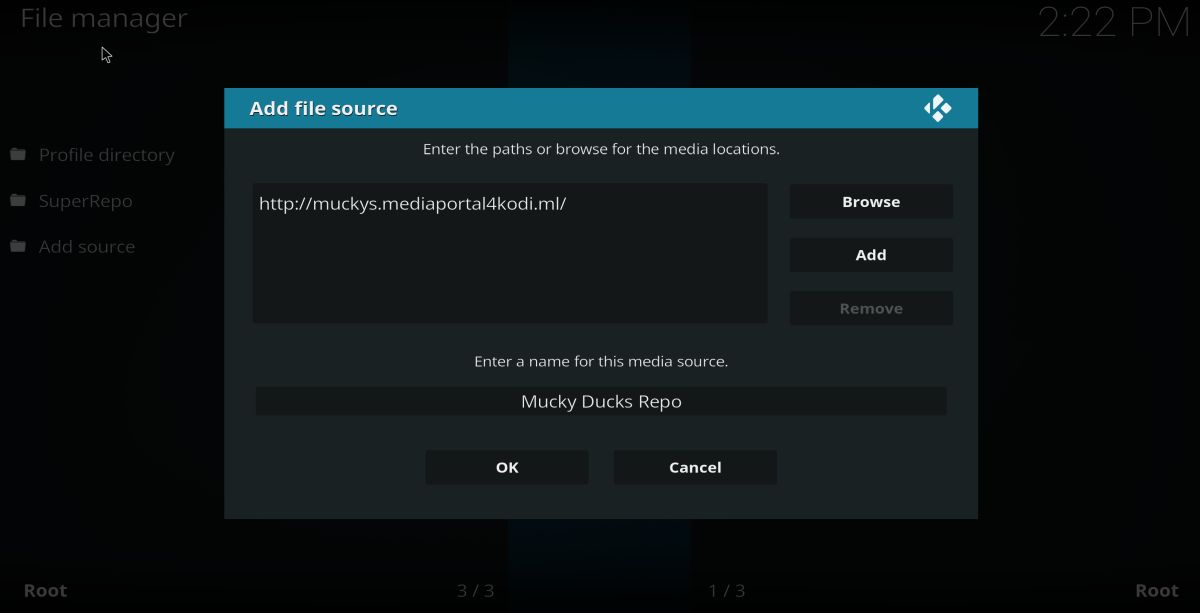
- In the top box, type in the following URL exactly as it appears: https://muckys.mediaportal4kodi.ml
- Name the new repository Mucky Ducks Repo.
- Click OK.
- Go back to the Kodi main menu.
- Select Add-ons.
- Click the open box icon at the top of the menu bar.
- Choose Install from Zip File.
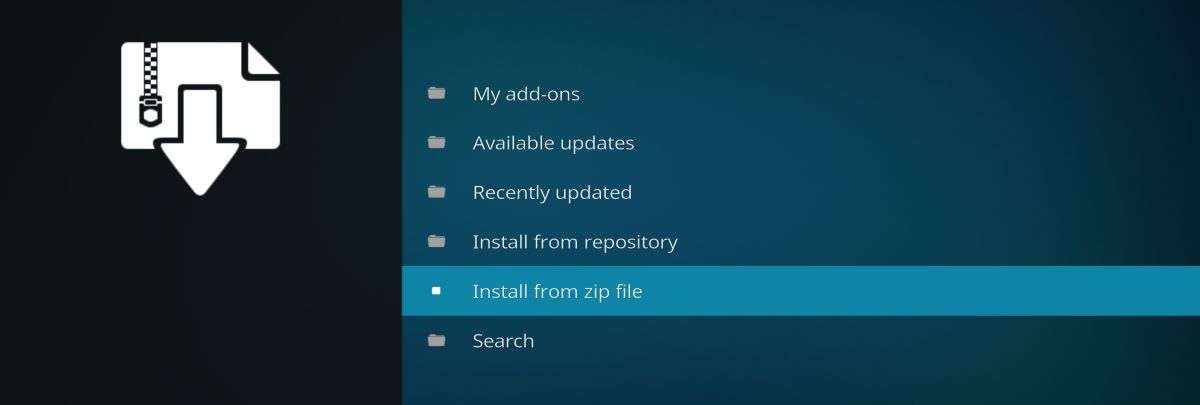
- Select Mucky Ducks Repo from the list of sources.
- Find and select the file repository.mdrepo-1.0.2.zip.
- Wait for the notification confirming the repository has been installed.
- Return to the Add-ons menu, click the open box icon again, and choose Install from Repository.
- Select Mucky Ducks Repo, then navigate to Video Add-ons.
- Find 123Movies in the list and select it, then click Install.
- Wait for the confirmation notification, then return to the main Kodi menu.
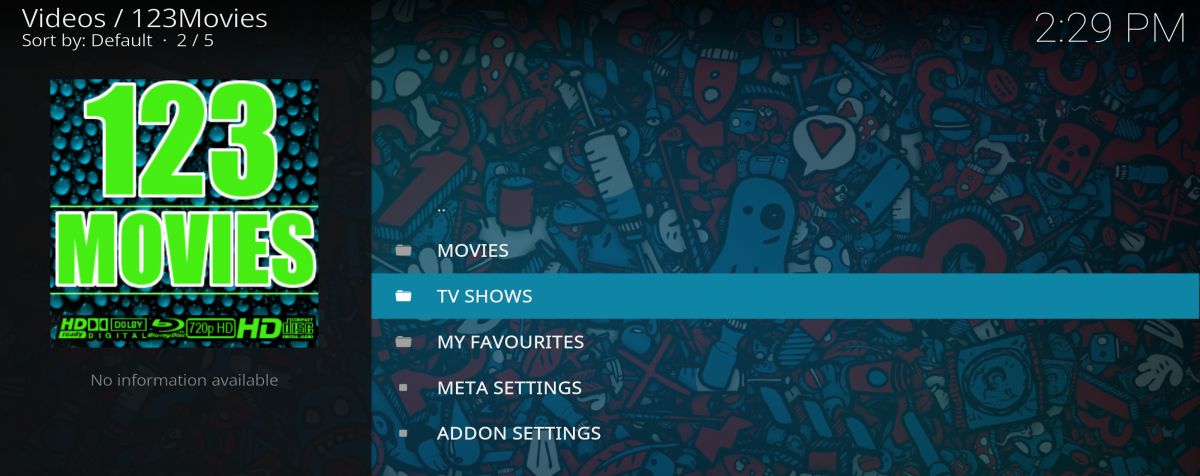
Once installation is complete, 123Movies will appear under your Video Add-ons. From there you can browse available movies and TV shows directly within Kodi. Keep in mind that because this is a third-party add-on dependent on an external repository, its long-term availability cannot be guaranteed — pairing it with a VPN like IPVanish remains the best way to keep your streaming activity private for as long as the add-on remains functional.