How to Fix the SYSTEM_SERVICE_EXCEPTION BSOD on Windows
SYSTEM_SERVICE_EXCEPTION is a common Windows BSOD error. These fixes help you identify the cause and resolve it without professional help.
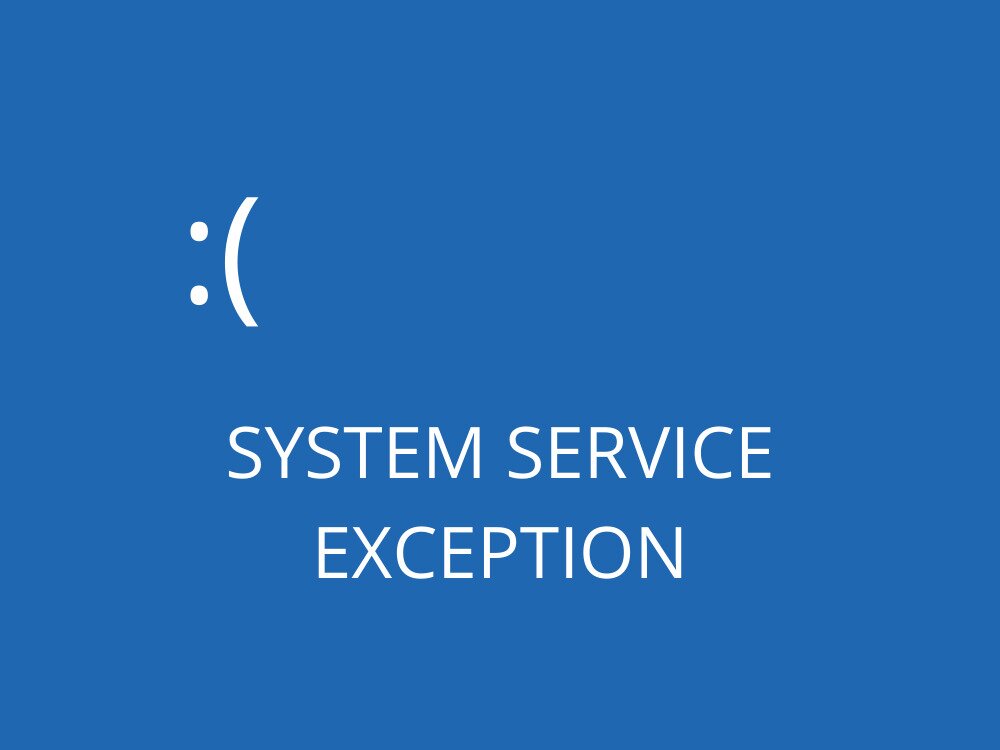
Blue Screen of Death messages like SYSTEM SERVICE EXCEPTION are pretty frequent in the Windows consumer community. But it doesn’t mean that you immediately have to turn to professional help.
By following our quick fixes below, you can quickly repair BSOD errors and get your computer working normally again, even if you don’t have a lot of experience.
What is SYSTEM_SERVICE_EXCEPTION?
SYSTEM_SERVICE_EXCEPTION is a Blue Screen of Death error that can occur on Windows 10 and Windows 11 computers. It signals a major problem that prevents your operating system from running properly.
The stop code is usually accompanied by the Ntfs.sys or ks.sys file name, which makes it easier to repair since you know exactly where to look. However, the troubleshooting process becomes more challenging when you don’t have any indicators of this kind, so using a crash information viewer can help you inspect BSOD details and narrow down the cause.
The SYSTEM SERVICE EXCEPTION BSOD error can be caused by various problems with your drivers, system updates, HDD or SSD, antivirus, installed software, or something else. If you’re dealing with a similar issue, you may also want to learn how to fix system thread exception, which shares common troubleshooting steps, or check this Windows crash troubleshooting guide for another common BSOD scenario.
How to Identify the File or Driver Causing SYSTEM_SERVICE_EXCEPTION
Before trying fixes at random, it helps to narrow down the actual cause of the crash. The BSOD itself and your system logs often contain enough information to point you directly at the guilty driver or component. Here is how to dig that out.
Step 1: Note the File Name on the BSOD
When the blue screen appears, Windows sometimes displays a file name alongside the stop code. Common examples include:
- ntfs.sys — points to the storage or file system stack
- win32k.sys — points to the Windows graphics or desktop window manager
- dxgkrnl.sys — points to the display driver or GPU
- ks.sys — points to the audio or video streaming stack
If you see a file name, write it down. It tells you which subsystem to target first.
Step 2: Check Event Viewer and Reliability Monitor
- Press the Win key, type Event Viewer, and open the app
- In the left pane, go to Windows Logs > System and look for Critical or Error entries that match the time of the crash
- For a simpler view, press the Win key, type Reliability Monitor, and open View reliability history. Red X marks show the exact date and time of each crash alongside the associated application or driver
Step 3: Locate and Read the Minidump File
- Open File Explorer and navigate to C:\Windows\Minidump
- You will find one or more .dmp files, each corresponding to a crash event
- Download BlueScreenView (free, no install required) and open it. It will automatically list your minidumps and highlight the driver most likely responsible for each crash
- For deeper analysis, Microsoft’s WinDbg (available free from the Microsoft Store) can open the same .dmp files and provide a full call stack
Step 4: Map the File to the Right Fix
Once you have identified a repeating .sys file name, focus your troubleshooting on that specific area first:
- dxgkrnl.sys — update, roll back, or reinstall your GPU driver; check for overheating
- ntfs.sys — run CHKDSK and check your storage drive health
- ks.sys — update or roll back your audio or webcam driver
- win32k.sys — update Windows, check for conflicting display or input drivers
If the same .sys file appears in multiple minidumps, that driver or its associated hardware is almost certainly the source of the problem. Target it directly with a rollback, reinstall, or hardware check before working through the broader fix list below.
How to Fix System Service Exception on Windows 10 and Windows 11
Get started by creating a system restore point. It allows you to revert Windows to the initial state, in case you need to roll back any changes you make.
1. Update Windows
If you don’t allow Windows Update to get the latest features, improvements, and security patches for your operating system, this could trigger Blue Screen of Death errors on your PC, such as the dreaded SYSTEM_SERVICE_EXCEPTION.
Here’s how to run Windows Update:
- Open the Start menu, type Check for updates, and press Enter
- Wait until Windows checks for updates. If there are any, click Download
- Restart your computer
2. Update Your Drivers
If your device drivers are obsolete, incompatible, or missing, this could result in serious issues on your operating system, including Blue Screen of Death messages like SYSTEM SERVICE EXCEPTION.
To resolve this matter, you can reinstall your devices, check for driver compatibility, and update drivers to the latest version.
Here’s how to reinstall drivers:
- Right-click the Start button and select Device Manager
- Expand the device category for the driver you want to update
- Right-click the device and select Uninstall device, then confirm
- Restart your computer — Windows will automatically reinstall the driver on reboot
For the most up-to-date drivers, visit your hardware manufacturer’s website directly and download the latest version for your specific device and Windows version.