How to Fix KMODE Exception Not Handled on Windows
KMODE_EXCEPTION_NOT_HANDLED is a serious Windows BSOD error. Here are multiple fixes, from disabling Fast Startup to advanced hardware solutions.
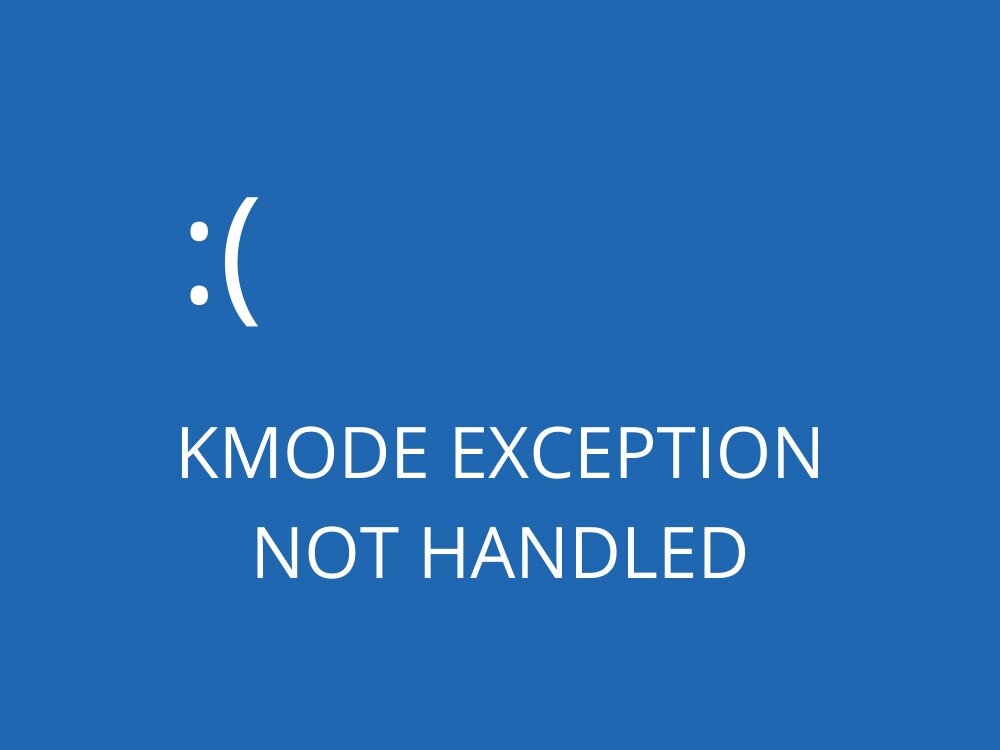
KMODE EXCEPTION NOT HANDLED is one of the most dangerous BSOD errors on Windows 10 and older versions, because it usually leads to total system failure. On top of that, it might be difficult to determine the root of the problem for troubleshooting.
If you stumble upon this error only once and get it fixed by rebooting your PC, it’s not really an issue. It becomes problematic when you must face KMODE_EXCEPTION_NOT_HANDLED every time you launch Windows and try to work or play.
What causes the KMODE EXCEPTION NOT HANDLED stop code?
The stop code can be caused by various issues at the software level, hardware level, or both. For instance, installed programs could overwrite each other’s memory, resulting in conflicts, corrupt applications, system stability issues, and ultimately a full Windows crash.
If the processor’s kernel mode throws an exception error that can’t be identified by the error handler, this can lead to KMODE_EXCEPTION_NOT_HANDLED with 0x0000001E error code. This type of error is similar to other BSOD issues, and if you’re experiencing related problems, you may want to explore our exception not handled fix guide and other stop code solutions for additional troubleshooting steps.
Sometimes, the stop code is accompanied by a filename, which makes troubleshooting a lot easier since you can look up more information about the file on the Internet.
How to fix KMODE_EXCEPTION_NOT_HANDLED
There are multiple ways to repair a Blue Screen of Death message with the KMODE EXCEPTION NOT HANDLED BSOD error code, depending on its cause: software or hardware.
Since it’s hard to evaluate this, you should start with software solutions and work your way up to hardware fixes. It’s simpler that way.
Some of the following workarounds are suitable for casual users. However, we can’t overlook more elaborate solutions, so we reserved the last part for skilled individuals.
Before getting started, we strongly recommend you create a system restore point. It will spare you from headaches in case you make a wrong move and must undo all changes. Better yet, create a full system backup if you can.
Certain users don’t even get the chance to do something on their computer due to the KMODE_EXCEPTION_NOT_HANDLED error that sends their operating system into a restart loop. If you’re one of them, you can boot Windows in safe mode to load only the required drivers.
1. Disable Fast Startup
Fast Startup is a feature introduced in Windows 8 and migrated to Windows 10. It allows the operating system to boot, shut down, and wake up from hibernation faster because it doesn’t entirely turn off all processes, services, and drivers.
If the KMODE EXCEPTION NOT HANDLED BSOD stop code is caused by faulty drivers, then you should deactivate Fast Startup to prevent it from reloading all drivers while doing its job.
Here’s how to disable Fast Startup on Windows 10:
- Make sure you’re logged in as the administrator.
- Press Win + R, type control panel, and hit Enter.
- Find and click Power Options.
- Click Choose what the power buttons do on the left side.
- Click Change settings that are currently unavailable.
- Disable Turn on fast startup (recommended) and click Save changes.
After disabling Fast Startup, restart your computer and check whether the KMODE_EXCEPTION_NOT_HANDLED error still appears. If the problem persists, move on to the next solution.
2. Update or roll back drivers
Outdated or recently updated drivers are a common cause of BSOD errors. If the error started appearing after a driver update, rolling back the driver to a previous version may resolve the issue. Conversely, if your drivers are outdated, updating them to the latest version from the manufacturer’s website can eliminate compatibility problems that trigger the stop code.
To update a driver, open Device Manager, right-click the relevant device, and select Update driver. To roll back a driver, right-click the device, choose Properties, go to the Driver tab, and click Roll Back Driver if the option is available.
3. Run Windows Memory Diagnostic
Faulty RAM is a hardware-level cause of KMODE_EXCEPTION_NOT_HANDLED. Windows includes a built-in Memory Diagnostic tool that can scan your RAM for errors.
- Press Win + R, type mdsched.exe, and press Enter.
- Choose Restart now and check for problems.
- Windows will restart and run the memory test automatically.
If errors are found, your RAM may need to be reseated or replaced.
4. Run SFC and DISM scans
Corrupt system files can also trigger this BSOD error. Running the System File Checker (SFC) and the Deployment Image Servicing and Management (DISM) tool can detect and repair these files.
- Open Command Prompt as administrator.
- Type
sfc /scannowand press Enter. Wait for the scan to complete. - Then type
DISM /Online /Cleanup-Image /RestoreHealthand press Enter. - Restart your PC after both scans finish.
5. Check for Windows Updates
Microsoft regularly releases patches that address known BSOD issues. Make sure Windows is fully up to date by going to Settings > Update & Security > Windows Update and clicking Check for updates.
6. Uninstall recently installed software
If the KMODE_EXCEPTION_NOT_HANDLED error started occurring after installing a new application, that program may be the culprit. Uninstall it via Settings > Apps or Control Panel > Programs and Features, then restart your PC to see if the error is resolved.
7. Perform a clean boot
A clean boot starts Windows with a minimal set of drivers and startup programs, which can help identify whether a background application is causing the conflict.
- Press Win + R, type msconfig, and press Enter.
- Under the Services tab, check Hide all Microsoft services, then click Disable all.
- Under the Startup tab, click Open Task Manager and disable all startup items.
- Restart your PC and check if the error persists.
If the error stops, re-enable services and startup items one by one to identify the specific cause.
Resolving the KMODE_EXCEPTION_NOT_HANDLED BSOD error typically requires working through both software and hardware possibilities in a systematic way. Starting with simpler fixes like disabling Fast Startup and updating drivers, then progressing to memory diagnostics and system scans, gives you the best chance of identifying and eliminating the root cause without unnecessary complexity.