How Excel's SCAN Function Replaces Repetitive Running Total Formulas
Excel's SCAN function builds running totals and progressive calculations with a single formula that automatically expands as your data changes.
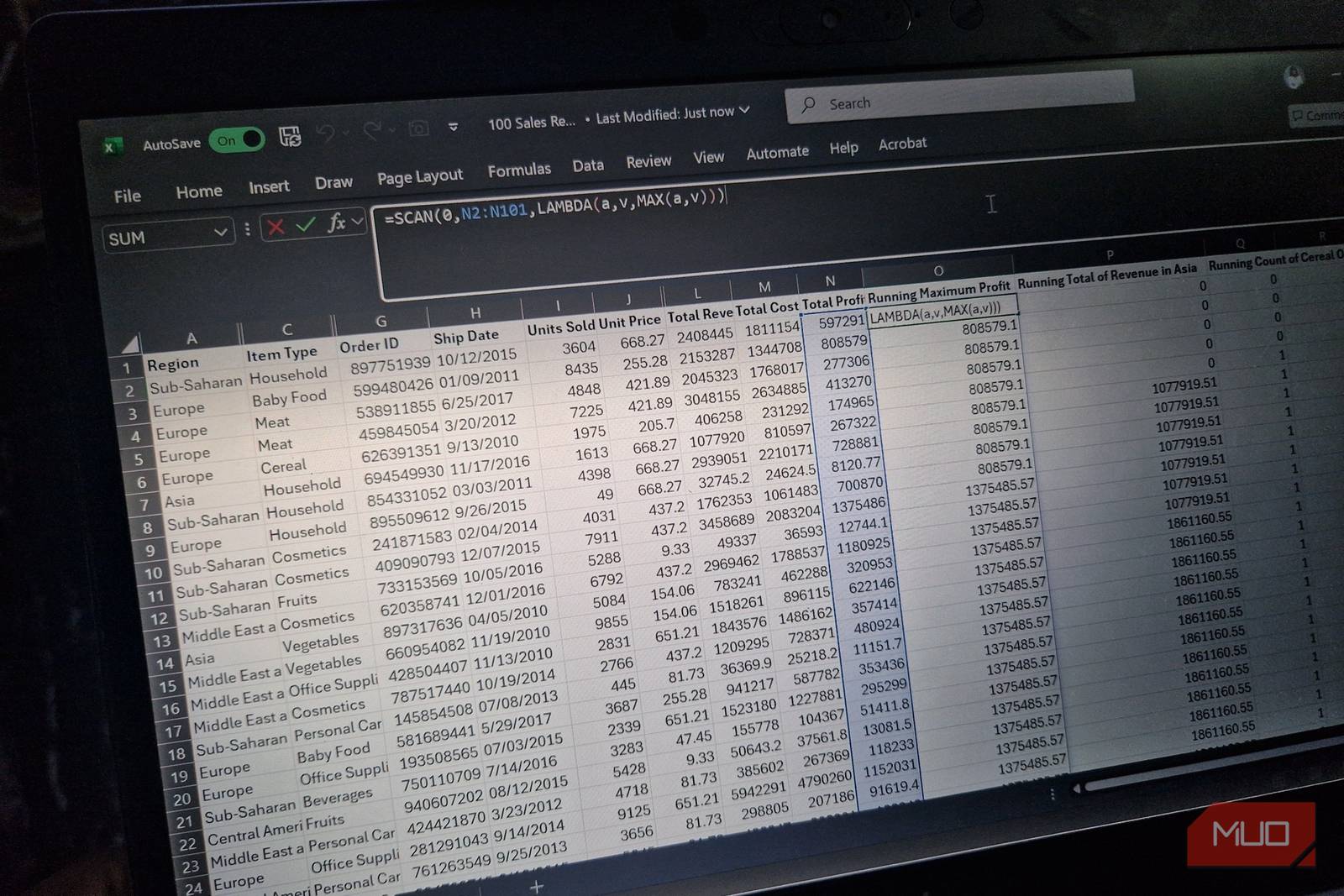
If you’ve ever built a running total in Excel, you’ve probably written something like =SUM(A$1:A2) and dragged it down the column again and again. It’s a simple enough approach—until your dataset grows or starts changing frequently. At that point, keeping everything accurate can turn into a hassle. Creating a table in Excel or using dynamic ranges can make things a bit easier, but they don’t completely solve the problem. You still end up copying formulas, expanding ranges, and hoping nothing breaks.
That’s where SCAN comes in. Think about the last time you built a running total. Now imagine doing the same thing with a single formula that automatically expands and updates as your data changes, and it never needs to be copied down the column. That’s the power of SCAN, and it’s only the beginning of what this function can do.
What Exactly Does SCAN Do
Meet the Function That Thinks Like You Do

The simplest way to think about SCAN is that it applies a custom calculation to each element in a range or array and returns every intermediate result it produces along the way.
Imagine you have monthly sales figures in cells A2:A8, and you want a running total. The traditional approach would be to enter the following formula in B2, then copy it down to B8:
=SUM(A$2:A2)That’s six cells and six formulas. If someone later inserts a row or your data updates, you’re back to adjusting ranges or rechecking your work.
With SCAN, you can replace all that with a single formula in B2:
=SCAN(0, A2:A8, LAMBDA(a, v, a + v))When you press Enter, Excel automatically spills the full running total down the column. It’s one formula but six results.
Here’s the basic syntax for SCAN:
=SCAN([initial_value], array, LAMBDA(accumulator, value, body))Initial_value is your starting point. For a running total, that’s typically 0, but it can be any number, or even text. If your initial value is text, wrap it in double quotes ("").
Array is the range of data you want to process. In this example, that’s A2:A8, your monthly sales. Instead of using cell references, you can also reference a table, like Table1.
LAMBDA(accumulator, value, body) defines the logic of your calculation. In plain English, SCAN walks through your range one item at a time, applies your calculation, remembers the result, and uses it in the next step. The accumulator (a) stores the running result, the value (v) is the current item, and the body (the combination of a and v) defines what happens at each step.
In the example above, the body is a + v, which creates a cumulative sum. But you can use any operation you like:
- Multiplication: a * v
- Subtraction: a - v
- Text concatenation: a & ”, ” & v
- Conditional logic: IF(v > 100, a + 1, a)
While SCAN doesn’t replace functions like SUM or SUMIFS in every scenario, it’s a powerful tool when your logic needs to build progressively over a range.
Note: SCAN is available in Excel for Microsoft 365. If you’re using a version earlier than Excel 2024, this function won’t be available.
How SCAN Changes the Way You Build Formulas
From Repetition to Progression
The real shift SCAN introduces is moving away from formula repetition toward a single, self-contained expression that handles progressive logic across an entire range. Instead of maintaining multiple cells with slightly different formulas, you define the logic once and let Excel handle the rest. This makes your spreadsheets easier to read, easier to maintain, and far less prone to breaking when data changes.