Hidden Android Audio Features Most Users Never Find
Android phones from Google and Samsung hide powerful audio features in menus most users never open. Here's where to find them and what they do.
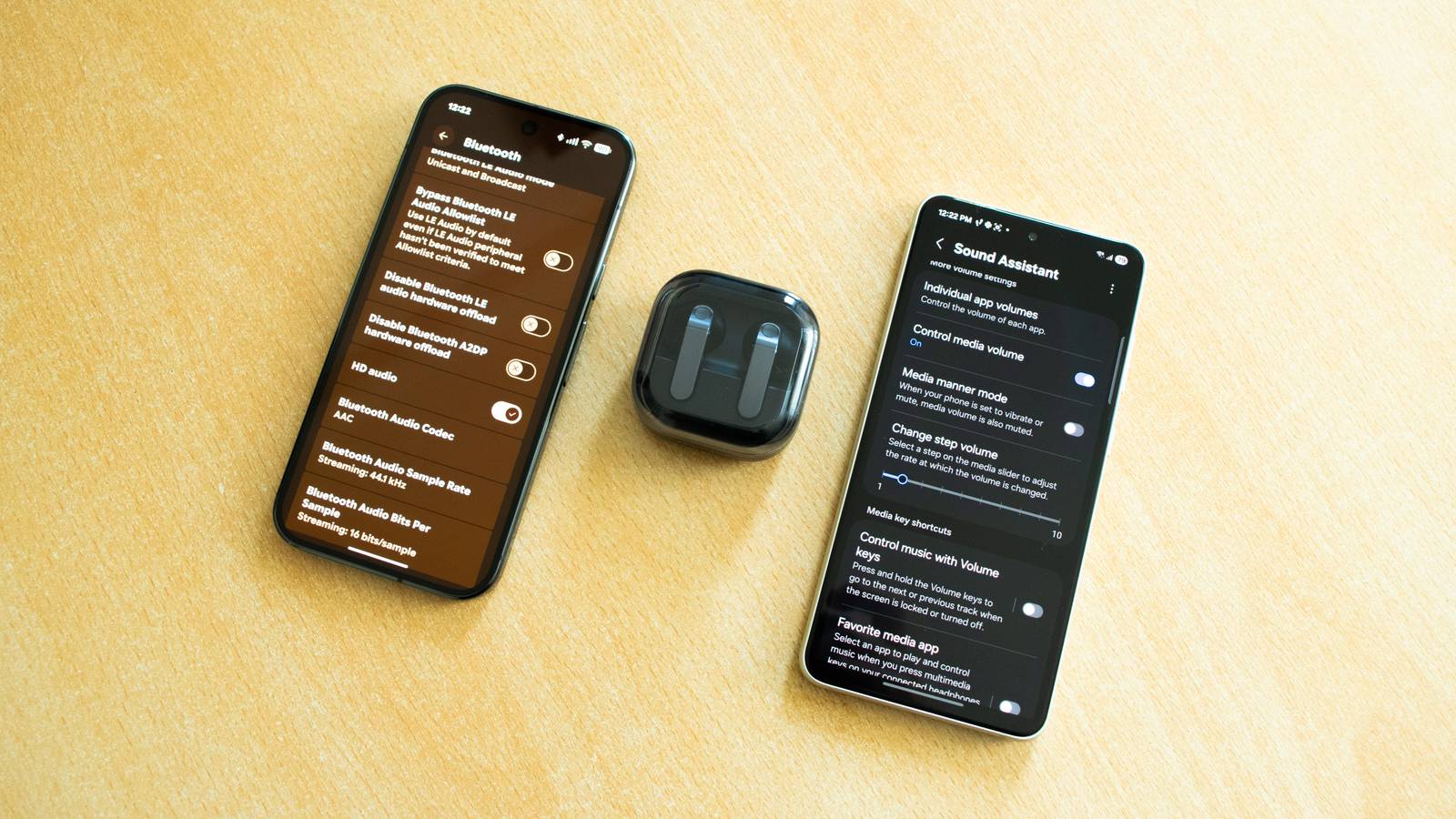
If you own a Google Pixel or Samsung Galaxy phone, you can enable a selection of audio features that will instantly improve the sound quality of your phone’s speakers, the earbuds you’re using, and more. The only catch is that most of them are hidden away, especially on Samsung phones. Even if you don’t own a Pixel or a Galaxy, Android’s Developer options menu hides a few handy Bluetooth audio settings every Android phone owner should tinker with.
You Can Fine-Tune Audio Volume Granularity on Samsung Phones
Good Lock is a gift that just keeps giving
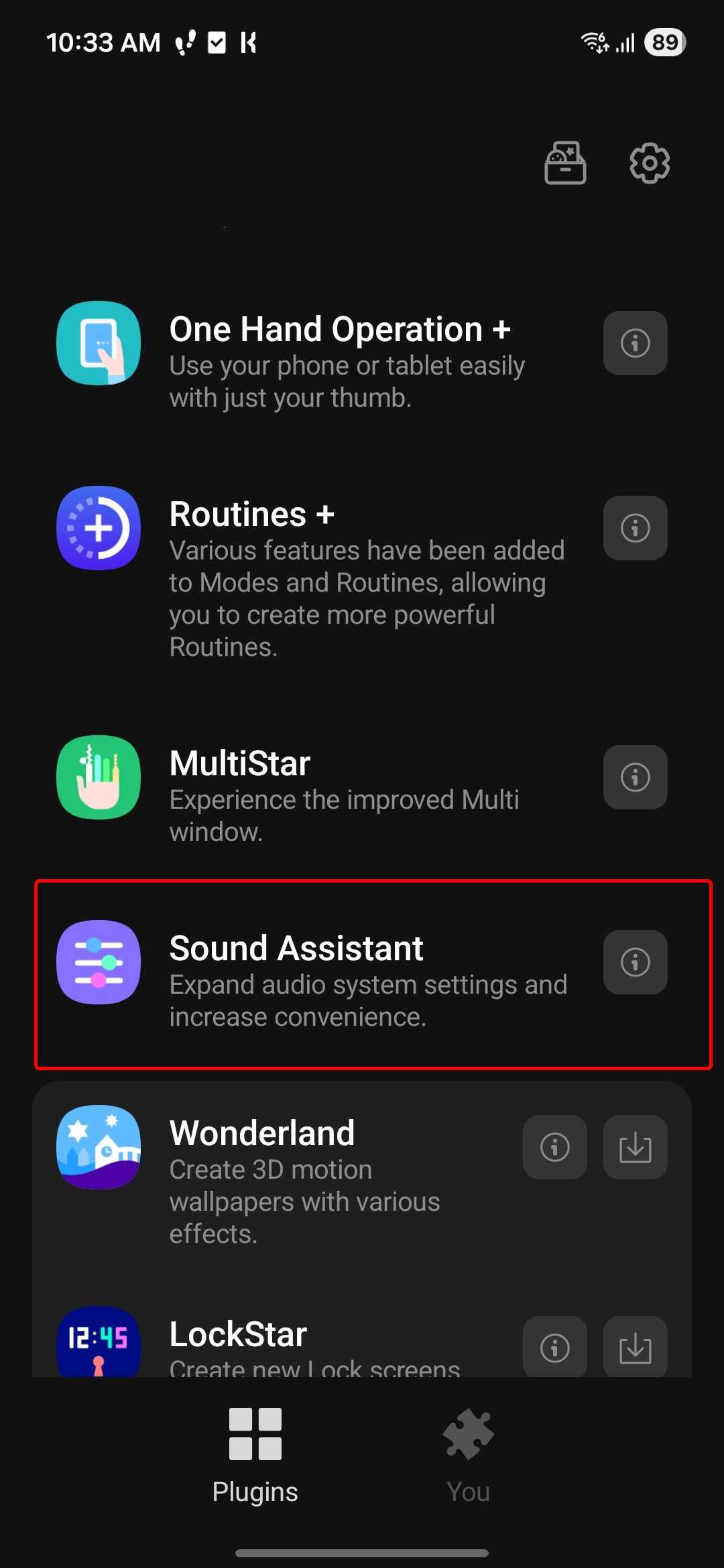
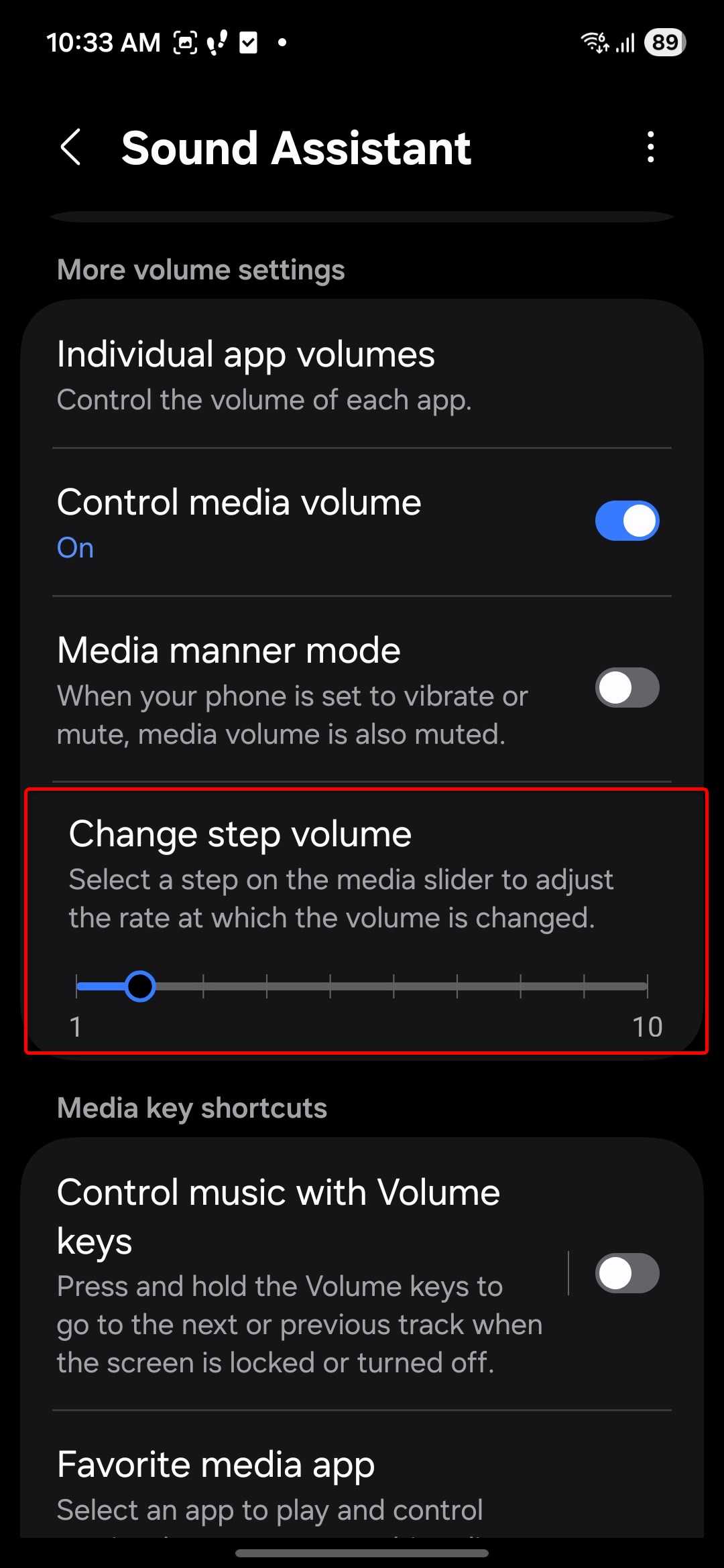
Good Lock is hands down one of the best features on Galaxy phones and one of a few One UI features worth missing when switching to a Pixel. One of Good Lock’s best features lets you fine-tune your media volume granularity. To do this, you first need to download Good Lock. Next, open Good Lock, locate the Sound Assistant module, and download it. Once it’s installed, open it, locate the Change step volume slider, and customize it to your liking.
By default, you only have 15 volume steps, but you can increase this to 150 in Good Lock by selecting a value of 1 on the slider. Personally, a setting of 75 steps (a value of 2 on the slider) works well on the Galaxy S21 FE. Note that this works with both your phone’s speakers and headphones or earphones.
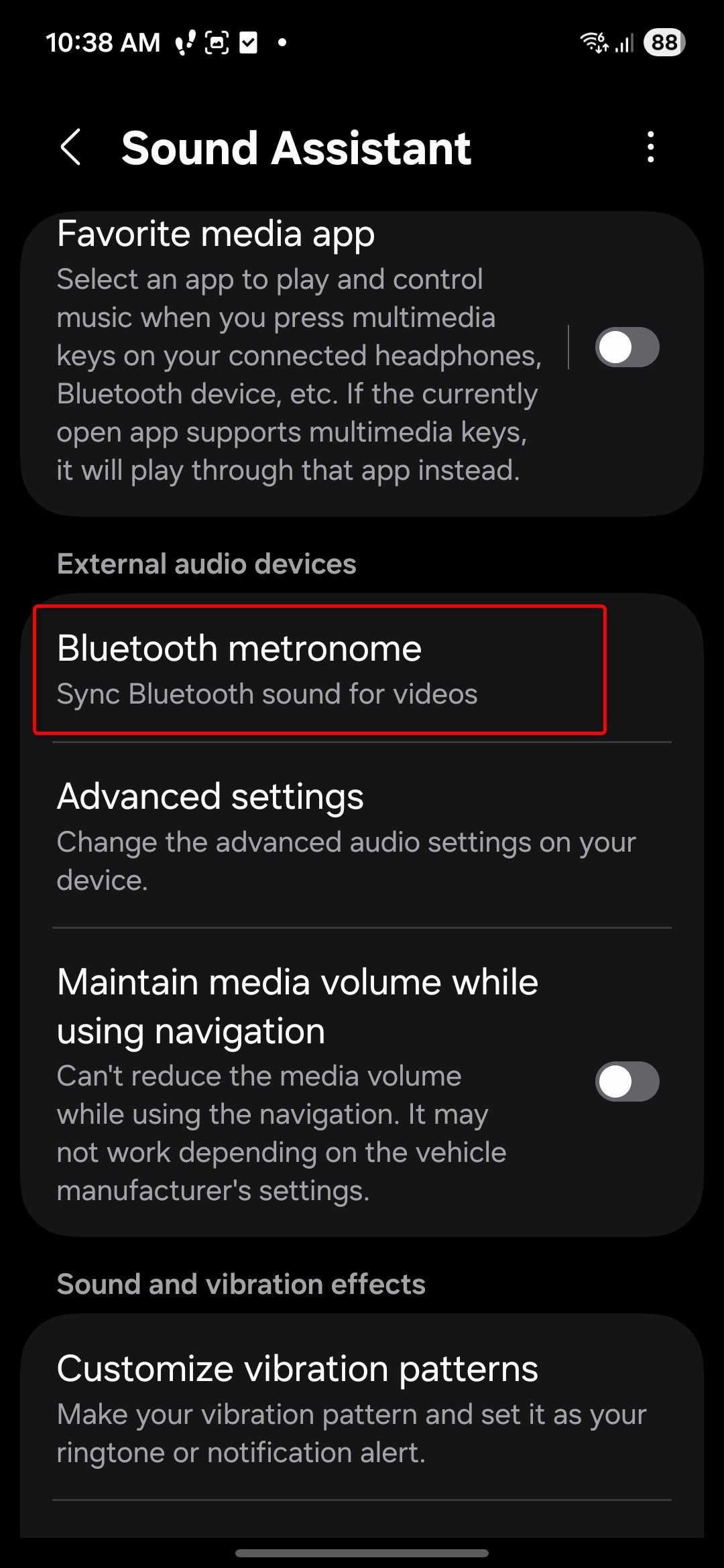
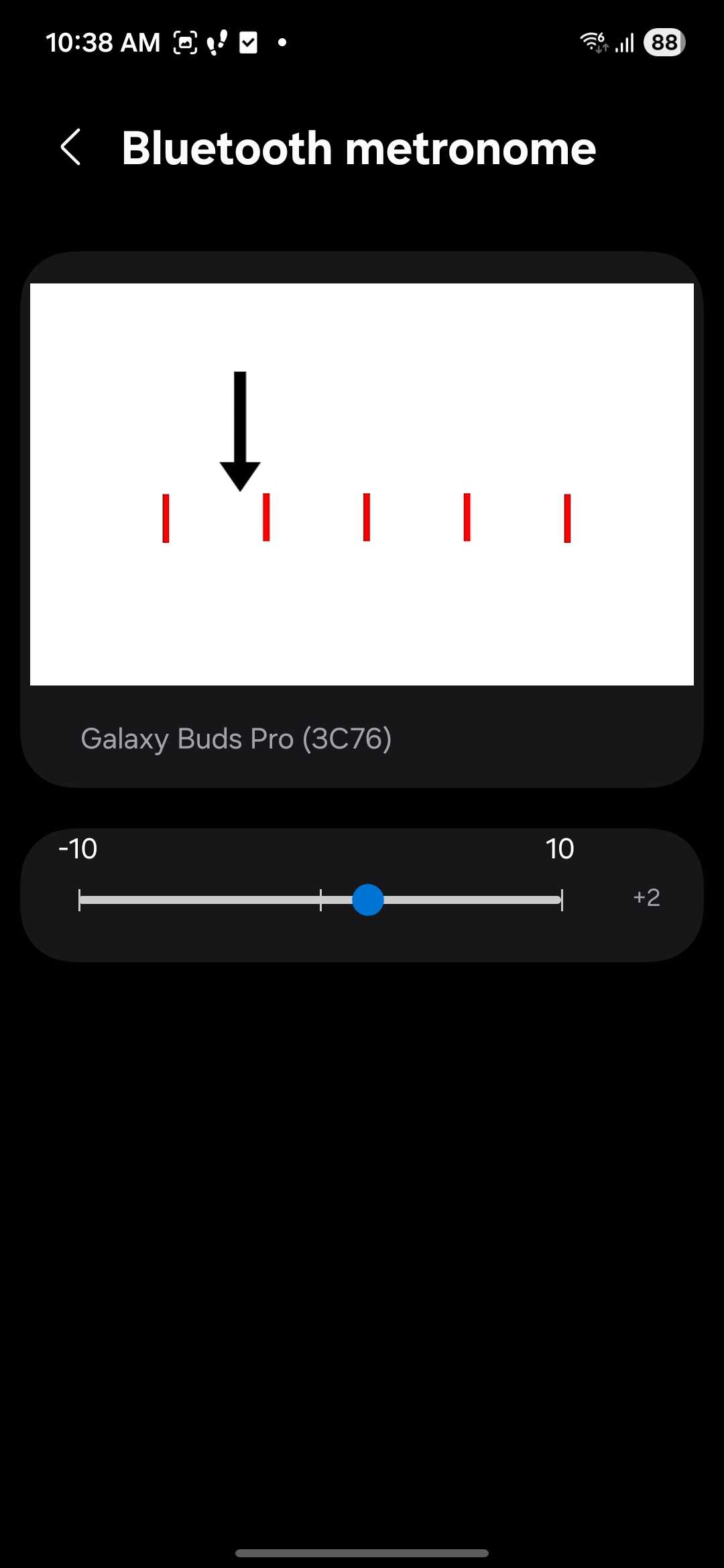
Another Sound Assistant feature worth checking out is Bluetooth metronome, which lets you sync your earbuds’ Bluetooth audio delay with videos. Keeping this setting at +2 on Galaxy Buds Pro — even with Game Mode enabled in the earbuds’ settings — helps eliminate the audio lag noticeable in videos. Game Mode reduces Bluetooth audio latency, but not enough on its own unless Bluetooth metronome is also enabled.
Feel free to explore every setting in Sound Assistant — you’ll likely find a few more that become indispensable in your daily routine.
One UI’s Separate App Sound Lets You Listen to Two Audio Sources at Once
Spotify on your earbuds, Netflix on your phone’s speakers
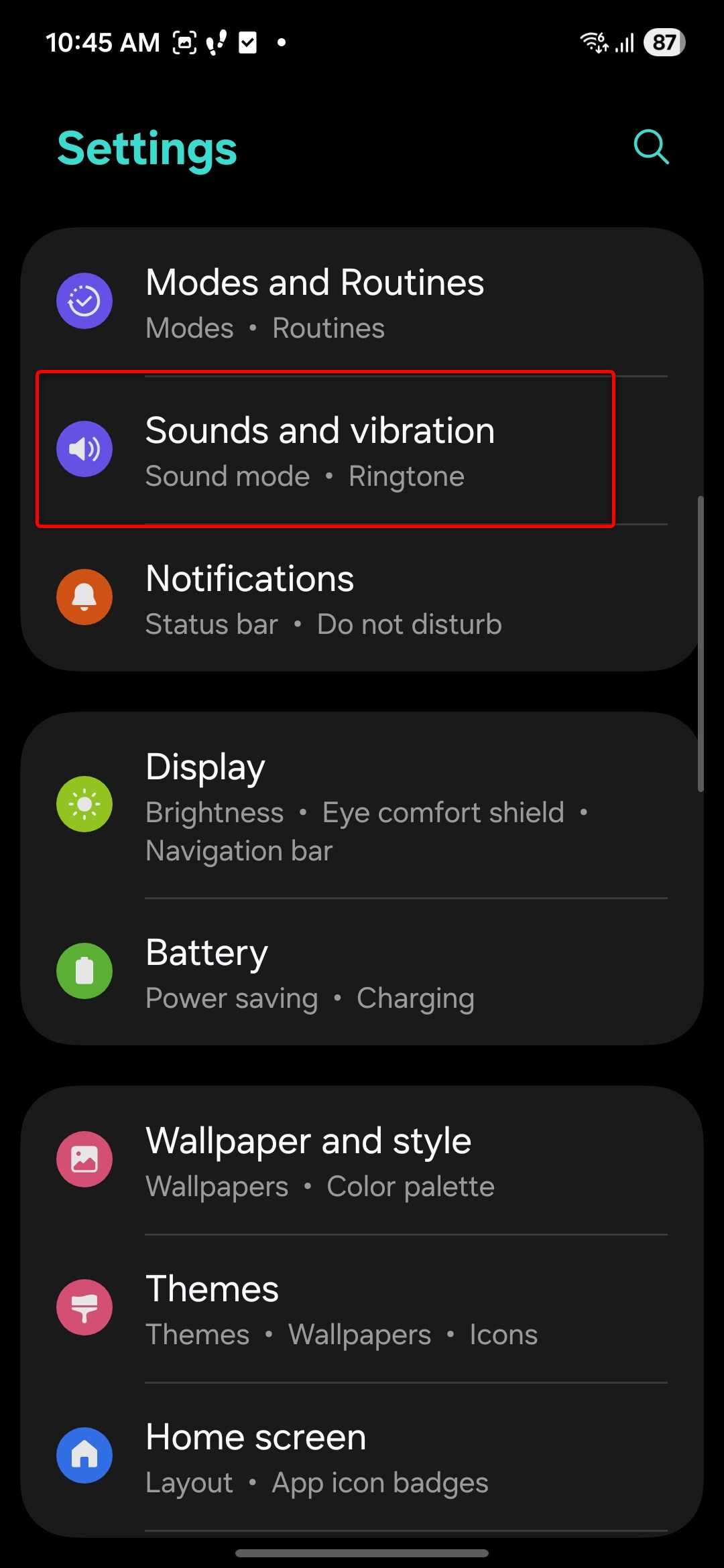
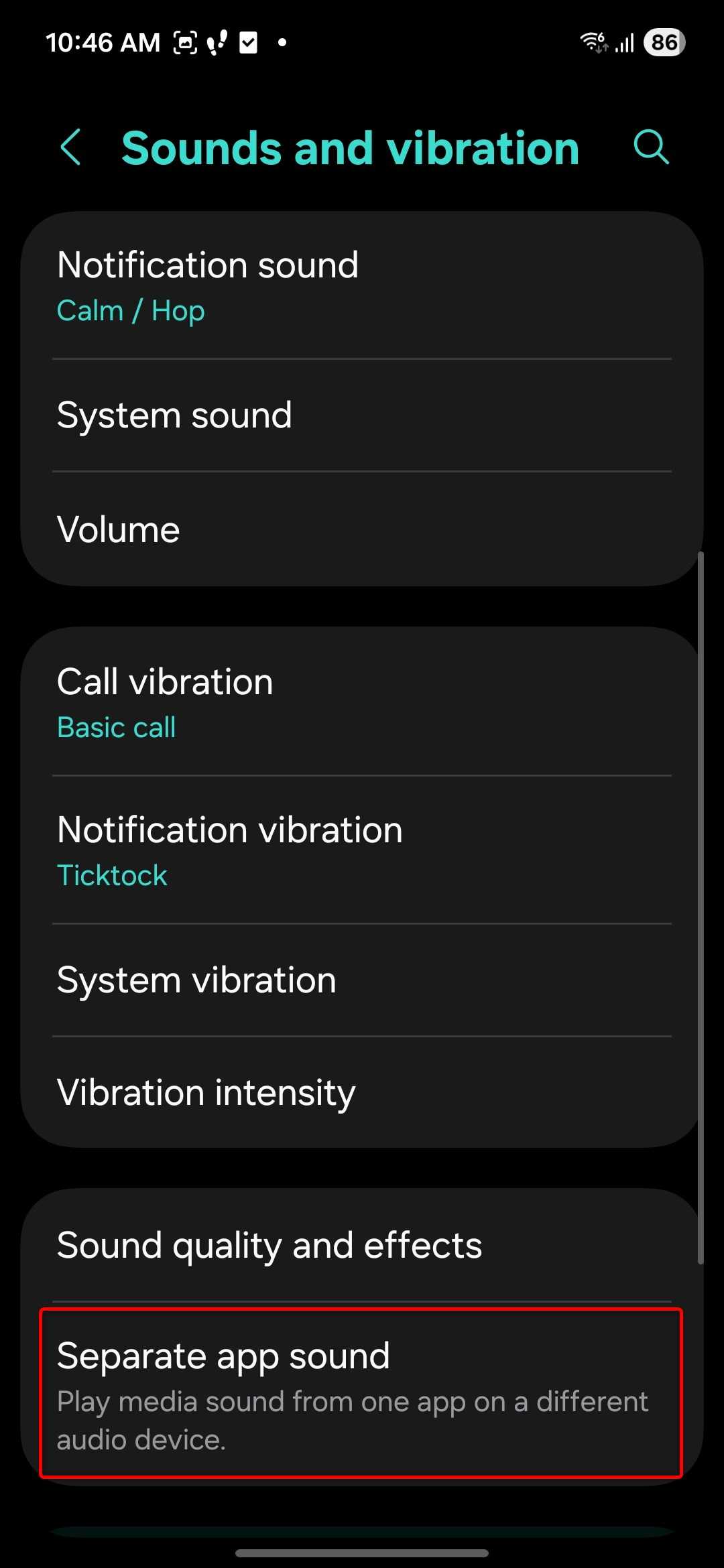
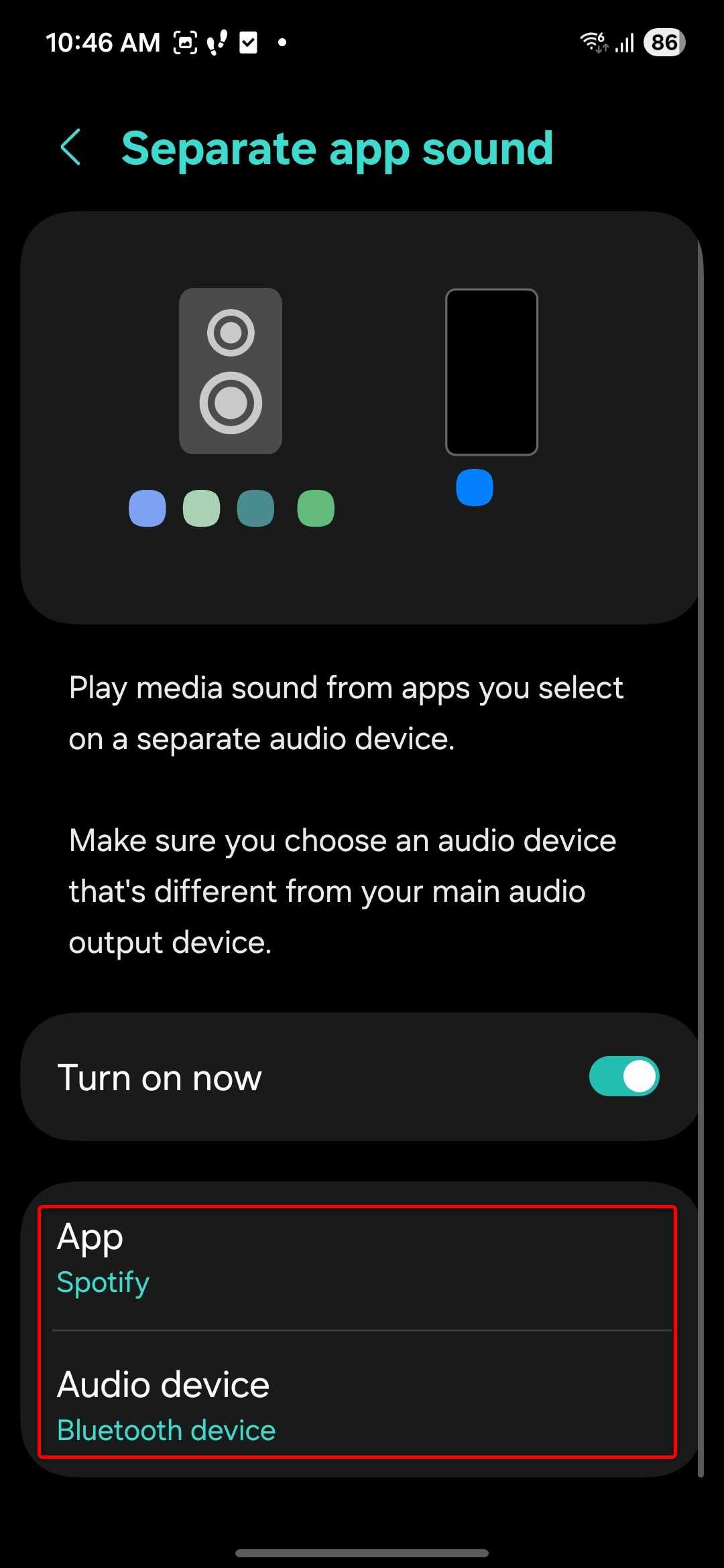
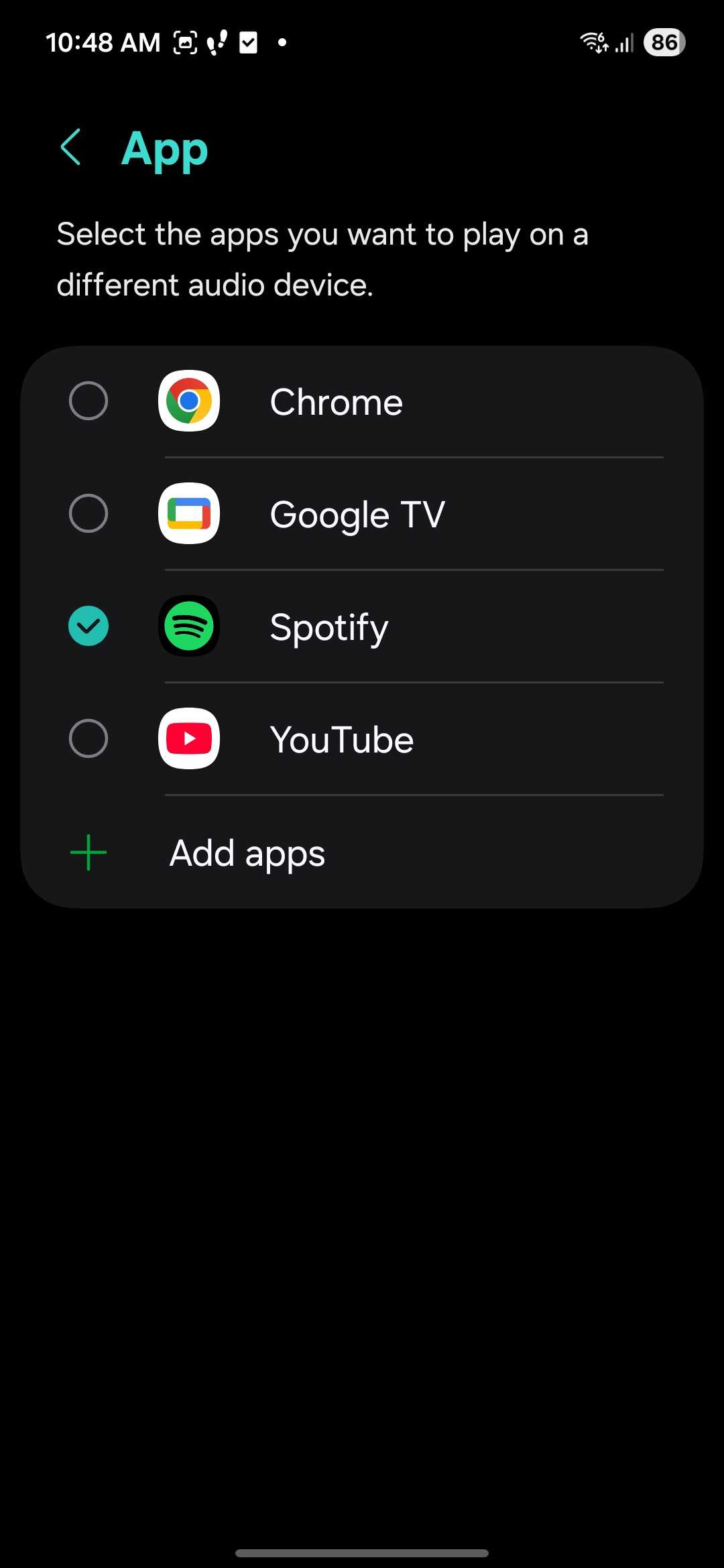
One UI’s Separate app sound feature lets you route audio from one app to a different output device than the rest of your phone. For example, you can listen to Spotify through your earbuds while Netflix plays through your phone’s speakers simultaneously. To enable it, go to Settings > Sound and vibration > Separate app sound, toggle it on, then select the app you want to route separately and choose the audio device for it to use.
This is particularly useful if you share a phone screen with someone else but want to keep listening to your own audio without interrupting what’s playing out loud.
Android’s Developer Options Hide Useful Bluetooth Audio Settings
Android’s Developer options menu — accessible by tapping the build number in Settings > About phone seven times — contains several Bluetooth audio settings that apply to any Android phone, not just Pixels or Galaxy devices.
The most useful options include the ability to change your Bluetooth audio codec, adjust the sample rate and bit depth, and tweak the Bluetooth audio quality. Not every codec works with every pair of headphones, but if your earbuds support aptX, aptX HD, LDAC, or AAC, forcing the appropriate codec here can noticeably improve audio quality over the default SBC connection.
LDAC, developed by Sony, is the highest-quality option and supports up to 990 kbps — significantly higher than SBC’s 328 kbps ceiling. If your headphones support it, switching to LDAC is one of the easiest free audio upgrades available on Android.
These settings are buried for a reason — incorrect configuration can cause audio dropouts or connection instability — but for users willing to experiment, the Developer options Bluetooth audio menu is well worth a visit.