Six Android Features I Used for Years Without Discovering
Even long-time Android users miss useful built-in features. Here are six worth enabling today.
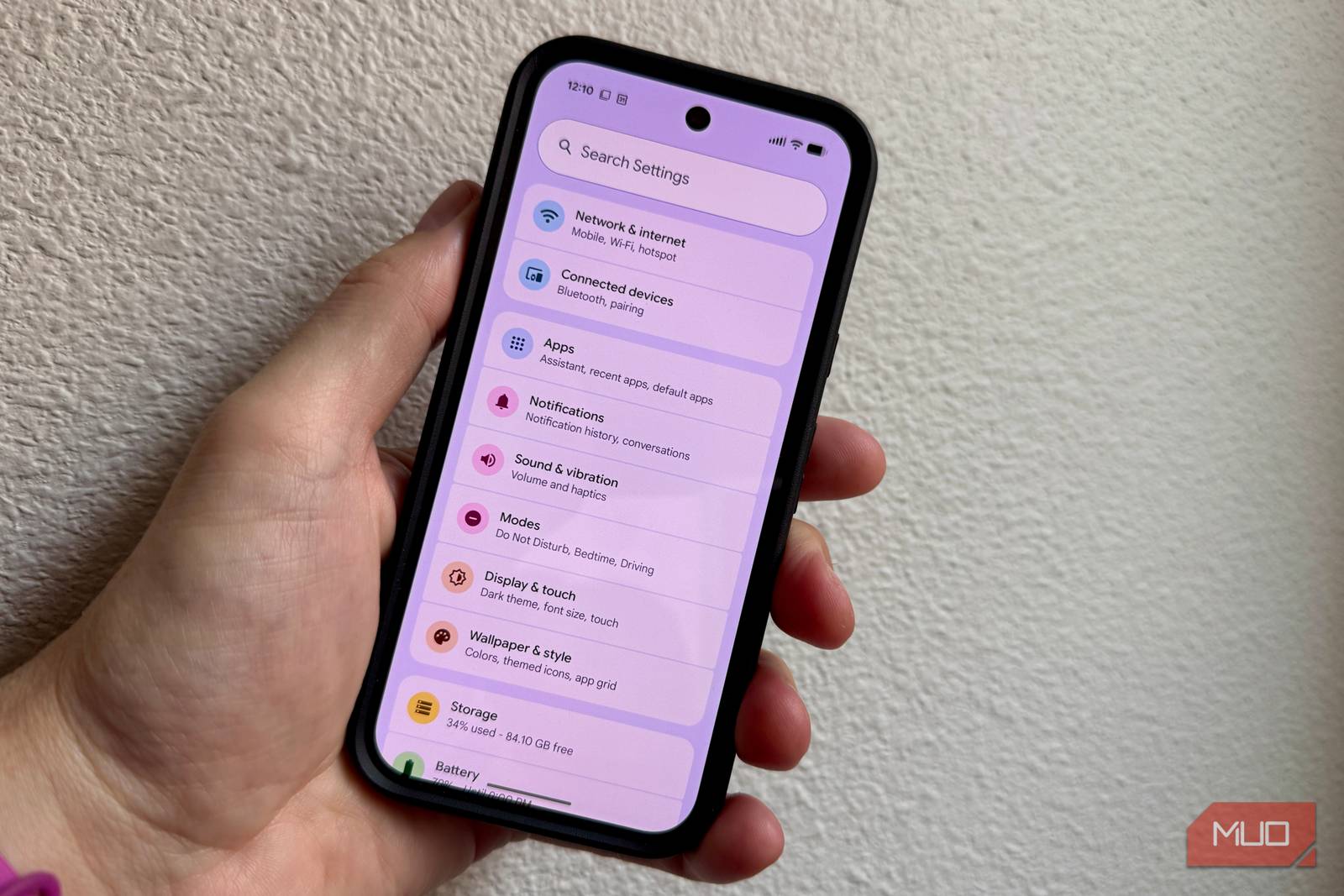
I’ve been using Android since the days when “Cupcake” and “Donut” were cutting-edge software, so I generally assume I know my way around the OS. I know where Developer Options live, I’ve spent far too much time tweaking animation speeds, and I can usually find whatever setting I need without searching for it.
Android has accumulated so many features over the years, though, that even people who know the OS well can miss things. Some are buried in Settings, while others only appear after you enable an obscure toggle or use the right hardware.
Recently, I went digging through the parts of Android I usually ignore and found six features that made me wonder how long they’d been sitting there without me noticing.
Snooze Button
My notification shade doesn’t have to be a to-do list
I’ve always treated notifications as a binary choice: deal with them now or dismiss them and hope I remember whatever they were trying to tell me.
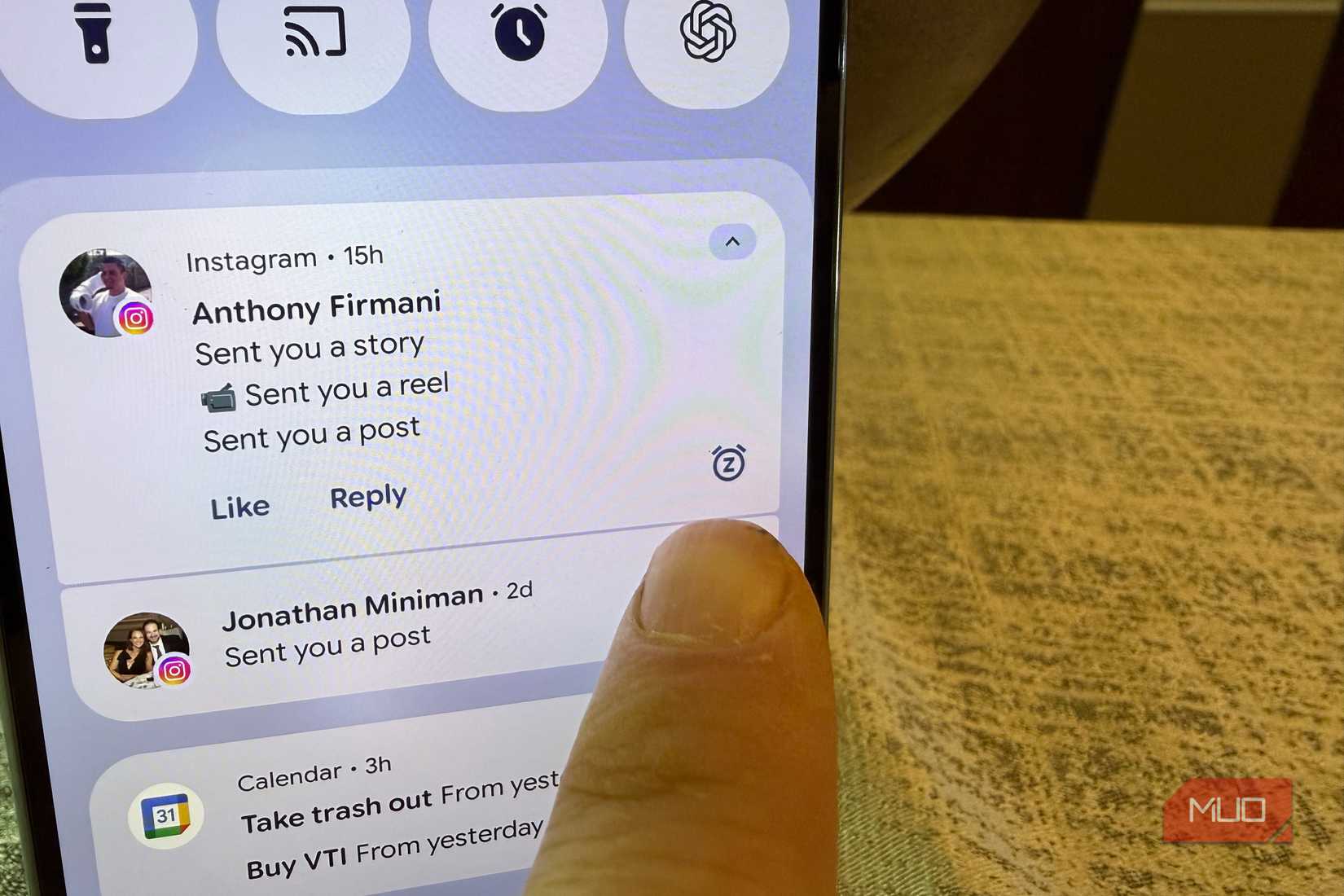
Android has a better option. Notification snoozing lets you temporarily dismiss an alert and have it return later, which is useful for emails, reminders, messages, and anything else you don’t want sitting in the notification shade all day.
Depending on your phone, the snooze control may appear when you expand a notification or partially swipe it aside. You can then choose how long Android should hide it before bringing it back.
Where to find it:
- Pixel: Settings > Notifications > Allow notification snoozing
- Samsung Galaxy: Settings > Notifications > Advanced settings > Show snooze button
I like this for delivery updates, messages I can’t answer immediately, and reminders that arrive while I’m doing something else. It saves me from leaving old notifications sitting there as makeshift reminders.
App Pinning
It’s perfect when someone wants to borrow your phone
There’s always a slightly awkward moment when you hand somebody your unlocked phone to show them a photo, map, or video and hope they don’t start wandering through everything else.
App Pinning gives you a safer way to do it. Once you pin an app, the person holding your phone can keep using that app but can’t freely switch into your messages, gallery, browser, or anything else without first unpinning it.
You can also configure Android to require your lock-screen credentials before the phone becomes usable normally again. That makes App Pinning handy when someone needs your phone to make a call, check directions, play a game, or look through something you’ve already opened.
Unpinning depends on which navigation system you use. Gesture navigation typically has you swipe up and hold, while three-button navigation uses Back and Recents together.
Where to find it:
- Pixel: Settings > Security & privacy > More security & privacy > App pinning
- Samsung Galaxy: Settings > Security and privacy > More security settings > Allow apps to be pinned
To use it, open your Recents (multitasking) view, tap the app’s icon at the top of the card, and select Pin (or “Pin this app”).
Live Caption
It can put subtitles on audio that never had them
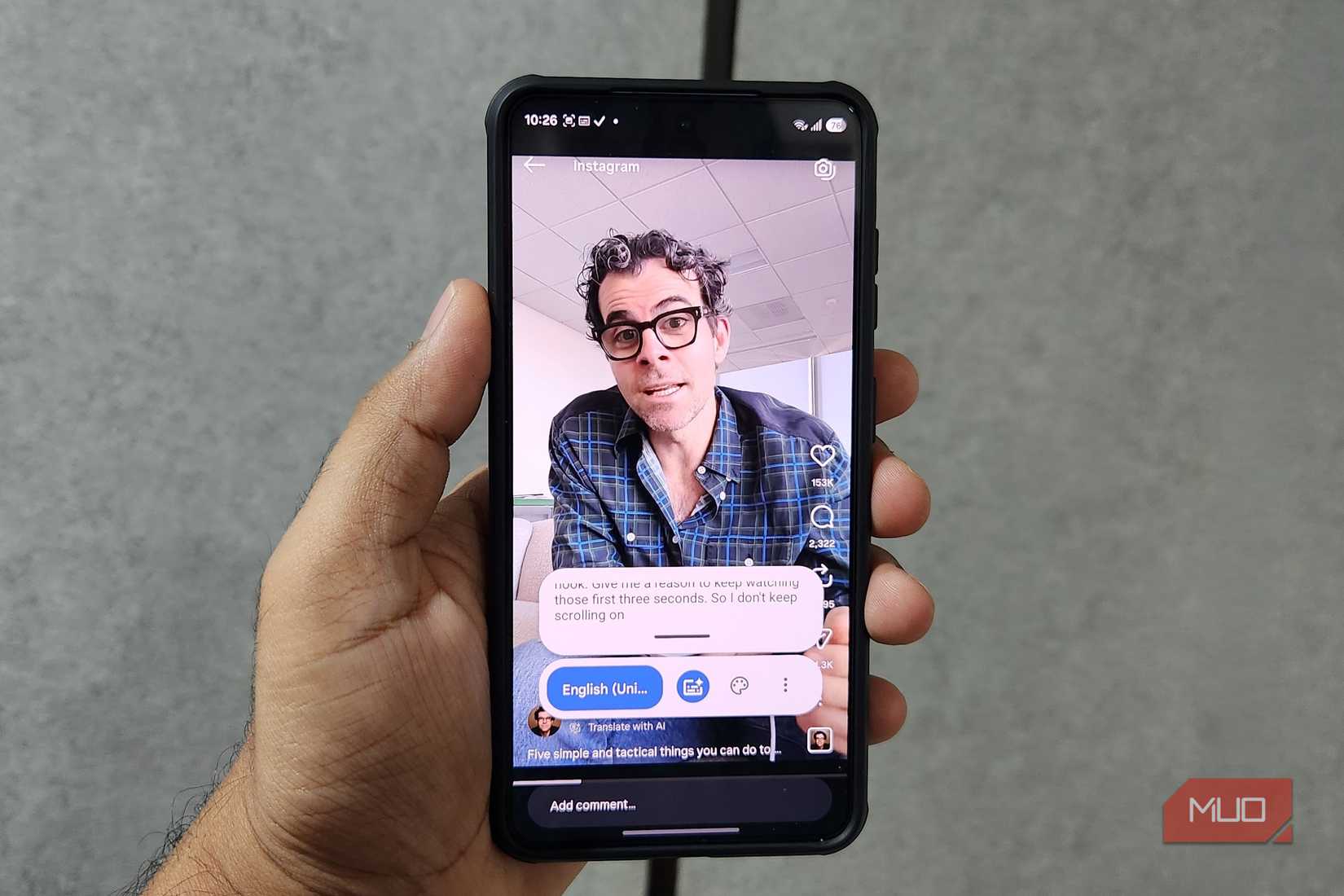
Live Caption generates real-time subtitles for almost any audio playing on your phone — videos, podcasts, voice messages, and even phone calls on some devices. It works entirely on-device, so nothing is sent to a server, and it functions without an internet connection.
The feature is useful when you’re somewhere you can’t use sound, want to follow along with unclear audio, or simply prefer reading along while something plays. It’s also genuinely helpful for people with hearing difficulties.
Where to find it:
- Pixel: Press a volume button, then tap the Live Caption icon that appears in the volume panel
- Samsung Galaxy: Settings > Accessibility > Hearing enhancements > Live Caption
Once enabled, a caption bubble appears on screen and moves out of the way as needed. You can drag it to reposition it.
Bedtime Mode
It does more than just dim your screen at night
Bedtime Mode goes further than basic Do Not Disturb. When active, it can silence notifications, turn your display to grayscale, and dim the screen — all on a schedule you set.
The grayscale effect in particular is worth trying. Removing color from the display makes the phone noticeably less visually stimulating, which can make it easier to put down before sleep.
Where to find it:
- Pixel: Settings > Digital Wellbeing & parental controls > Bedtime mode
- Samsung Galaxy: Settings > Digital Wellbeing and parental controls > Wind down
You can set it to activate automatically at a chosen time, when you start charging the phone at night, or both. Each component — grayscale, Do Not Disturb, screen dimming — can be toggled independently so you only use what works for you.
One-Handed Mode
It makes large phones easier to use with a single hand
Modern Android phones are large enough that reaching the top of the screen with one hand requires an uncomfortable stretch. One-Handed Mode addresses this by pulling the entire display interface down into the bottom half of the screen, making everything accessible without shifting your grip.
Where to find it:
- Pixel: Settings > System > One-Handed mode
- Samsung Galaxy: Settings > Advanced features > One-handed mode
On Pixel, you trigger it by swiping down on the bottom edge of the screen. On Samsung, you can use a swipe gesture or double-tap the Home button, depending on your settings. Tapping anywhere in the top half of the screen exits the mode.
It’s a small thing, but it makes a real difference when you’re holding something in your other hand or just need to reach a corner of the screen quickly.
Extra Dim
It makes the screen darker than the brightness slider allows
The standard brightness slider has a lower limit, and on some phones that limit is still quite bright in a dark room. Extra Dim pushes the screen brightness below that floor, which is useful late at night or any time you need a display that’s as unobtrusive as possible.
Where to find it:
- Pixel: Settings > Accessibility > Extra dim
- Samsung Galaxy: Settings > Accessibility > Visibility enhancements > Extra dim
Both Pixel and Samsung let you adjust the intensity of the dimming effect. On Pixel, you can also add Extra Dim to your Quick Settings panel for fast access. It’s a simple feature, but once you’ve used it for late-night reading or checking the time in a dark room, it’s hard to go back to not having it.
These six features won’t change how Android fundamentally works, but each one solves a real problem that most users quietly work around without realizing a built-in solution already exists. If you’ve been using Android for years and skipped past any of these, they’re worth a few minutes to set up.