CopyTo Synchronizer: Compressed Backup and Remote Data Sync Tool
CopyTo Synchronizer is a backup and sync utility with ZIP compression, filter support, and multiple backup modes for home and network use.
CopyTo Synchronizer is a data synchronization and backup utility that offers a vast range of features to promptly backup your data across all the nodes connected in a network with other standalone systems or to any target folder. It is designed for system administrators who need to backup all the data from multiple PCs to a main system or to copy a set of files/folders onto different systems.
Moreover, the application offers filter support, so users can narrow down the search to move/copy/sync only specific files. The best part is that you can compress data (supports high-level ZIP compression) residing in source and target locations to save extra disk space. The sync/backup projects are saved in its native CP2 format, and a saved project can always be retained to recall settings for performing the same set of actions over any other files/folders.
Key Backup Features of CopyTo Synchronizer
Unlike other backup/sync applications, it offers different types of backup operations. Aside from full backup, you can perform Differential backup and Incremental backup, with an option to do file comparisons. Many a times it is required to view the log to identify any problem which a backup/sync application encountered while doing backup or syncing data between two locations. CopyTo Synchronizer comes with an Execution History feature which gives you detailed insight into tasks that you’ve performed.
Choosing the right mode is arguably the most important decision you will make in CopyTo Synchronizer, because the mode controls what happens to your files when something is added, changed, or deleted. Here is a plain-language breakdown of each mode:
| Mode | What it does | File added to source | File modified on source | File deleted from source |
|---|---|---|---|---|
| Full Backup | Copies every file from source to target every time, regardless of what has changed. | Copied to target | Overwritten on target | File remains on target (no deletion) |
| Incremental Backup | Copies only files that are new or have changed since the last backup run. Fastest for regular scheduled backups. | Copied to target | Overwritten on target | File remains on target (no deletion) |
| Differential Backup | Copies only files that are new or have changed since the last full backup. Each differential run grows larger over time but simplifies restoring. | Copied to target | Overwritten on target | File remains on target (no deletion) |
| One-Way Copy / Backup | Mirrors the source to the target in one direction only. Deletions on the source can be mirrored to the target depending on settings — read the built-in description carefully before using this mode on live data. | Copied to target | Overwritten on target | May be deleted on target — verify your settings |
| Two-Way Sync | Keeps both source and target identical. Changes flow in both directions. Deletions on either side can propagate to the other — use with caution. | Appears on both sides | Newest version wins on both sides | May be deleted on both sides — verify your settings |
To help you pick the right mode quickly, consider these practical scenarios:
- Backing up your Documents folder to an external drive: Full Backup or Incremental Backup are the safest choices. Neither will delete files from the target if you accidentally remove something from your source, giving you a recoverable safety net.
- Keeping two PCs in sync over a network: Two-Way Sync makes sense here, but be aware that a deletion on one machine will eventually remove the file on the other. Always confirm deletion behavior in the mode description before committing.
- Nightly incremental backups of a shared project folder: Incremental Backup keeps run times short and only transfers what has changed since the previous session, making it well-suited to recurring automated jobs.
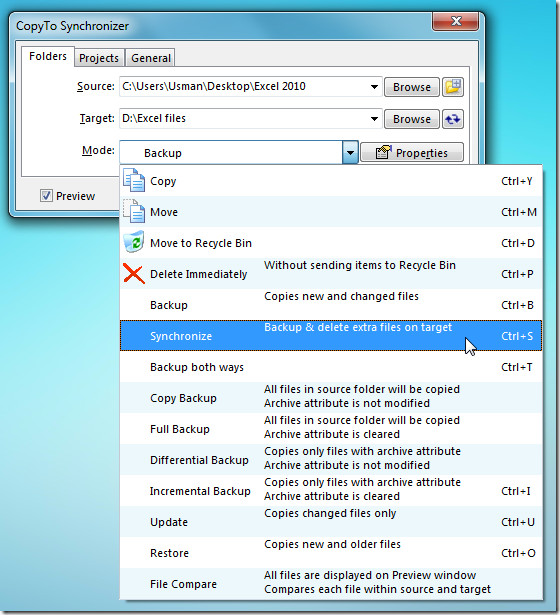
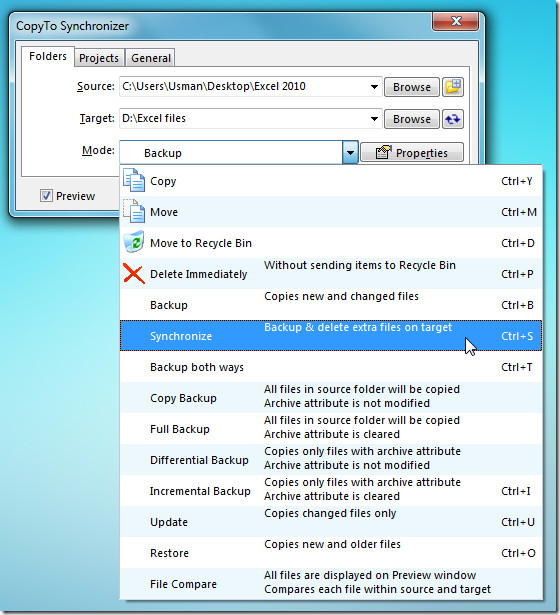
With each mode type, a brief description can be seen in the application’s pull-down menu — we would recommend you read and understand that description before starting a task, especially for any mode that can mirror deletions.
The application interface is nicely designed and quite intuitive in terms of usage. On the main window, you need to specify the source and target locations. Beneath this, a pull-down menu holds different types of modes with pre-defined hotkey support.
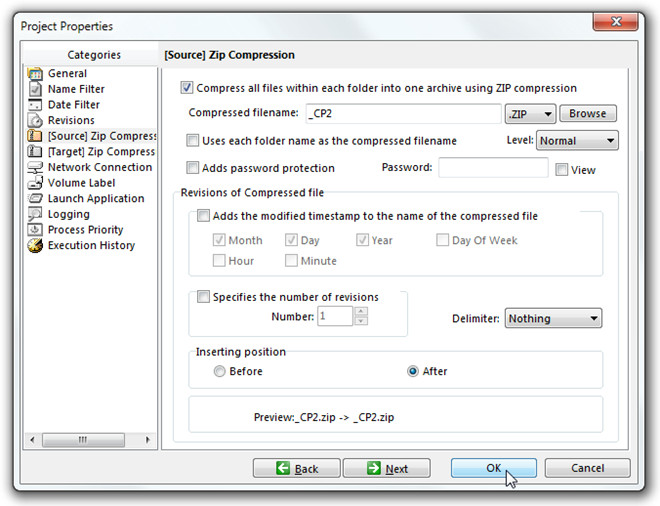
Click Properties to configure Project settings. You can apply Name & Data filters, configure network connections, change settings for Source & Target Zip compression, select the application’s priority, and view Execution History. You get a plethora of options and features which can be changed and configured according to your needs.
Using CopyTo Synchronizer to Preview and Execute Tasks
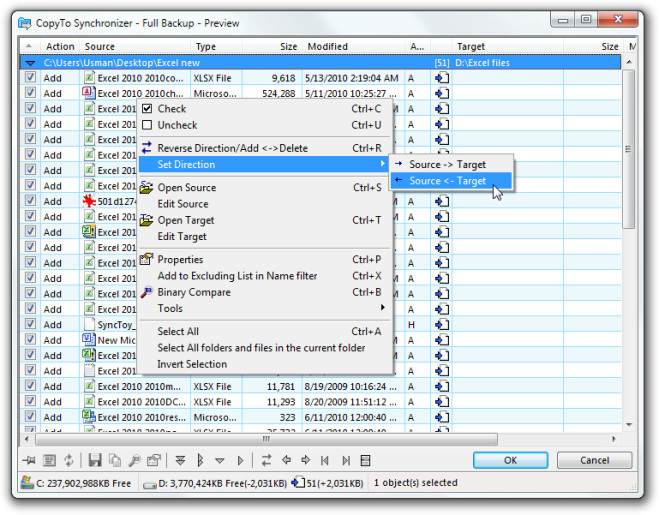
After you’ve finished setting up options, click Apply on the main interface to bring up a viewer to inspect all the files that you are about to sync or back up. There are many more options you can access from the right-click menu to change files sync/backup/copy direction, edit & view source, do binary comparison, and more. Along with a viewer, you’ll get to see a viewer options dialog to enable/disable different list-viewing related options. Once all settings are in place, click OK to finally execute the sync/backup task.
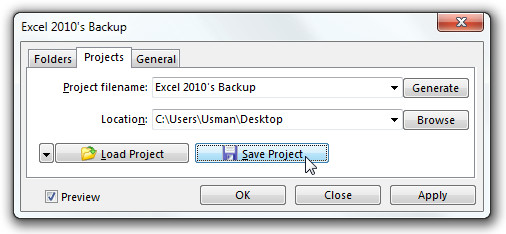
The Projects tab refers to saving the project in CP2 format. Click Generate to let it suggest an appropriate name for the project file, followed by Save Project to save the project file.
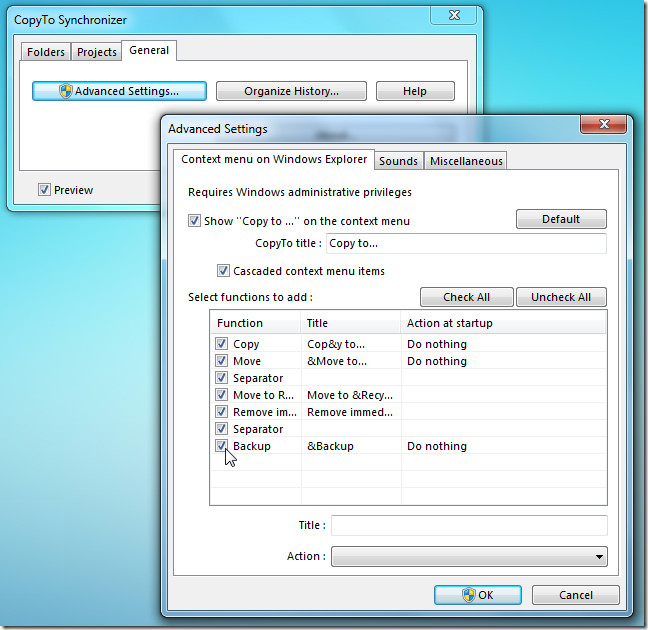
From the General tab, you can configure the application’s general behaviors and organize maintained history. It lets users enable context-menu integration, cascade its context menu options, and specify an audio file for notifications.
How to Schedule CopyTo Synchronizer Jobs
One of the practical advantages of saving your work as a CP2 project file is that the file can be used as the basis for an unattended, recurring backup job. CopyTo Synchronizer does not appear to include a built-in scheduler of its own, but you can automate saved projects using Windows Task Scheduler, which is built into every version of Windows from XP onward.
Here is the general approach:
- Save your project first. Before scheduling anything, fully configure your source, target, mode, and filters, then save the project as a CP2 file using the Projects tab as described above. Give it a clear, descriptive filename so you can identify it later.
- Find the CopyTo Synchronizer executable path. Locate the folder where CopyTo Synchronizer is installed (typically under Program Files) and note the full path to its main executable (.exe) file.
- Open Windows Task Scheduler. Press the Windows key, type Task Scheduler, and open it. Click Create Basic Task in the right-hand panel.
- Set your trigger. Name the task, then choose how often it should run — daily, weekly, or at a specific time. Follow the prompts to set the exact schedule.
- Set the action. Choose Start a program. In the Program/script field, enter the full path to the CopyTo Synchronizer executable. In the Add arguments field, enter the full path to your saved CP2 project file. Check the application’s own documentation or Help file to confirm the exact command-line argument syntax, as this can vary between versions.
- Configure the task to run with appropriate permissions. If the source or target locations require elevated access (for example, a network share or a system folder), check the option to run the task whether or not the user is logged on, and ensure the task runs under an account with the necessary rights.
A note on the preview step: CopyTo Synchronizer normally shows a preview window before executing a task. For fully unattended operation, you need to confirm whether a command-line or scheduled invocation bypasses this preview automatically or requires an additional flag. Test this carefully before relying on it for a production backup schedule.
Safety tip: Always test any scheduled job on a small, non-critical folder first. Verify in the Execution History that the correct files were copied and that no unintended deletions occurred before pointing the job at your live or important data.
The application serves the needs of both amateurs and experts alike. If you don’t like fancy features and prefer not to tweak every option, you can perform the task in a simplistic manner — specify source and target location, select a mode, and let it handle the rest. For advanced users, a large array of options is always available to configure. The application works without any noticeable problems.
Compatibility note (archival): The original review of this application was conducted on a Windows 7 x86 system, and the stated compatibility at that time was Windows XP, Vista, and 7. That information dates from 2010 and should be treated as historical only. Whether CopyTo Synchronizer installs and functions correctly on Windows 10 or Windows 11 — including 64-bit systems — has not been verified in a current test environment. If you are running a modern version of Windows, you may encounter compatibility issues and should verify current support with the developer before relying on it for critical backup tasks.