NTFS vs exFAT vs FAT32: How Windows File Systems Actually Work
FAT32, exFAT, and NTFS are the three main Windows file systems. Here's what they are and how they actually work.
If you’ve used a Windows computer, you’ve likely encountered the NTFS, exFAT, and FAT32 file systems, even if you didn’t know it.
While most people don’t really have to engage with these systems anymore, what they are and how they work is important to understand. Even though the Windows formatting utility usually chooses the right format for the media in question, sometimes you’ll need to override that. So let’s look at what the three main Windows file systems actually are.
What a File System Actually Does
Keeping Your House in Order
A file system is simply the organizing principle for the information saved on that device. The Dewey Decimal System that libraries use to organize and quickly retrieve books is effectively a file system.
Without some sort of way to organize the data, you’d just have an SSD, hard drive, or thumb stick filled with raw binary data with no way to make sense of it all.
Every time you save a file or write data to a disk, the OS has to solve a series of problems. Where should the file be stored? Which parts of the drive are free? What is the file named? Who has permission to access it? Has the file changed recently? The file system handles all of that.
Drives are broken up into small chunks of storage known as “clusters.” The file system keeps track of which clusters belong to which file. It also stores metadata (data about data), which is how you know what the file is called, when it was created, and so on.
Since a file system is just an organizing system, you can have multiple file systems on one physical disk. If you partition a drive, you can choose a different file system for each partition. If you’re dual-booting Windows and Linux, then either operating system may not be able to see all the partitions on the drive. An OS must support a partition scheme and file system to work with it.
That’s the basics of file systems, so now let’s go over the three big ones for Windows.
FAT32: The Ancient Survivor That Refuses to Die
Enough FAT to Survive
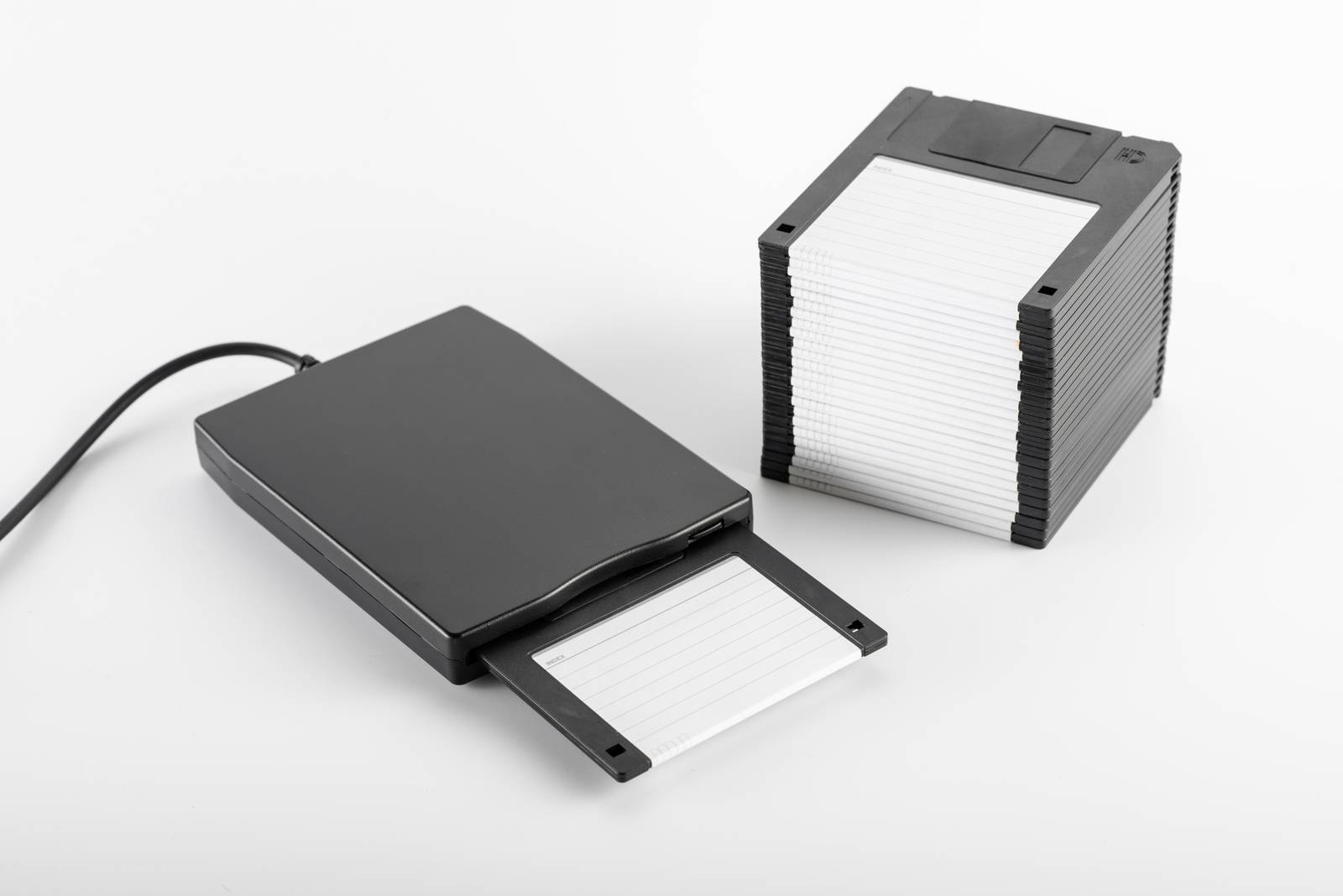
Of the three file systems here, FAT32 is the oldest. It comes straight from the DOS era and has been carried forward through every version of Windows since. FAT stands for File Allocation Table - a simple index that records which clusters on the disk belong to which file.
The “32” in FAT32 refers to the 32-bit numbers used to address those clusters. That sounds like plenty, but it creates hard limits that feel very dated today: individual files cannot exceed 4GB in size, and partitions are capped at 8TB in most implementations.
Despite those limits, FAT32 remains everywhere. It is the default format for USB flash drives and SD cards under 32GB, and virtually every device with a storage slot - cameras, game consoles, car stereos, smart TVs - can read it. That universal compatibility is why it refuses to die.
If you need to move files between very different devices and those files are under 4GB, FAT32 is still a reliable choice. If you need to transfer something larger, you’ll need one of the other two formats.
exFAT: FAT32 Grown Up
Extended for the Modern Era
Microsoft introduced exFAT in 2006 specifically to address FAT32’s file size and partition limits while keeping the simplicity and broad compatibility that made FAT32 so durable.
exFAT uses 64-bit cluster addressing, which pushes the theoretical file size limit to 16 exabytes - far beyond anything practical today. Partition sizes are similarly unconstrained for real-world use. Those 4GB barriers are gone.
exFAT is the default format for SDXC cards (64GB and above) as defined by the SD Association, which is why it shows up on high-capacity cards out of the box. It is also widely supported: Windows, macOS, Linux (with the right packages), Android, and most modern consumer electronics can read and write exFAT without trouble.
What exFAT does not have is journaling. A journal is a log that records what the file system is about to do before it does it, so that if power is lost mid-write the drive can recover cleanly. Without journaling, an interrupted write on exFAT can leave the drive in a corrupt state. For a removable drive you eject properly, that is rarely a problem. For a drive that might lose power unexpectedly, it matters.
For flash drives and memory cards where you need to move large files across different operating systems and devices, exFAT is usually the right choice.
NTFS: The Workhorse of Windows
New Technology, Lasting Impact
NTFS - New Technology File System - shipped with Windows NT in 1993 and has been the default file system for Windows system drives ever since. It was built from the ground up to solve the problems that FAT could not handle: large files, large volumes, security, and reliability.
NTFS supports files and volumes that are, for practical purposes, unlimited in size. It includes full journaling, so interrupted writes are recoverable. It supports file-level permissions, meaning you can control exactly who can read, write, or execute any given file or folder. It also supports compression, encryption (via EFS), symbolic links, hard links, alternate data streams, and a long list of other features that enterprise and power users rely on.
The trade-off is compatibility. Windows reads and writes NTFS natively. macOS can read NTFS drives but cannot write to them without third-party software. Linux can read and write NTFS using the open-source NTFS-3G driver, though performance and reliability are not always perfect. Many consumer devices - cameras, game consoles, older car stereos - cannot read NTFS at all.
NTFS is the right format for any drive that lives inside a Windows PC or is used primarily with Windows. It is not the right format if you need a drive to work across many different devices or operating systems without friction.
Which File System Should You Use?
The short answer is: it depends on what the drive is for.
- FAT32 - Use it when you need the widest possible device compatibility and your files are all under 4GB. Good for small USB drives used with older or mixed devices.
- exFAT - Use it for large flash drives and memory cards where you need to move big files across different operating systems and modern devices. The practical replacement for FAT32 in most portable storage scenarios.
- NTFS - Use it for internal Windows drives and external drives that stay in the Windows ecosystem. Offers the best reliability, security, and feature set, but compatibility outside Windows is limited.
When Windows asks you to format a drive, it will usually suggest the appropriate file system. But now you know enough to decide for yourself when the default is not what you need.