How to Use an Old Android Phone as a Wi-Fi Extender
An old Android phone from 2019 or later can eliminate Wi-Fi dead zones in minutes. No hardware purchase needed.
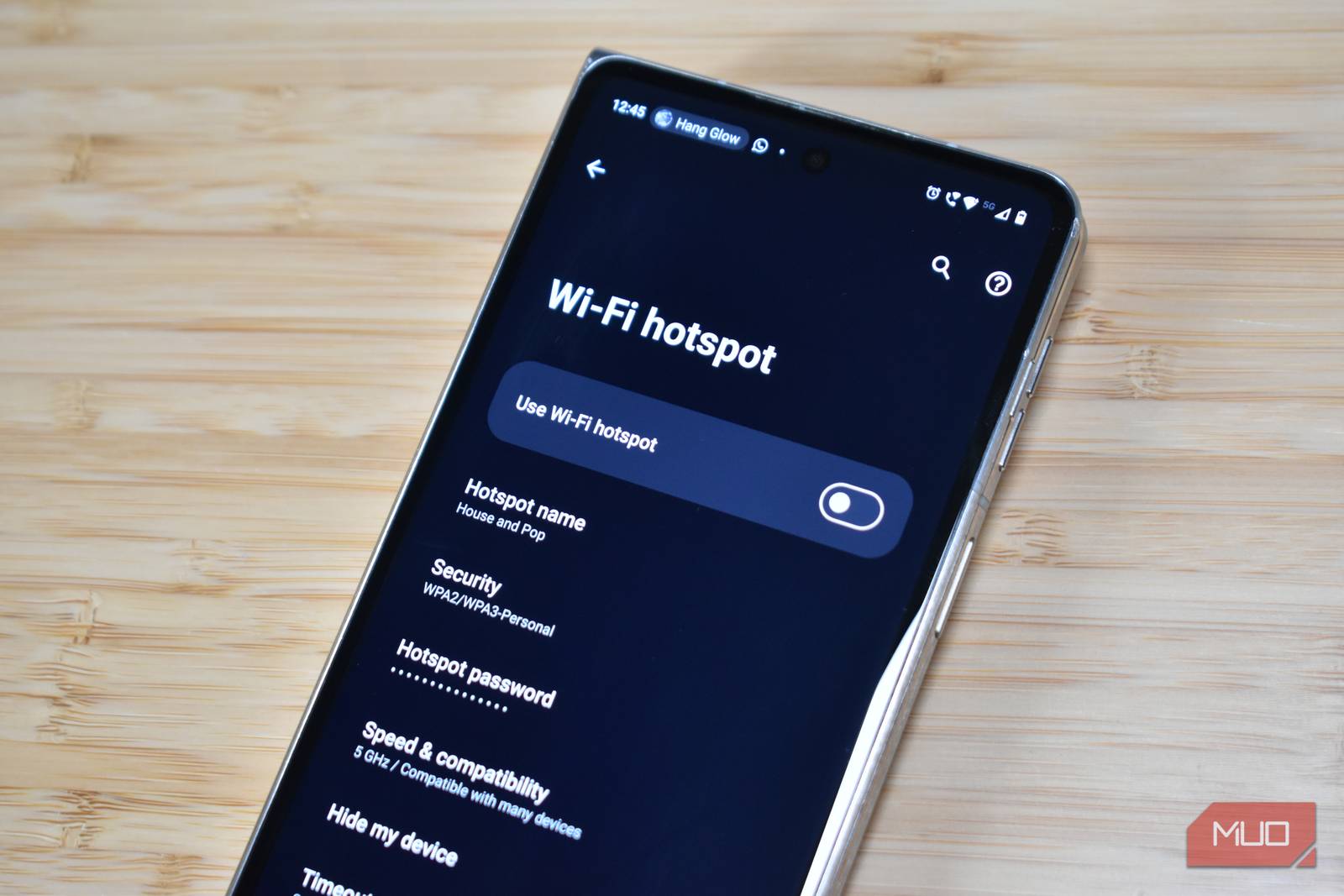
I have a pretty solid router, but there’s this one corner of my apartment that gets almost no signal. And yes, that’s after trying all the usual tricks to improve the coverage. So a Wi-Fi extender felt like the only viable option. But instead of buying one, I ended up using an old Android phone as a Wi-Fi extender. The whole setup took just a few minutes, and, most importantly, it completely eliminated the dead zones in my home.
Most Old Phones Can Work as a Wi-Fi Extender
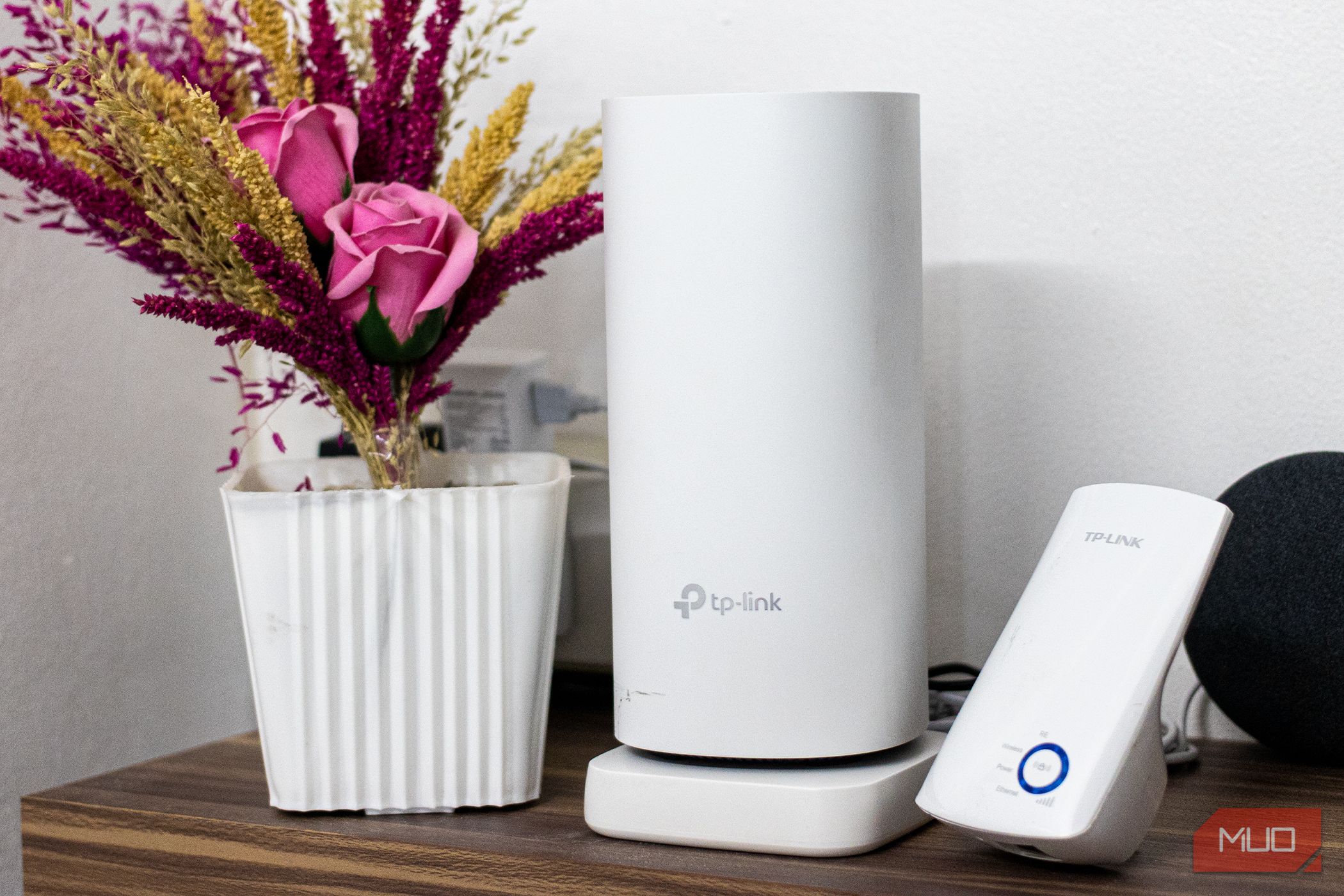
A Wi-Fi extender is pretty much what it sounds like. It picks up your router’s signal and rebroadcasts it. You can find a decent one for anywhere from $30 to well over $100, but the thing is, the cheap ones are usually garbage. The expensive ones work fine, but then again, they’re expensive for what they do. And that’s exactly why using an old Android phone as a Wi-Fi extender makes so much sense.
If you’ve been using Android phones for long enough, you probably remember the days when enabling the Wi-Fi hotspot turned off Wi-Fi and vice versa. This meant using a phone as a Wi-Fi extender simply wasn’t possible. Well, that’s no longer the case with most phones launched in the past few years. They can receive and transmit Wi-Fi signals simultaneously.
So yes, if you’ve got a phone from around 2019 or later, it almost certainly has the hardware to pull it off. It can connect to your router like any other device and share it via its hotspot.
Setting It Up Only Takes a Few Minutes
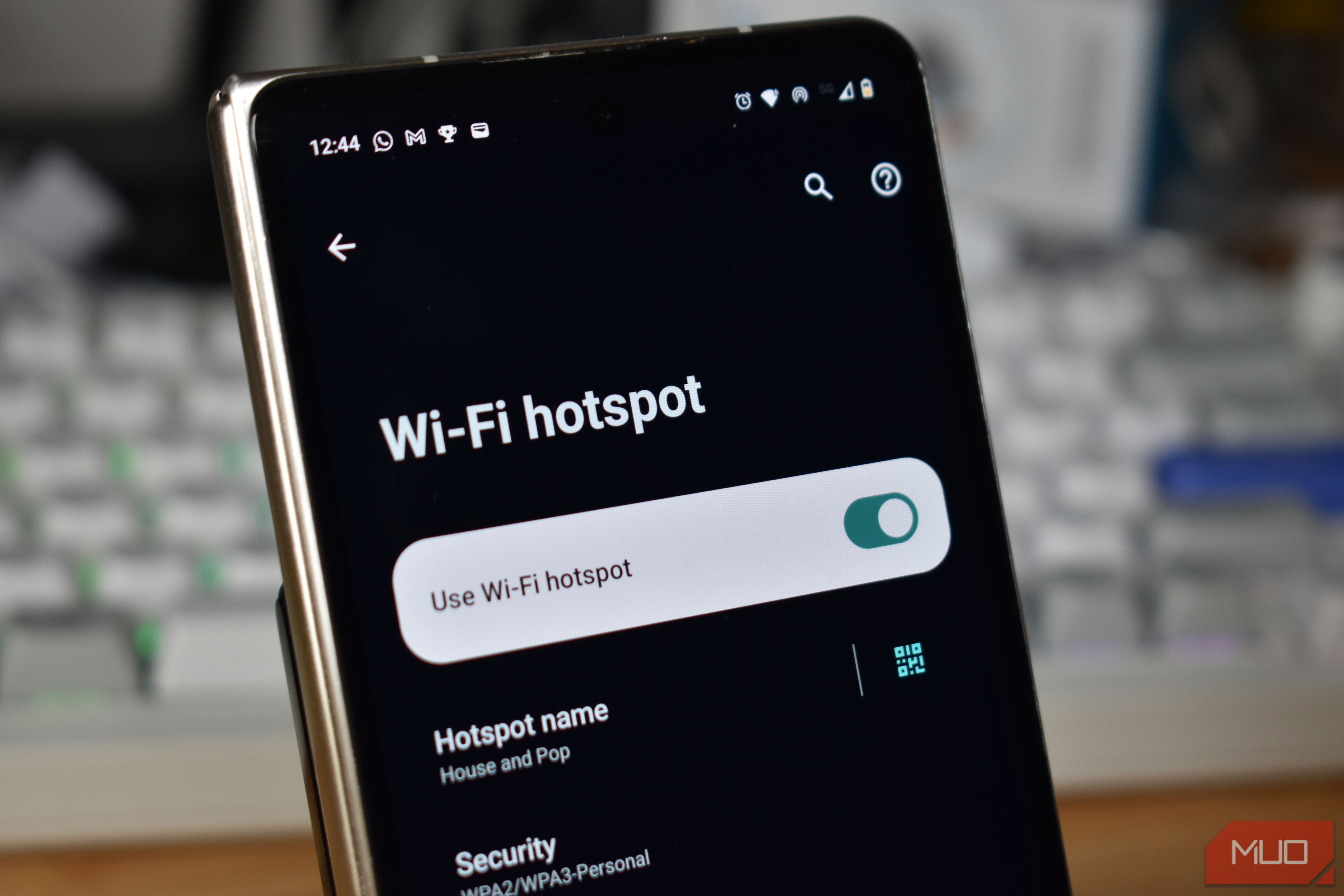
Setting up your old phone as a Wi-Fi extender is as easy as it sounds. Once you’ve connected it to your main Wi-Fi, head to Settings > Connections > Mobile Hotspot and Tethering and turn on Mobile Hotspot. This is the easy part, but we’re not done yet.
The right hotspot settings can make all the difference. For starters, most phones can broadcast signals in both 5GHz and 2.4GHz bands. Of course, 5GHz is faster and better if you only want to broadcast over a small area. But if you want the maximum range, go with the 2.4GHz band.
You can even enable the Wi-Fi 6 standard from the same menu. It’s not necessary, but if your devices receiving the signals support that standard, they’ll get better speeds. Finally, turn off Power saving mode and disable the option that automatically turns off the hotspot after a few minutes of inactivity. Also, if your phone has a working SIM, turn off mobile data.
Once you’re done with the setup, the only thing left is to find a good spot for your phone. This is important because if you place it too close to the router, you’re not really extending anything. Similarly, if you put it too far towards the dead zone, the phone itself gets a weak signal, which means everything connected to it gets an even weaker one. The sweet spot is usually somewhere between the router and the area with poor coverage. And, of course, if you need the hotspot running around the clock, make sure there’s a power outlet nearby so you can keep your phone plugged in.
It’s Not a Mesh System, But It’s Hard to Beat for Free
This solution won’t match a proper mesh network in terms of seamless roaming or raw performance, but for a free fix using hardware you already own, it’s difficult to argue against. If you have an old Android phone sitting in a drawer, putting it to work as a Wi-Fi extender is one of the most practical ways to repurpose it and get reliable coverage in corners of your home that your router simply can’t reach on its own.