How to Use Google Maps Plus Codes to Share Any Location
Plus Codes let you share any location on Google Maps without a street address. Here's what they are and how to use them.
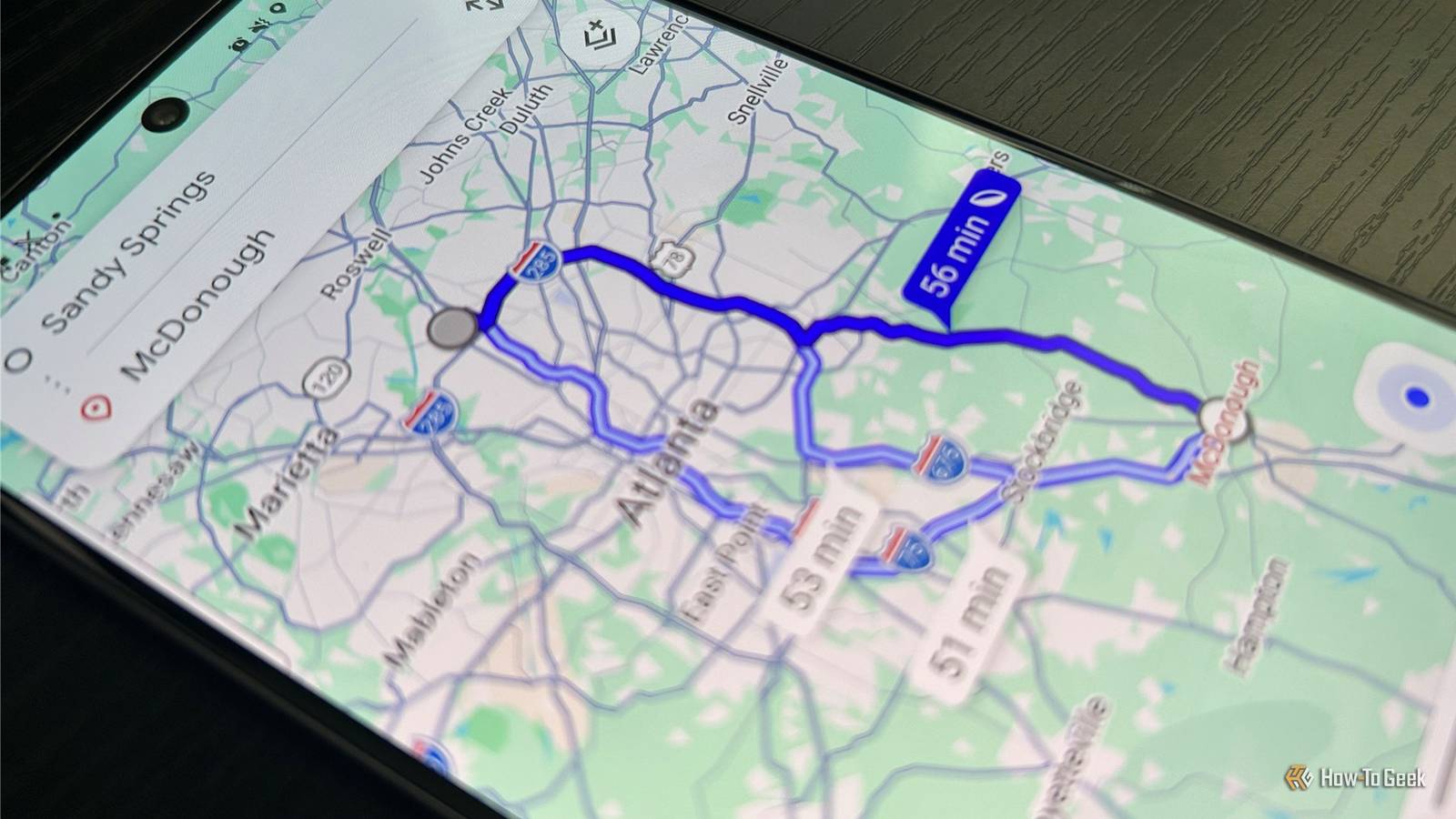
Google Maps has many features that go beyond directions for your daily commute. What makes the navigation app stand out is that its underrated features and settings can completely change how you use it, whether you’re a driver, cyclist, or walker.
One such feature is something you may have never even heard of: Plus Codes. You might be pleasantly surprised by how and when you can use them. Here’s all you need to know about this not-so-well-known feature.
What Are Plus Codes?
A feature you may want to add to your navigation arsenal
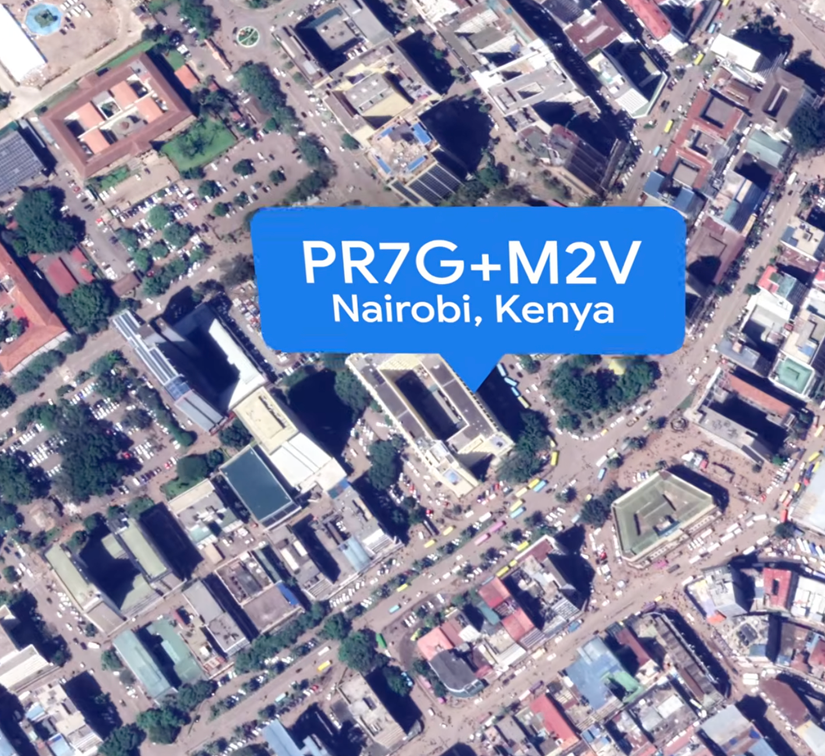
A Plus Code is a short digital address made up of letters, numbers, and a ”+” sign (an example of what one looks like: JJXX+HR8, Seattle). Google Maps creates it from a location’s latitude and longitude, so you can identify a specific spot even if it doesn’t have a street address.
Google developed Plus Codes to give locations a simple digital address, including places without a conventional street address. They help people share a location for deliveries or emergency services.
Think of it as a simpler way to share map coordinates. You can use a Plus Code for places with no clear address, or to point someone to a particular entrance or pickup spot in a confusing location.
You can use Plus Codes across devices that host Google Maps, including the desktop version.
Plus Codes are officially known as Open Location Codes, an open-source standard created by Google. This algorithm is public and can be used, generated, or decoded by other software, apps, and mapping tools.
A quick guide to finding and using these codes
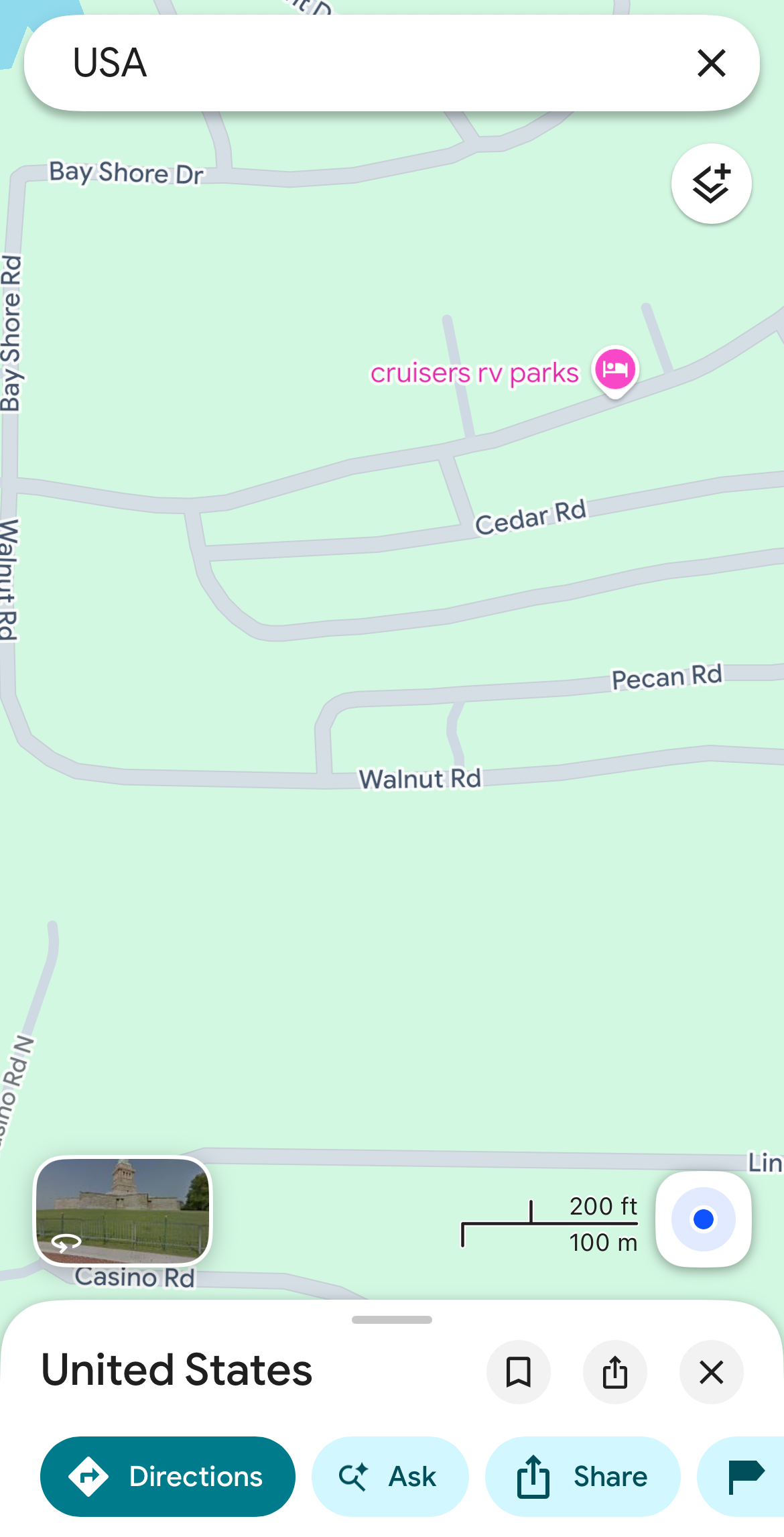
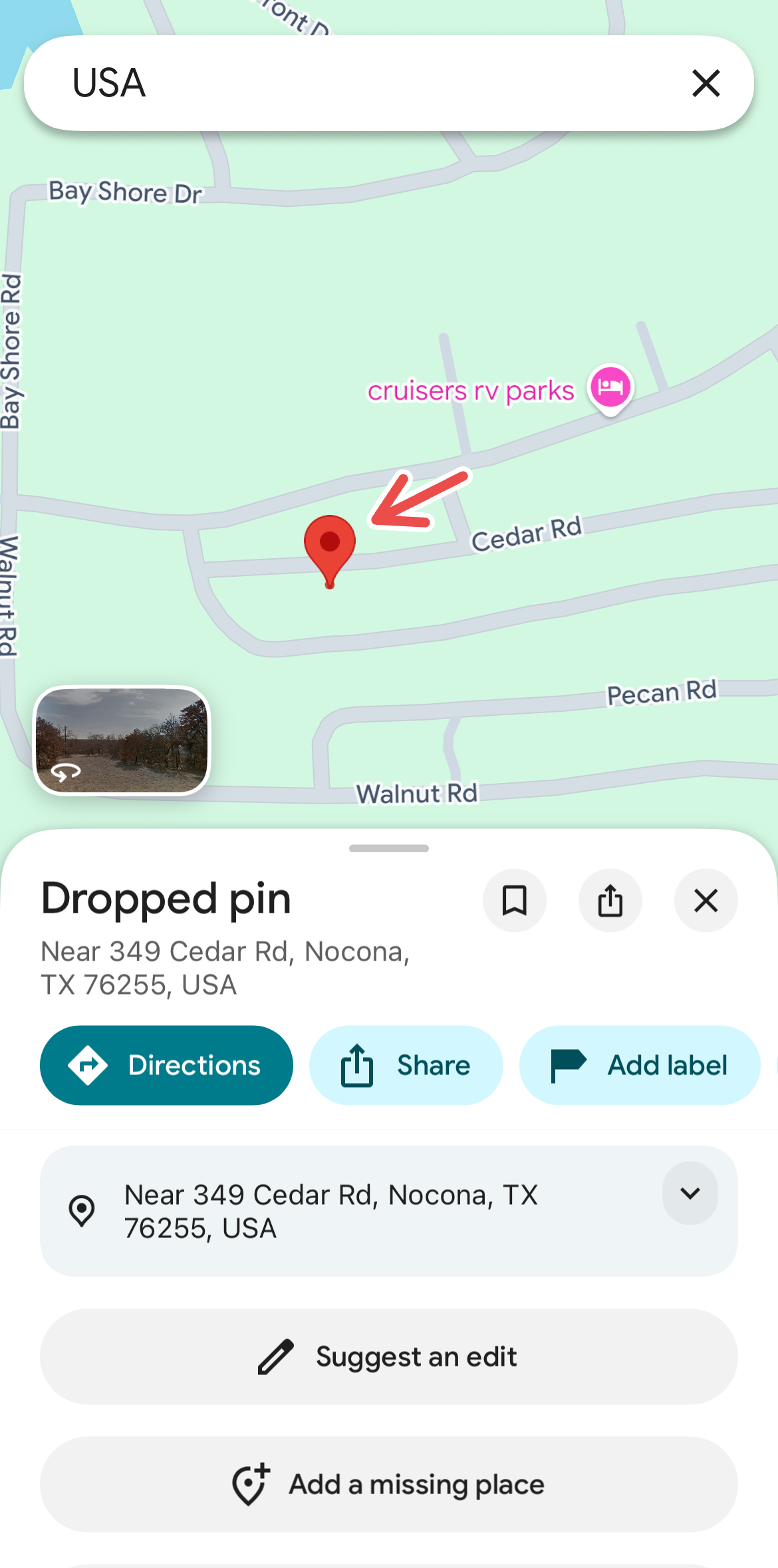
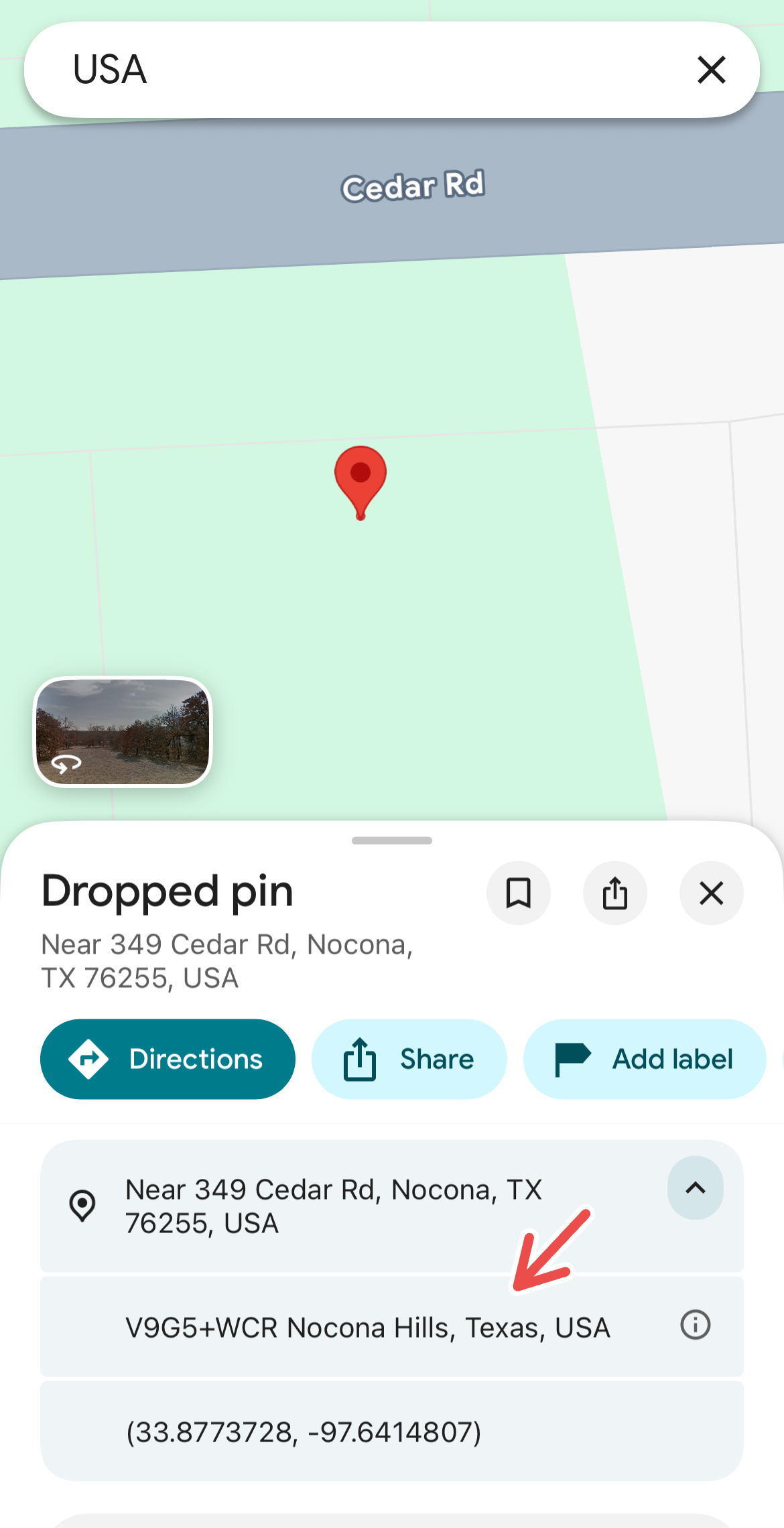
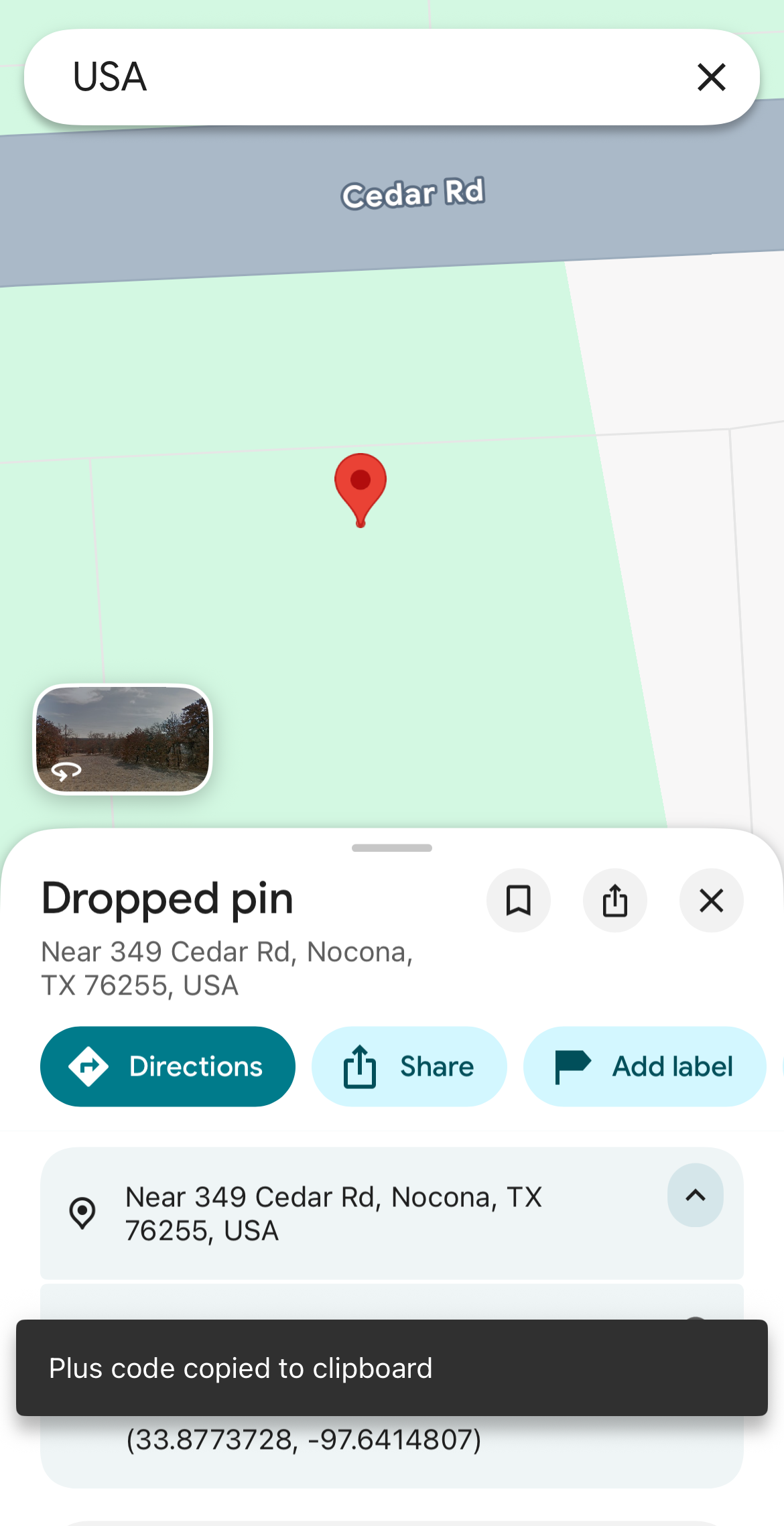
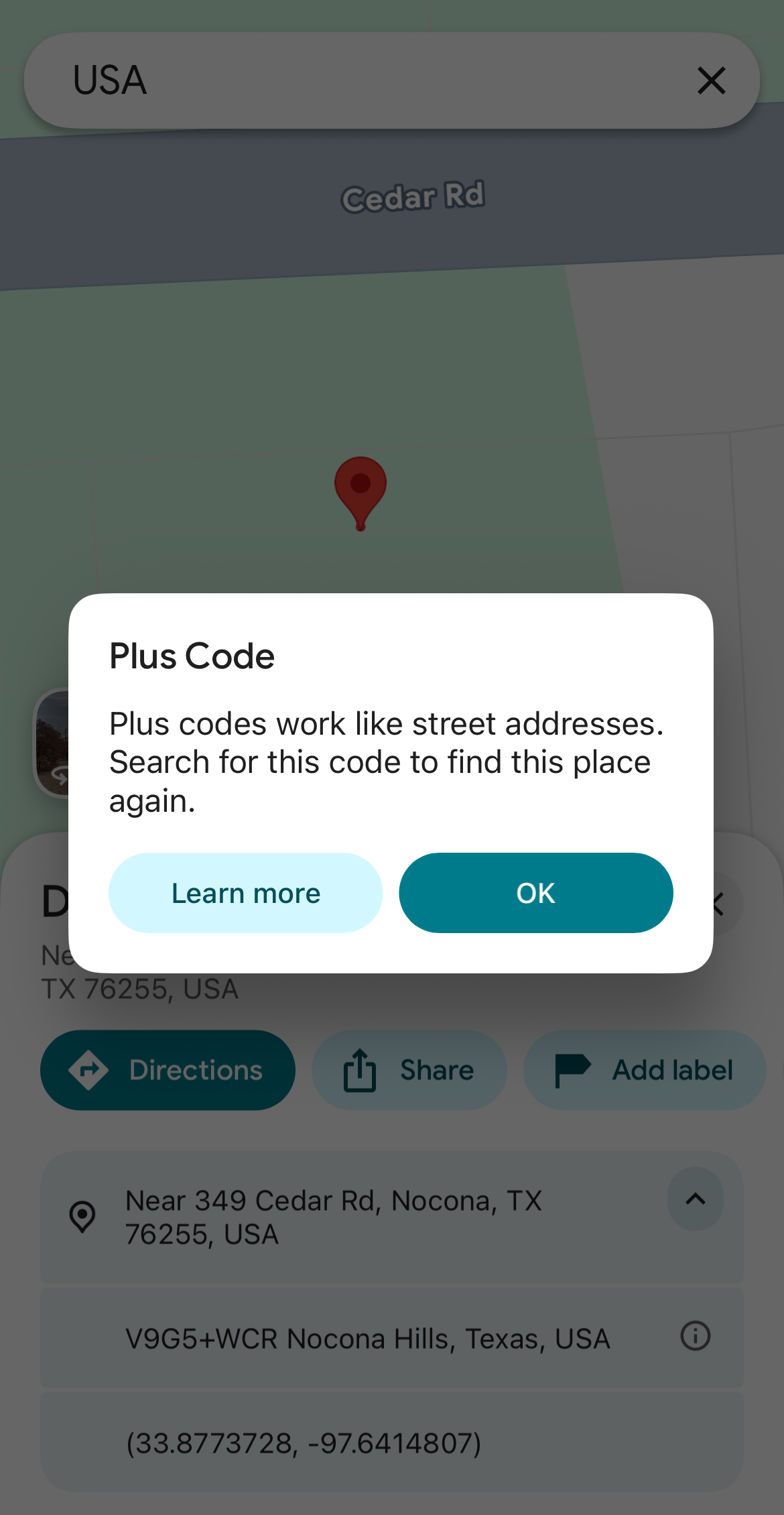
On your Google Maps mobile app, find the specific location you want to share. Press and hold that spot on the map to quickly drop a pin, then tap the location details that appear at the bottom of the screen. Find the Plus Code (you will see a small plus icon next to a mix of numbers and letters), then tap “Copy Code” (alternatively, you can just tap the code to copy it to your clipboard). You can then share it however you want with friends and family.
To get the Plus Code for your current location, tap the blue dot showing your location and find the Plus Code in the information panel.
On the desktop app, click the location on the map. In the information box at the bottom, click the coordinates to open the location details, then select the Plus Code in the panel to copy it.
Once you have a Plus Code, you can paste it directly into the Google Maps search bar on any device to navigate straight to that location — no street address required.