How to Install Windows 11: Every Official Method Explained
Windows 11 is a free upgrade for eligible devices. This guide covers every install method, from Windows Update to clean installs via ISO.
Windows 11 is available as a free upgrade for eligible devices and can be downloaded through Microsoft’s current official tools. This guide walks you through every method - from checking compatibility and preparing your device to completing a clean install or in-place upgrade.
Before You Install Windows 11
Before downloading anything, make sure your hardware and setup meet Microsoft’s requirements. Skipping this step is the most common reason installs fail or stall partway through.
Minimum Hardware Requirements
- CPU: Compatible 64-bit processor (1 GHz or faster, 2 or more cores)
- RAM: 4 GB minimum
- Storage: 64 GB minimum free space
- TPM: TPM 2.0 must be enabled in firmware
- Firmware: UEFI with Secure Boot capable
- Display: 720p or higher, 9-inch or larger screen
What You’ll Also Need
- An internet connection (required during setup for some paths)
- Administrator rights on the PC you’re upgrading
- A USB drive of at least 8 GB (for Media Creation Tool or ISO installs)
- A current backup of your important files - especially for a clean install
- A valid Windows 10 or Windows 11 license or product key (if doing a clean install on a new drive)
A Note on Arm-Based PCs
The Windows 11 Installation Assistant and Media Creation Tool create x64 (Intel/AMD) media only. If you have an Arm-based PC, you will need to download the separate Arm64 image directly from Microsoft’s software download page. Check your processor type in Settings > System > About before you proceed.
Installation Assistant Prerequisite
If you plan to use the Windows 11 Installation Assistant, your PC should already be running Windows 10 version 2004 or later, and you should have enough free disk space for the upgrade to proceed. Check your current Windows version by going to Settings > System > About.
Which Windows 11 Install Method Should You Use?
Microsoft offers several official paths to get Windows 11. Here is a quick breakdown of each one so you can pick the right tool for your situation before downloading anything.
- Windows Update - The safest and simplest option. If your PC is eligible, the upgrade will appear automatically in Settings > Windows Update. No USB or download tool required. Best for most everyday users who are not in a hurry.
- Windows 11 Installation Assistant - Forces an in-place upgrade on your current eligible x64 PC right now, without waiting for Windows Update to offer it. This keeps your files and apps intact. Note: does not work on Arm-based PCs.
- Media Creation Tool - Downloads the Windows 11 ISO and burns it directly to a USB drive in one step. Use this when you want to upgrade or clean install on an x64 PC and want the simplest USB creation process. Creates x64 media only.
- ISO direct download - Downloads the Windows 11 ISO file so you can burn it to USB yourself using a tool like Rufus, or mount it inside a virtual machine. Best for advanced users, clean installs, or VM setups.
How to Install Windows 11 via Windows Update or Installation Assistant
For most users on an eligible Windows 10 PC, these two methods are the easiest and lowest-risk ways to upgrade. No USB drive needed, and your files and apps stay intact.
Method 1: Windows Update
This is the recommended path for everyday users. Microsoft gradually rolls out the Windows 11 upgrade, so if you do not see it immediately, your PC may be in a staged rollout or subject to a safeguard hold - meaning Microsoft has temporarily paused the offer on certain hardware configurations while investigating a known issue. The upgrade will appear when it is cleared for your device.
- Open Settings and go to Windows Update.
- Click Check for updates.
- If your PC is eligible, you will see a “Windows 11 is ready - and it’s free” banner. Click Download and install.
- Allow the download to complete. Windows will prepare the upgrade in the background.
- When prompted, click Restart now (or schedule the restart for a convenient time). The PC will restart several times during installation - this is normal.
If you do not see the upgrade offer and your PC meets all requirements, you can use the Installation Assistant below to trigger it immediately instead of waiting.
Method 2: Windows 11 Installation Assistant
The Installation Assistant lets you upgrade an eligible x64 PC to Windows 11 right now without waiting for Windows Update to offer it. Before you start, confirm your PC meets these prerequisites:
- A valid Windows 10 or Windows 11 license
- Windows 10 version 2004 or later already installed
- At least 9 GB of free disk space
- Administrator rights on the PC
- An x64 (Intel or AMD) processor - the tool does not support Arm-based PCs
- Go to the official Windows 11 download page and click Download Now under Windows 11 Installation Assistant.
- Run the downloaded tool. You may be prompted by User Account Control - click Yes to allow it to run with administrator rights.
- The tool will verify that your PC meets Windows 11 hardware requirements before proceeding. If your device does not pass, it will display which requirement was not met.
- If your PC passes the compatibility check, accept the license terms and click Accept and install.
- The tool will download Windows 11 and prepare the upgrade. This can take some time depending on your internet speed.
- When the upgrade is ready, click Restart now. The PC will restart several times to complete the installation. Do not turn off your computer during this process.
How to Download Windows 11
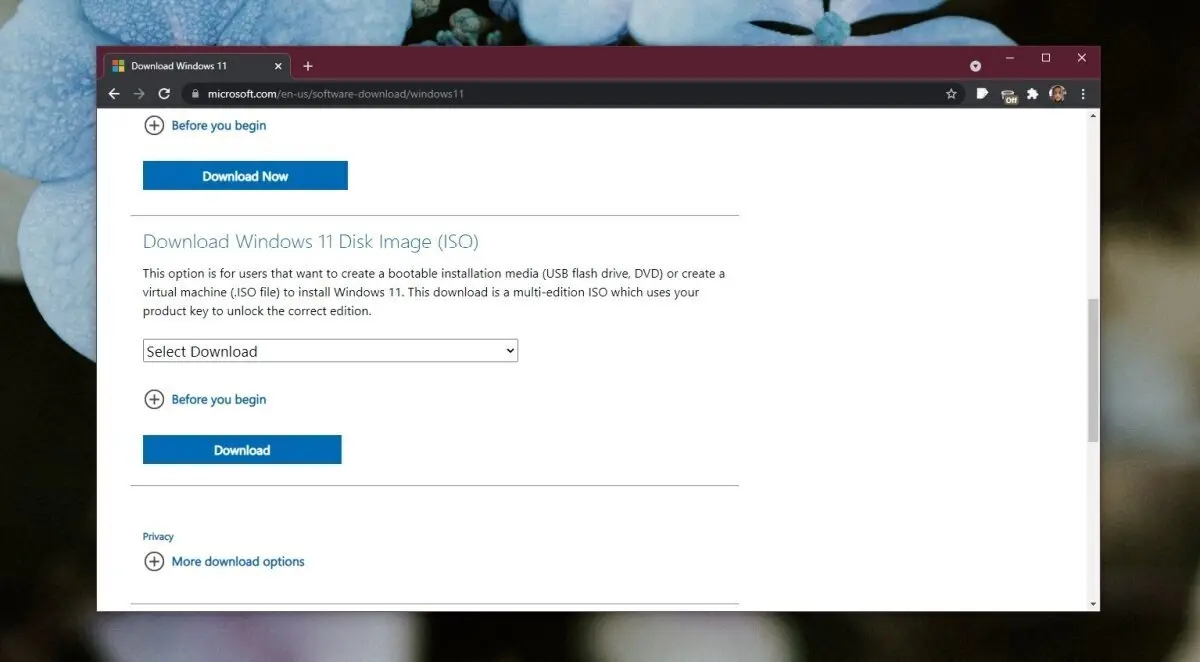
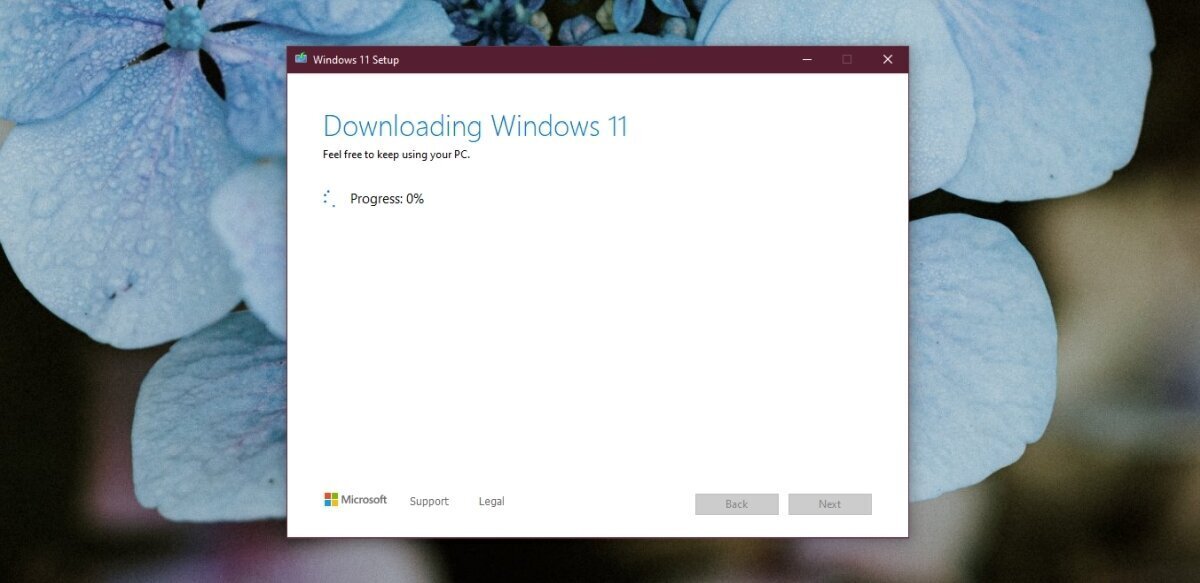
Microsoft distributes Windows 11 the same way it did Windows 10, via a media creation tool. The media creation tool will download the Windows 11 ISO file and burn it to a connected USB drive. You can also download just the ISO file and use your tool of choice to burn it to a USB.
Method 1: Media Creation Tool
To download Windows 11 using the media creation tool, follow these steps.
- Visit the official Windows 11 download page in your browser.
- Click Download now under Windows 11 Installation Media.
- Run the media creation tool.
- Accept the end user agreement.
- Select the language and Windows edition that you want to download.
- Select the USB flash drive option.
- Connect the USB drive to your system.
- Click Next and select the drive.
- Begin the download.
- Once the download completes, the ISO will be burned to the USB.
Method 2: ISO Direct Download
To download the ISO directly, follow these steps.
- Visit the official Windows 11 download page.
- Click Download now under Download Windows 11 Disk Image.
- Allow the download to finish.
- Use a tool like Rufus to burn the ISO to a USB drive.