How to Fix the iMessage Signed Out Error on iPhone
If iMessage keeps signing you out, wrongly configured settings, Wi-Fi issues, or Apple ID problems may be to blame. Here are the fixes.
If your iPhone keeps logging you out of iMessage, then you’re probably familiar with the iMessage signed out error. Whether this is your first time seeing it or it keeps happening repeatedly, it’s a frustrating problem that can disrupt your messaging entirely.
Why has iMessage signed out? Possible reasons include wrongly configured settings, Wi-Fi issues, iMessage server outages, or even problems with your mobile data connection or SIM.
No matter the reason for the iMessage signed out error on your iPhone, there’s no need to worry. We’ve got nearly two dozen solutions for when iMessage stops working so that you can get back to texting.
What to Do When You See the iMessage Signed Out Error
Looking for a quick solution? Try this first, before you head into the more detailed tips below:
- Close and reopen the Messages app.
- Turn on Airplane Mode for a few seconds, and then switch it back off.
- Look in Settings > Apps > Messages to confirm your iMessage settings.
How to Fix the iMessage Signed Out Error: Advanced Troubleshooting
There are several possible reasons why the iMessage signed out error occurs, so there are also many troubleshooting tips. We’ve gathered all the best fixes here so that you can get through this error in no time.
1. Restart Your iPhone
The first thing to try is restarting your iPhone. Restarting can fix numerous things, from app bugs to connectivity issues, both of which could be the reason for seeing the iMessage signed out error.
Rebooting will not erase anything and can only do your phone some good, so give it a shot before we head into these more complicated steps.
2. Check If iMessage Is Enabled
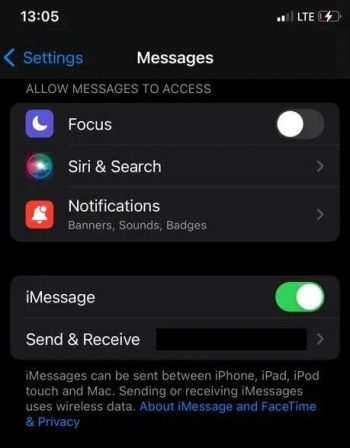
One potential reason iMessage isn’t working is because it’s turned off. Follow these steps to confirm that iMessage is actually enabled:
- Go to Settings > Apps.
- Tap Messages.
- If the toggle next to iMessage is greyed out, tap it to switch it back on.
3. Disable and Re-enable iMessage
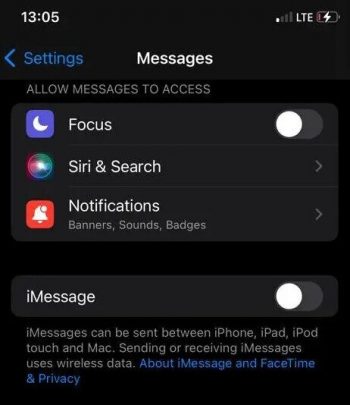
If iMessage was already on, one quick way to fix the iMessage signed out error is to toggle the service off and on. It’s like a soft restart that just takes a few seconds:
- Return to Settings > Apps > Messages.
- Tap the iMessage toggle to disable it.
- Wait a few seconds, and then tap it again to re-enable it. It might take a few seconds to fully restart.
4. Check Your Wi-Fi Connection and Credentials
A poor internet connection could be why the iMessage signed out error appears on your iPhone.
If you’re near a reliable Wi-Fi network that you know works for other internet-related tasks, make sure you’re actually connected to the network. If your router is broadcasting over 5 GHz Wi-Fi, consider changing it to 2.4 GHz, which could help with interference.
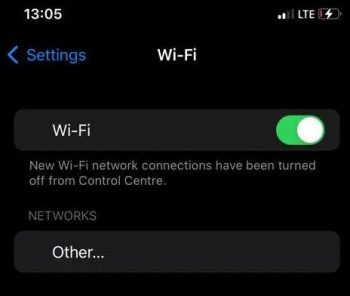
Here’s how to confirm that Wi-Fi is enabled:
- Open the Settings app and then tap Wi-Fi.
- Switch the Wi-Fi toggle on (so that it’s green).
- If Wi-Fi is already enabled, tap the (i) next to the network and make sure the password is correct.
5. Reset Network Settings
Sometimes, resetting the network settings fixes inexplicable connectivity issues that trigger the iMessage signed out error.
Following these steps will reset your phone’s saved Wi-Fi networks and Bluetooth connections to factory defaults. Be sure to write down your Wi-Fi network settings beforehand to make setup easier later.
- Open Settings, then General.
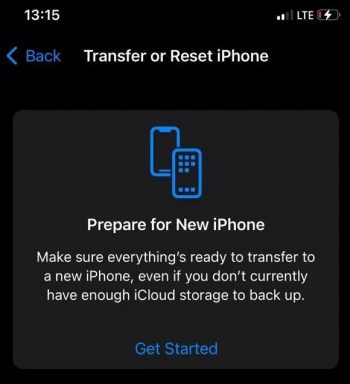
- Go to Transfer or Reset iPhone at the bottom, then tap Reset.
- Select Reset > Reset Network Settings.
- Rejoin your Wi-Fi network upon reboot to see if iMessage works.
6. Check Your Mobile Data Connection
Poor internet connection from your cellular network can be at fault for the iMessage signed out error. If you notice SOS and network errors, check that you have active mobile data and that your service provider is online by checking the signal bar for signal strength.
If you’re in a rural area or there are heavy weather conditions, you’re more likely to experience a weak or absent signal.
7. Check Your SIM Card
If you have issues with your cellular data connection but your network provider is active on other nearby iPhones, try removing and re-inserting your SIM card (if you have one). Also check for damage and improper alignment.
It’s worth noting that many iPhones don’t have a physical SIM card. If your phone is older or you live in a region that still has access to these types of products, this could be a useful tip to try. For most iPhone users, however, this will not apply.
8. Check Your Apple Account Settings
The iMessage signed out error might be related to your Apple Account/ID. Your Apple account provides you with access to everything Apple, including iMessage. Check that your account is correct, especially if you’re having issues with other Apple services.
- Go to Settings > Apps > Messages.
- Select Send & Receive.
- Tap on Use Your Apple Account for iMessage and sign in to iMessage if your Apple Account isn’t listed.
If your Apple Account is already listed but iMessage still won’t stay signed in, try a full reauthentication:
- Go to Settings > Apps > Messages > Send & Receive.
- Tap your Apple Account address, then choose Sign Out.
- Restart your iPhone, then return to Send & Receive and sign back in.
- If you recently changed your Apple Account password, re-enter the new password anywhere iOS prompts for it — iMessage may silently fail until every prompt is resolved.
- Confirm that the same Apple Account is used in both Messages and FaceTime to avoid authentication conflicts.