How to Fix Discord Overlay Not Working on Windows
Discord's in-game overlay can fail for several reasons. These steps help you troubleshoot and restore it on Windows.
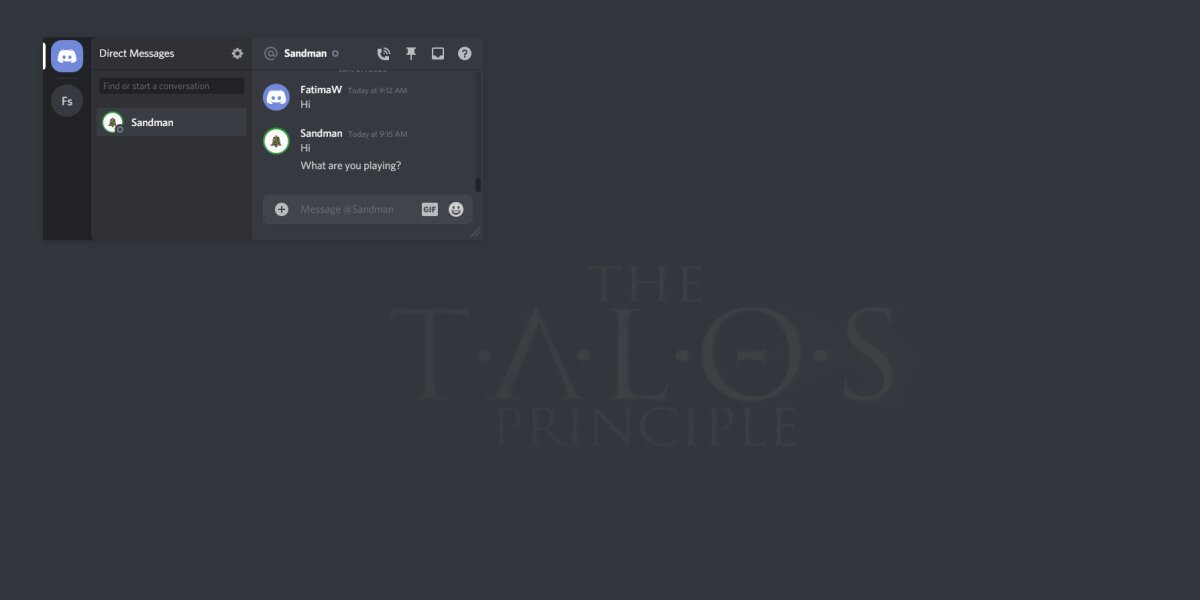
Discord has features on par with other messaging apps, but it’s particularly useful for gamers. The platform is great for voice and text chat while you play, allowing you to switch between channels and DM threads. The overlay works fairly well in some games but has trouble in others, such as the Windows 10 version of Minecraft.
If you find the Discord overlay not working, use the steps below to troubleshoot and get back in the game.
Important: Discord’s in-game overlay is supported on Windows only. It does not work on macOS or Linux. If you are on macOS, Discord’s in-game overlay is not supported, so the issue is not fixable with overlay settings. You can still use Discord normally outside the game window.
Quick Fix Checklist for Discord Overlay Not Working
You can troubleshoot Discord overlay not working issues by:
- Disabling overlay for all or select games
- Running the app as an administrator
- Checking antivirus or firewall interference
- Turning off Hardware Acceleration
- Reinstalling the app
- Changing the overlay hotkey
- Verifying game compatibility and display mode
- Ensuring Discord, graphics drivers, and your game are updated
There are several reasons why the Discord overlay might not be working as expected:
- Overlay is disabled: It could be disabled for the game, or in general. Check your Discord settings to see if this is the case.
- Game compatibility issues: Some games (older titles, exclusive full-screen, or with anti-cheat) don’t support overlays reliably.
- Incorrect display mode: Overlay is most reliable in windowed full-screen/borderless. Exclusive full-screen can block it.
- Conflicting software: Using third-party tools or overlays from different sources, such as NVIDIA or Steam, may conflict with Discord’s overlay. Try disabling these to resolve the issue.
- Security software: Antivirus or firewall rules can block overlay components.
- Outdated Discord or graphics drivers: Outdated, buggy, or incompatible drivers may affect things too. Try updating them and see if it fixes the problem.
- Hardware Acceleration conflicts: While this feature can make certain system functions perform faster, it may also cause issues with the Discord overlay.
- Hotkey conflicts: It’s possible that your hotkey is conflicting with other keyboard shortcuts, or that it has been changed without you realizing it.
Discord’s New Game Overlay vs Legacy Overlay
Discord rolled out a revamped Game Overlay starting on April 15, 2024. If you’ve noticed the overlay behaving differently from older guides, this is why. Here’s what you need to know about the current overlay behavior:
- Enabled by default for all games: The new overlay is turned on automatically for all detected games, so you no longer need to manually add each title.
- Works in windowed fullscreen and borderless fullscreen: The new overlay is designed to function in these display modes. If your game supports borderless or windowed fullscreen, this is your best option for reliable overlay use.
- Does not work in true (exclusive) fullscreen: If your game is set to true fullscreen, the overlay will not appear. Switching to borderless windowed mode is the recommended fix.
- Hides when the game window loses focus: The overlay will automatically hide if your game window is not the active, focused window. Click back into your game to bring it back.
- Screen sharing behavior: Window-only screen sharing does not capture the overlay. If you want the overlay to be visible in a stream or screen share, you need to use full-screen sharing instead.
- Legacy overlay option: Some users may still see a global “Enable legacy overlay” toggle in their Discord settings. This can be useful if the new overlay is not working with a specific game, but be aware this option may be removed in a future Discord update.
- Build differences: The overlay UI and available options can differ between the Stable release and Discord’s PTB (Public Test Build) or Canary builds. If you are on PTB or Canary, you may see different settings than what standard guides describe.
How to Get Discord Overlay to Pop Up
If Discord overlay is not appearing when you launch a game, work through these steps in order before assuming something is broken:
- Confirm overlay is enabled in User Settings. Open Discord, click the cogwheel to open Settings, go to Game Overlay under Activity Settings, and make sure Enable in-game overlay is toggled on.
- Make sure the game is the active, focused window. The overlay hides automatically when your game window is not in focus. Click directly into the game window so it is the active application.
- Switch the game’s display mode from true fullscreen to borderless or windowed fullscreen. This is one of the most common reasons the overlay will not appear. True (exclusive) fullscreen blocks the overlay entirely. Go into your game’s graphics or display settings and change the mode to Borderless Window or Windowed Fullscreen.
- Relaunch the game. After changing the display mode, fully close the game and relaunch it so Discord can detect the new window mode correctly.
- If the game only works in true fullscreen, check whether an Enable legacy overlay option is available in your Discord Game Overlay settings. Enabling it may restore overlay support for that title. Note that this option may be removed in future Discord updates.
- Press the overlay hotkey. Once your display mode is correct and the game is in focus, press the default hotkey Shift + ` to bring up the overlay. If this does not work, go to Settings > Game Overlay to confirm or reset the hotkey under Toggle Overlay Lock.
Method 1: Disable Discord Overlay for All Games
To disable the overlay for any and all games to troubleshoot Discord overlay not working, follow these steps:
- Open the Discord app.
- In the column on the bottom left, click the cogwheel to access Discord’s settings.
- Scroll down and select Game Overlay.
- Turn Enable in-game overlay off.
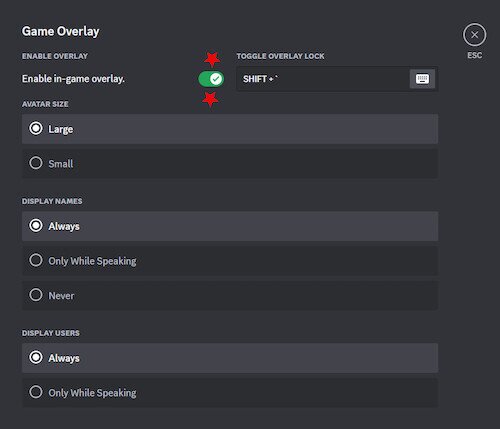
- Launch the game where the overlay has been displaying, and check if it’s still there. If it is, quit and re-open Discord.
- Once turned off, turn the overlay on again from a game by tapping the toggle keyboard shortcut, which is Shift+` by default.
Method 2: Disable Discord Overlay for Select Games
The Discord overlay can be disabled on a per-game basis, which can help fix Discord overlay not working for specific titles.
- Open Discord.
- In the column on the left, click the cogwheel button at the very bottom to access Discord’s settings.
- Scroll down and select Registered Games.
- Under Added Games, click the monitor icon next to a title to toggle the overlay:
- Gray = overlay enabled
- Red with slash = overlay disabled
Disabling the overlay for a problematic game and re-enabling it can force Discord to reinitialize the overlay for that title, which often resolves display issues without affecting other games in your library.