How to Fix Antimalware Service Executable High CPU Usage
MsMpEng.exe causing high CPU usage? Learn what's normal, what isn't, and how to fix Windows Defender performance issues.
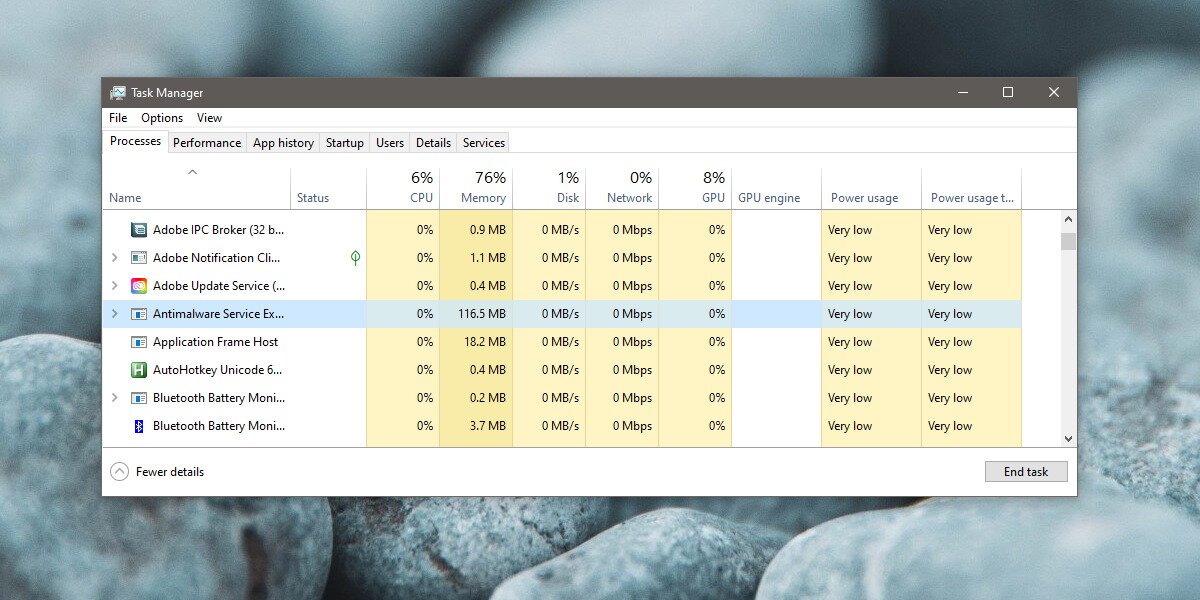
Windows 10 and Windows 11 run quite a few services in the background. These services normally do not take priority when it comes to using system resources. User processes are generally given priority. However, if you are experiencing high CPU usage from MsMpEng.exe consistently, you may need to look into it and possibly fix a problem or two.
The Antimalware Service Executable (MsMpEng.exe) is the Microsoft Defender Antivirus engine — the core process behind Windows Security. It is going to run all the time, so if you see it in Task Manager, that is nothing to worry about. The concerning sign is if it is consistently using a large portion of your CPU’s power. If your system is idle, CPU usage may go up since Microsoft Defender utilizes the downtime to run scans, but you should not be seeing sustained high CPU usage from this process.
Why Is Antimalware Service Executable Using High CPU or Disk?
Before changing any settings, it helps to know whether what you’re seeing is normal behavior or a genuine problem. Here’s a quick way to tell the difference.
Normal behavior (nothing to fix):
- Brief CPU or disk spikes during Windows startup
- Elevated usage while Microsoft Defender downloads definition updates
- High activity during a scheduled or manually triggered full scan that finishes within a reasonable time
Abnormal behavior (worth investigating):
- Sustained high CPU usage lasting 10–15 minutes or more with no scan in progress
- Repeated spikes every time you log in, even after a fresh restart
- 100% disk usage on a traditional HDD system that does not resolve on its own
Common causes:
- Scheduled or full scans — Defender running a scan you haven’t noticed
- Real-time scanning of high-change files — folders with frequent writes (build output, VM images, game launchers) trigger repeated scans
- Defender definition updates — downloading and applying new virus definitions temporarily spikes CPU and disk
- Third-party antivirus conflicts or leftover components — remnants of an uninstalled AV tool can cause Defender to behave erratically
- Corrupted definitions or system files — damaged Defender data can cause runaway scanning loops
- Slow HDDs — even normal Defender activity can saturate an older spinning drive
- Actual malware — a stubborn infection can force Defender into constant scanning mode
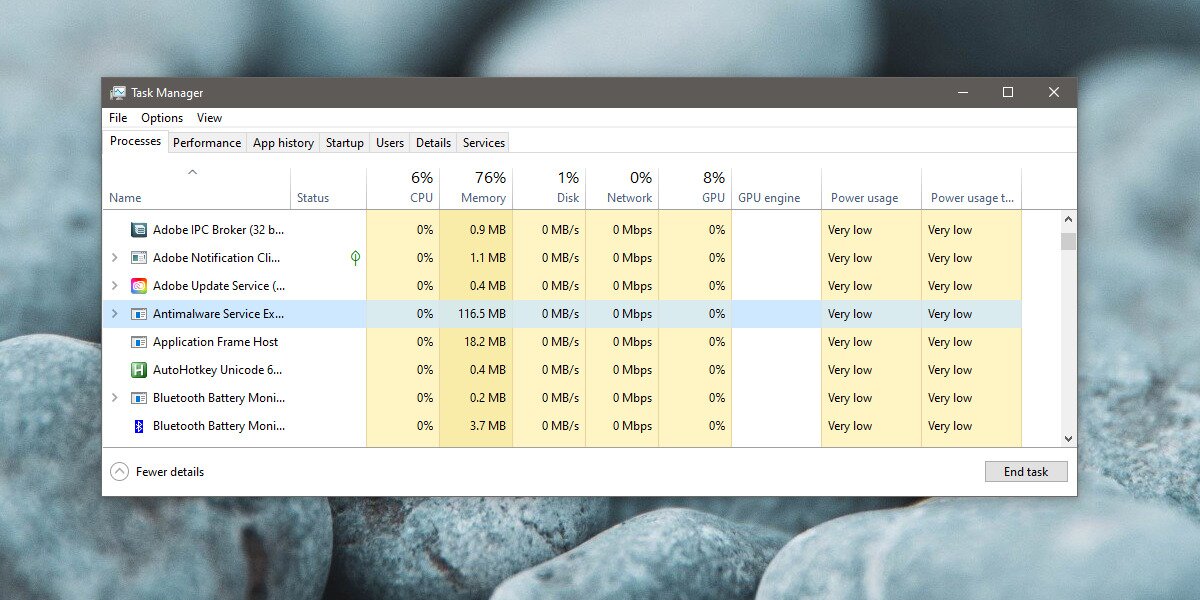
Quick triage step: Open Task Manager (Ctrl + Shift + Esc), click the Processes tab, and sort by CPU or Disk. Confirm MsMpEng.exe is the real bottleneck.
For a deeper look, open Resource Monitor (search for it in the Start menu), go to the Disk tab, and check which files MsMpEng.exe is reading or writing — this often reveals exactly what it is scanning so you can address the root cause.
FIX: Antimalware Service Executable High CPU Usage (MsMpEng)
1. Restart the System
Desktop computers don’t need to be shut down every night. Most do fine by going into a low-power state, but this is fine until processes begin to stall. This can happen on both Windows 10 and Windows 11. Try restarting your system and see if usage by this process returns to normal (single digits, or low double digits).
2. Run a Full Scan
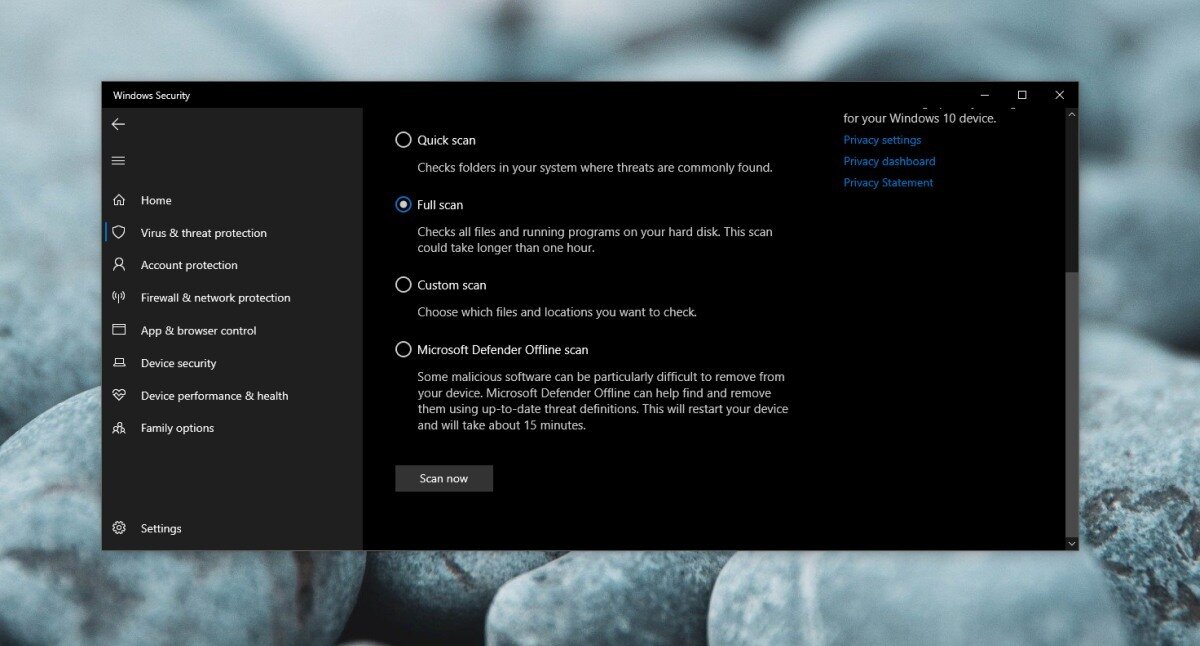
The high CPU usage may be caused by a long-overdue scan that needs to run. Often, the simple solution is to allow a full scan to complete. You will need to stop the service in its current state and then initiate a fresh scan. It is best not to use your system until the scan completes so that it finishes faster.
- Open Windows Security.
- Go to Virus & Threat Protection.
- Click Manage Settings under Virus & threat protection settings.
- Turn off all the switches.
- Restart the system.
- Once you’re back on your desktop, turn all the Virus & threat protection settings back on.
- Return to the main Virus & threat protection tab.
- Click Scan Options.
- Select Full scan and click the Scan now button.
- Allow the scan to complete.
3. Reset Windows Firewall
Windows Firewall has certain rules that users can modify according to their needs. As you install apps, you will often have to allow some exceptions for the firewall. VLC player is one common example of an app that asks for exceptions. While generally harmless, these rules may interfere with Windows Defender, and resetting the rules may fix the problem.
- Open Windows Security.
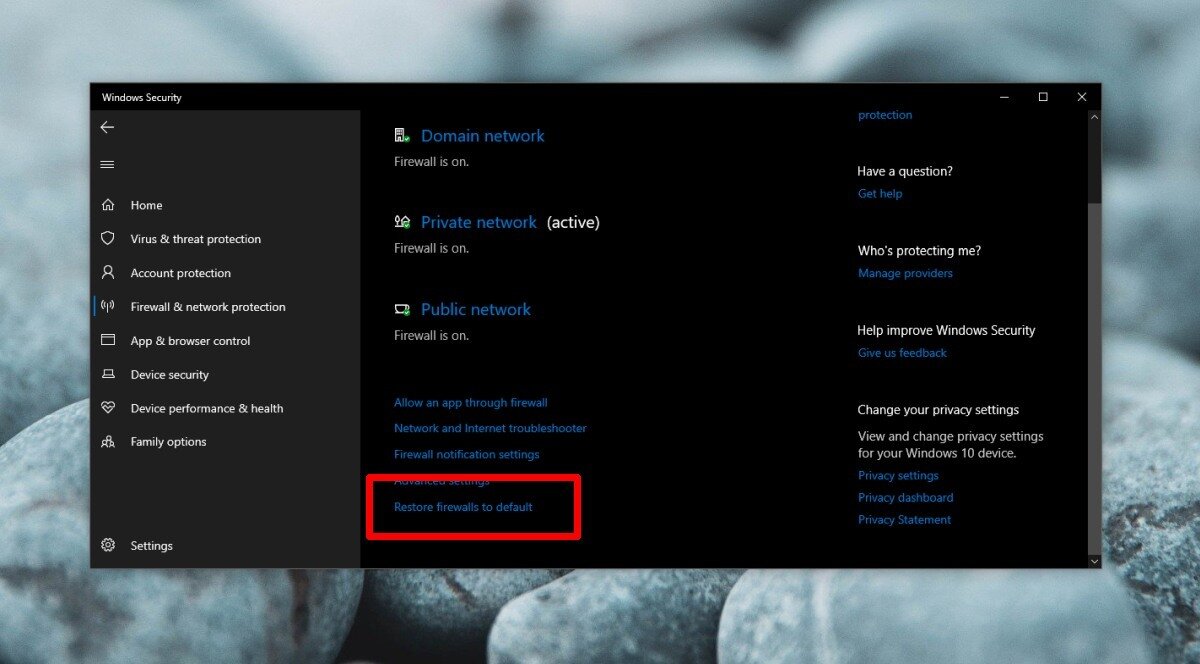
- Go to the Firewall and network protection tab.
- Scroll down and click Restore firewalls to defaults.
- Restart the system. CPU usage from the Antimalware Service Executable should return to normal. You can add your exceptions back to the firewall afterward.
4. Scan for Malware
Windows Defender is not impervious. It can stop malicious files and apps from running, but it isn’t able to catch everything. It’s possible that your system is infected with something that is causing Windows Defender to work in overdrive, which in turn drives CPU usage even higher. Try using a different scanning tool like the free version of MalwareBytes. It may disable Windows Defender while it runs, but that is nothing to worry about. Allow it to complete a full scan, remove anything it finds, and then check whether MsMpEng.exe CPU usage returns to normal levels afterward.