How to Change DNS Settings on a Roku Using Your Router
Roku doesn't let you set a custom DNS on the device itself. Here's how to work around that through your router instead.
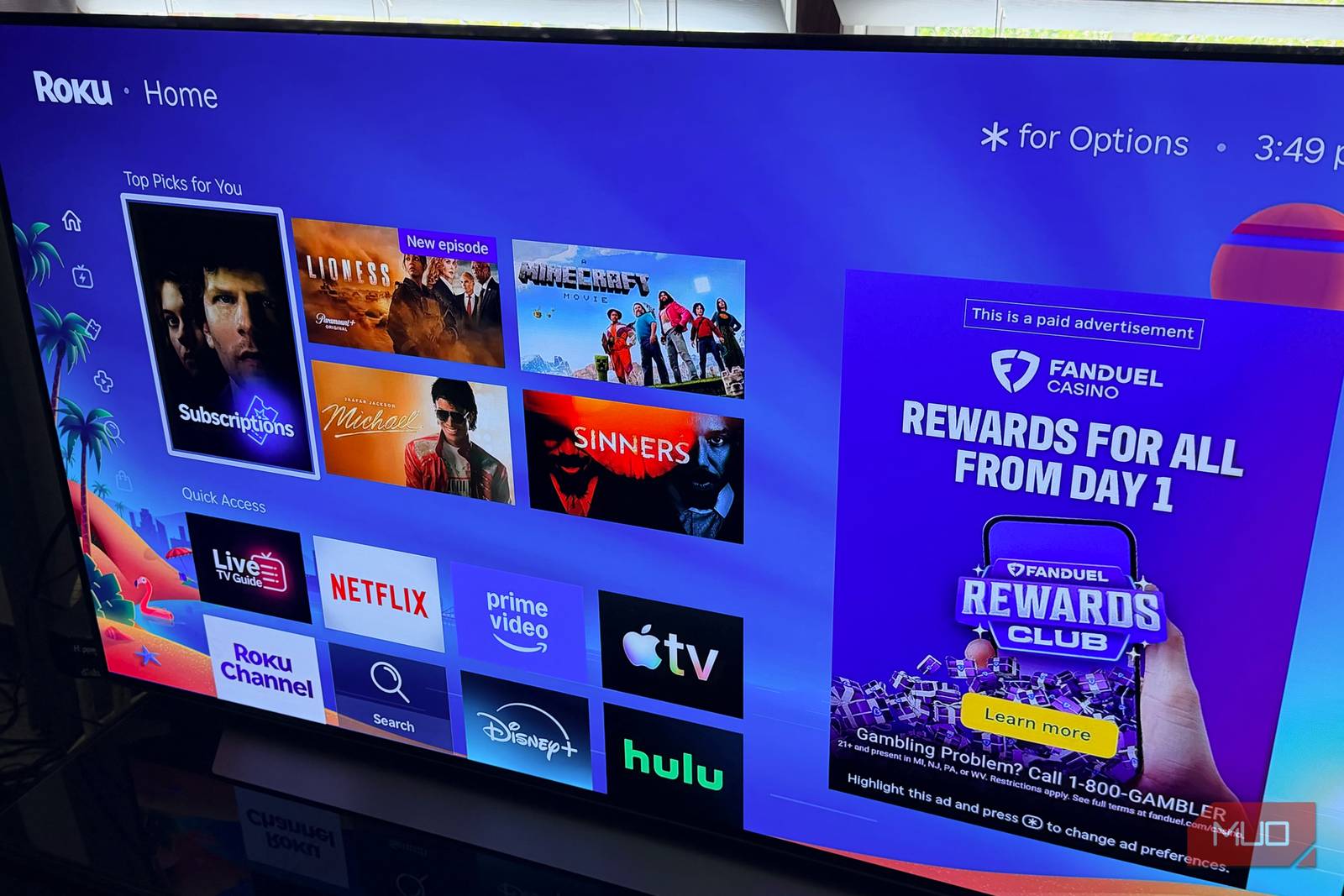
My Roku Streaming Stick Plus (model 3830R) handles almost everything I throw at it. Then I tried pointing it to a different DNS server, and it stopped responding.
Privacy was the main reason. I didn’t love the idea of my ISP logging every app and service my TV reached out to. Ad blocking came next, since a filtering DNS service can stop a lot of tracking and ad requests before they load, and I hoped for snappier app launches too. No single moment sent me down this path; I just had some time on my hands and some general assumptions about what a DNS service could do to meet my needs.
I assumed it would take a minute. I’d done the same thing on my phone and Mac without much thought. On the Roku, I spent a good chunk of time clicking through menus looking for a field that doesn’t exist.
Can You Change DNS Settings on a Roku?
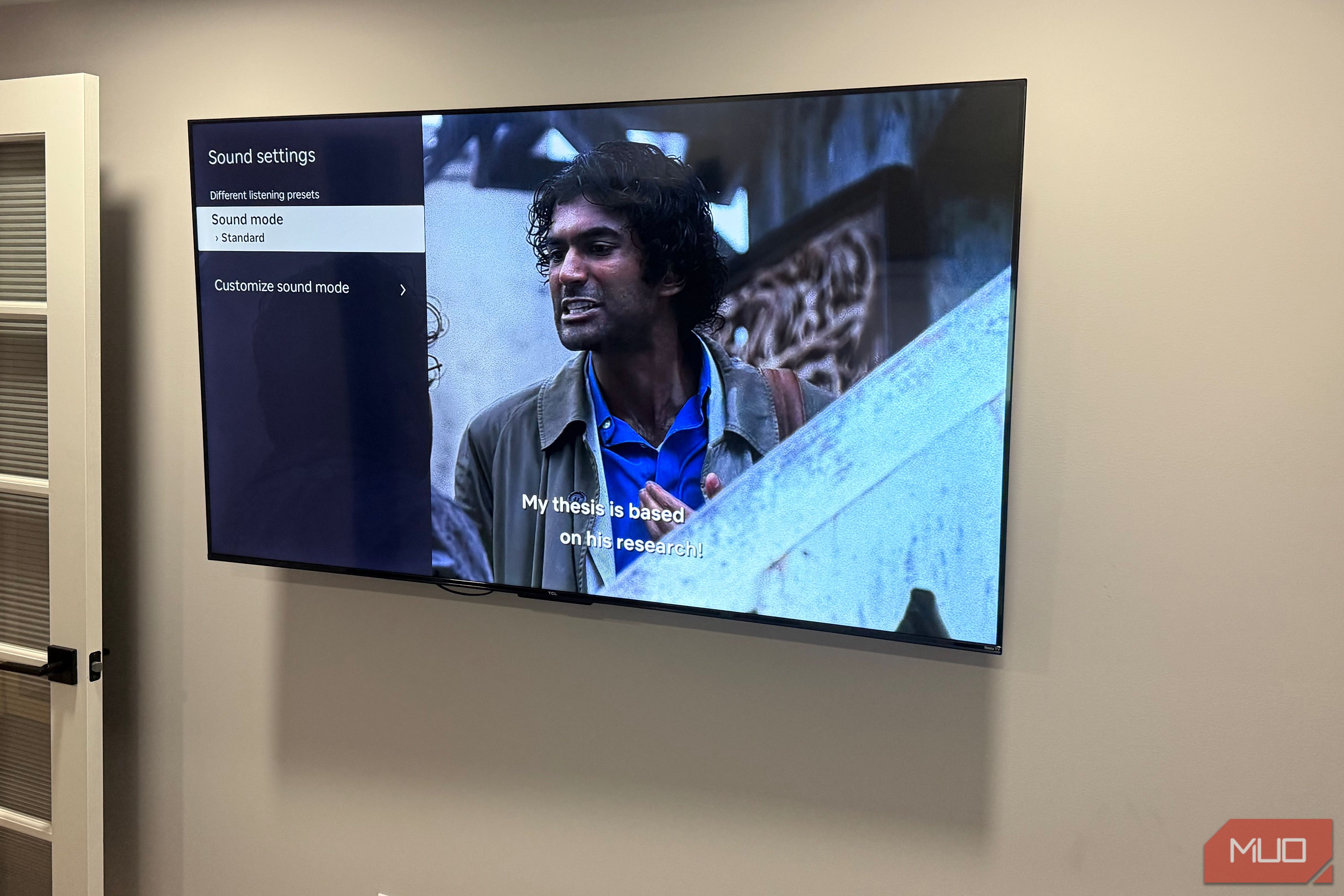
On a Roku, go to Settings > Network to find the basics. You can check your connection, run a speed test, and pick a Wi-Fi network. Some models let you switch to a wired connection. That’s about it.
There’s no manual IP option, no advanced menu, and no place to type in a DNS address. Roku pulls its network configuration automatically from your router through DHCP and gives you no way to override it on the device.
Believe me, I tried finding a hidden menu, and there isn’t one.
The bigger catch showed up when I started reading forums. Users have reported for years that Roku devices can send DNS requests straight to Google’s public servers (8.8.8.8 and 8.8.4.4), even when the router hands out something else. Roku hasn’t addressed this publicly, and community testing suggests the behavior varies by device, software version, and even which streaming channels are running. Either way, it explains why some people change their router settings and still see Roku traffic slip past.
How to Change Roku DNS Through Your Router
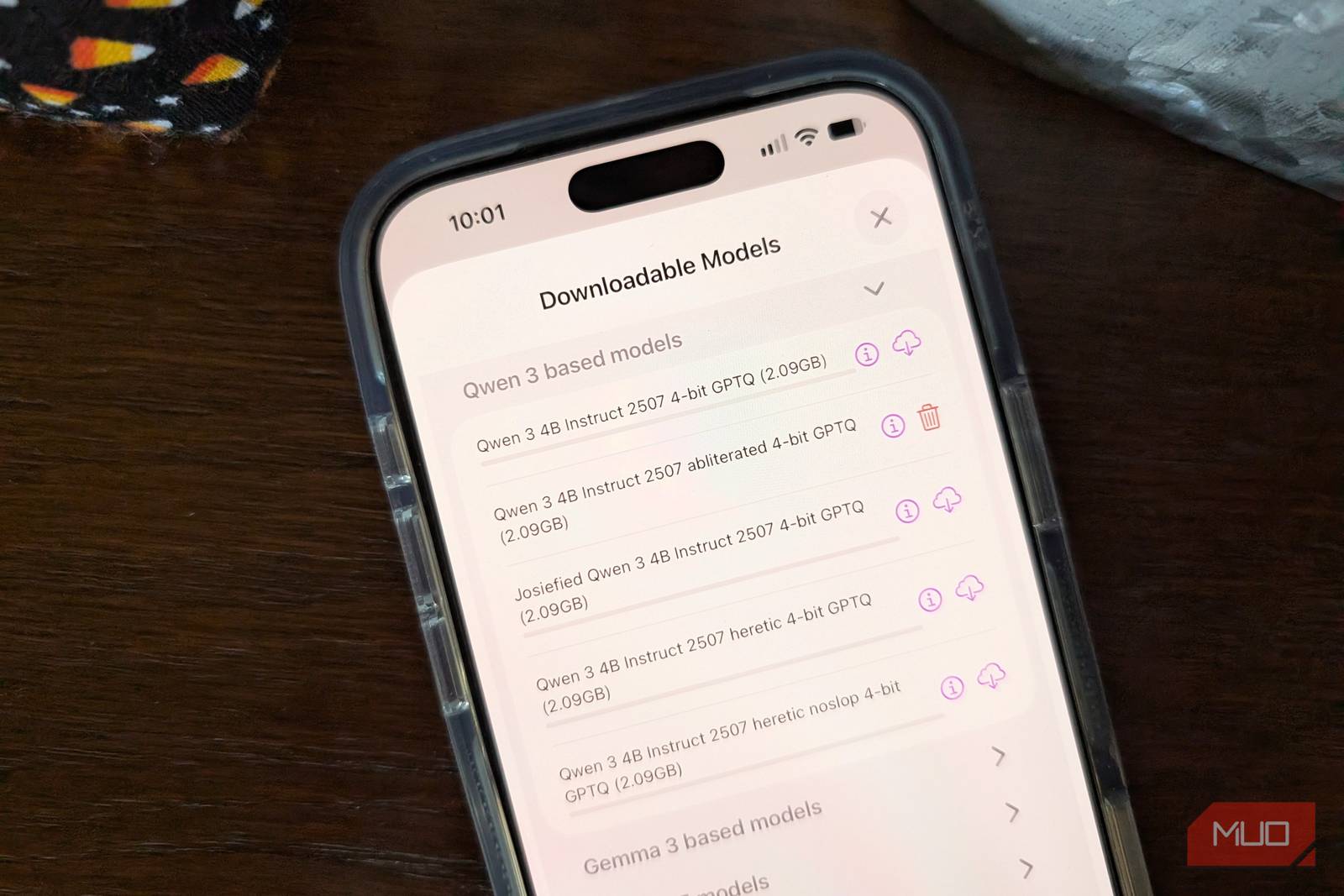
I Set AdGuard DNS on My Google Nest Wifi
If the Roku won’t let you choose a DNS server, you can choose it for the whole network. Your router tells every connected device which DNS server to use when it joins. Change that setting once, and the Roku picks it up along with everything else in the house.
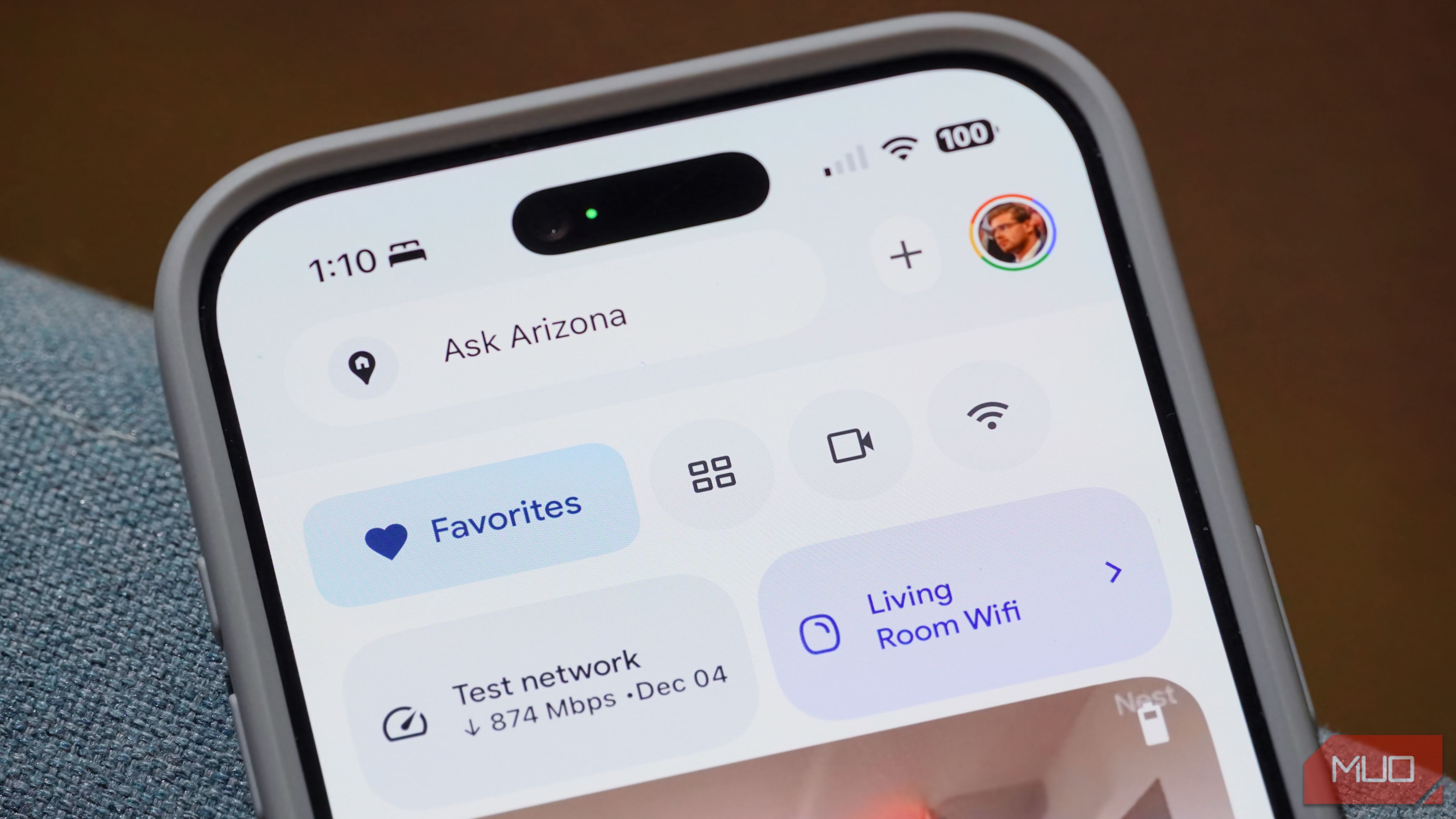
My network runs on Google Nest Wifi, which handles this through the Google Home app. For this test, I picked AdGuard DNS. It’s free, needs no account, and setup is as simple as typing two addresses into the app: 94.140.14.14 and 94.140.15.15. Those default servers strip out ads and trackers automatically, so I didn’t have to configure anything else to see whether the idea worked.
On Nest Wifi, the setting lives at Wi-Fi > Network settings > Advanced networking > DNS in the Google Home app. You get three choices: Automatic, your ISP’s DNS, or Custom. Custom lets you type in a primary and secondary server, with separate fields for IPv4 and IPv6.
One warning from Google’s own support page is worth repeating: if you mistype an address or pick a server that goes offline, every device on the network loses its internet connection. Double-check the numbers before you save.
How to Change DNS Settings on Most Other Routers
The Steps Look Similar No Matter the Brand
The general process on most routers follows the same pattern. Log in to your router’s admin interface — usually by typing 192.168.1.1 or 192.168.0.1 into a browser — then look for a section labeled WAN, Internet, or Advanced. Within that section, you’ll find a DNS field where you can replace your ISP’s default addresses with any public DNS server you prefer. Save the settings, and every device on your network, including your Roku, will start using the new server automatically.
Since Roku gives you no way to set DNS directly on the device, the router is the right place to make this change. It takes a few minutes, applies network-wide, and doesn’t require any additional software or configuration on the Roku itself.