How to Set Up Free Dictation Apps on Mac, iPhone, and PC
Two free AI dictation apps - Spokenly and Handy - offer accurate offline speech-to-text on Mac, iPhone, Windows, and Linux.
Speech-to-text can be very handy, especially if you want a hands-free and fast typing experience. You can simply activate dictation mode and start speaking, and it automatically converts your speech into text in real-time.
While dictating is significantly faster than manually typing on your keyboard, the biggest downside is accuracy. Sometimes it can produce the wrong result and also includes filler words, repetition, and misspellings. You need to review the content and manually rewrite the incorrect text.
While you can still manually edit text, you will end up spending more time fixing it manually, which is definitely not the objective.
Fortunately, this can be solved by using AI dictation apps, which use intelligence to automatically convert your speech to polished text by removing any unwanted words and fixing spelling and grammar mistakes. These apps are better than most voice-to-text dictation features found on most devices, including Mac.
Best Free Dictation Apps You Can Use
Over the past few days, I have been testing several free speech-to-text models and found the two best AI transcription tools available for both Mac and Windows, and iPhone.
These free alternatives work completely offline locally on your device, are accurate and very close to paid models, work on all apps, and also support multiple languages. If you are looking for a free speech-to-text alternative, here are my two top picks and how to set them up offline.
Spokenly: Best Free Dictation Tool for Mac and iPhone
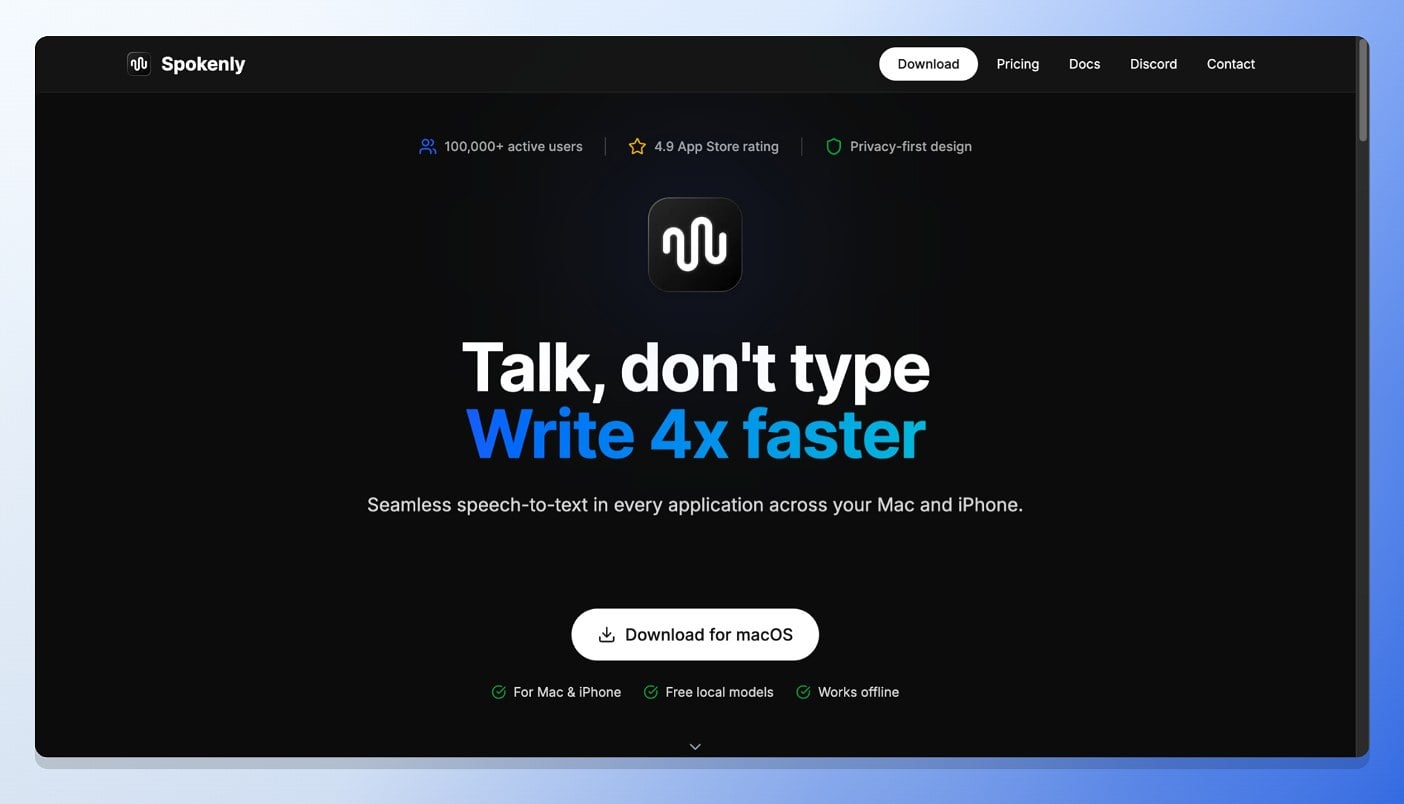
Spokenly is the best free dictation app for Mac and iPhone. You can run it completely offline through various models. Unlike many of the free alternatives, Spokenly is also available for the iPhone with similar features.
The biggest difference I noticed between free and paid tools is flexibility. Spokenly also offers a paid version, but it also comes with a completely free version with unlimited use by using local models.
Spokenly lets you choose your own model, including the top TTS model from OpenAI and its own model, which runs on the cloud. It also lets you use your own API keys for text-to-speech conversion.
Unlike other free TTS tools, Spokenly offers multiple local models to choose from. It also includes options from NVIDIA, which is the fastest offline model I have ever used on any tool, along with free Whisper models from OpenAI found on most free tools.
Not only that, but you can also customize the intensity - such as how much you want AI to modify your text - with your own customization rules. Since all the text processing happens locally on your device using offline models, you can also completely switch to offline models for more privacy.
It also supports 100-plus languages and automatically detects language as you speak. You can also convert text into different formats using AI prompts. For instance, if you are using speech-to-text to write an email, you can ask it to format into an email structure, and it does so without you needing to manually copy and paste or reformat on your own.
Spokenly is available for both Mac and iPhone. Currently, there is no Android or Windows version. If you are specifically looking for a Windows version, try Handy.
Handy: Best Free Dictation Tool for Windows and Linux
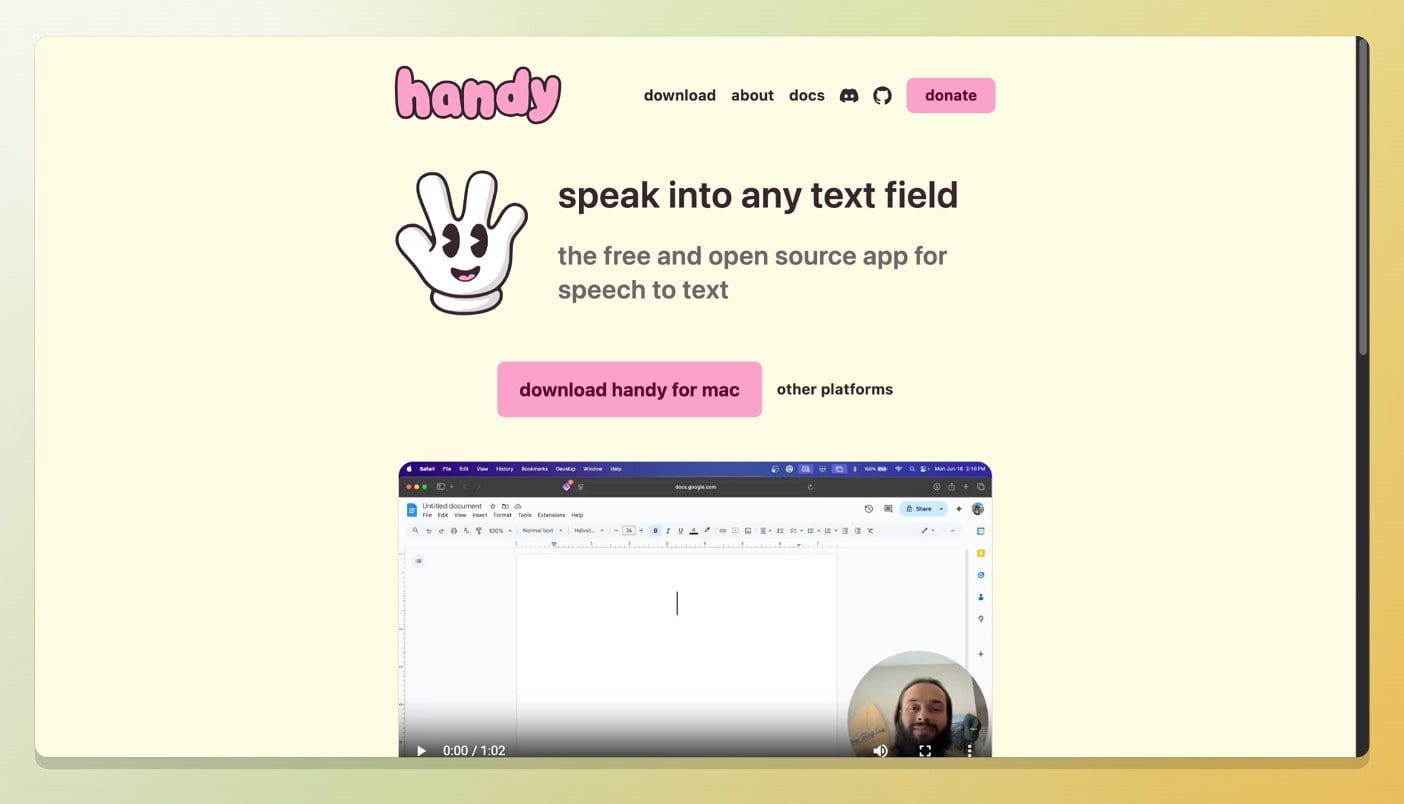
Handy offers all the features of Spokenly, but it is completely free to use and also available on Windows. The app uses multiple open-source TTS models, which you can select during setup and switch to any model whenever you want.
It offers plenty of models to choose from, including those from Moonshine, Whisper, and also mini models sized at just 31MB - great for running on low-resource devices, although accuracy may be less than that of larger models.
NVIDIA’s Parakeet V3, which is the same model found on Spokenly, is fast and accurate.
One unique advantage is that most open-source and free alternatives are available only on Mac or iPhone. Fortunately, Handy is available for all Windows platforms, including ARM and Intel, and is also supported on Linux.
However, it is not as context-aware as paid models and also misses auto-formatting sometimes, but it is still far better than the default speech-to-text features found on most devices.
One major drawback of Handy is that it is not available on mobile. It is only available on PC platforms and is free to use forever.
Free Dictation Tools vs Paid Tools
Those are the two best free dictation apps available. To summarize:
- Both Spokenly and Handy offer very accurate speech-to-text conversion and are very reliable for daily use in most cases.
- These models run completely offline and allow you to switch between different TTS options.
- Unlike paid versions like Typeless, these models are not always context-aware and often miss formatting.
- However, Spokenly also comes with a Pro version that allows you to use better models, such as those from OpenAI, used by paid apps.
With that in mind, here is how to set up both Spokenly and Handy on your device.
How to Set Up Spokenly on Mac
The best part is that Spokenly is directly available on the App Store, which means you can install it on your Mac, download it on your iPhone, and start using it right away.
Here is the detailed process for setting up Spokenly on your Mac and iPhone.
Step 1: Install the Spokenly app from the App Store. Download here
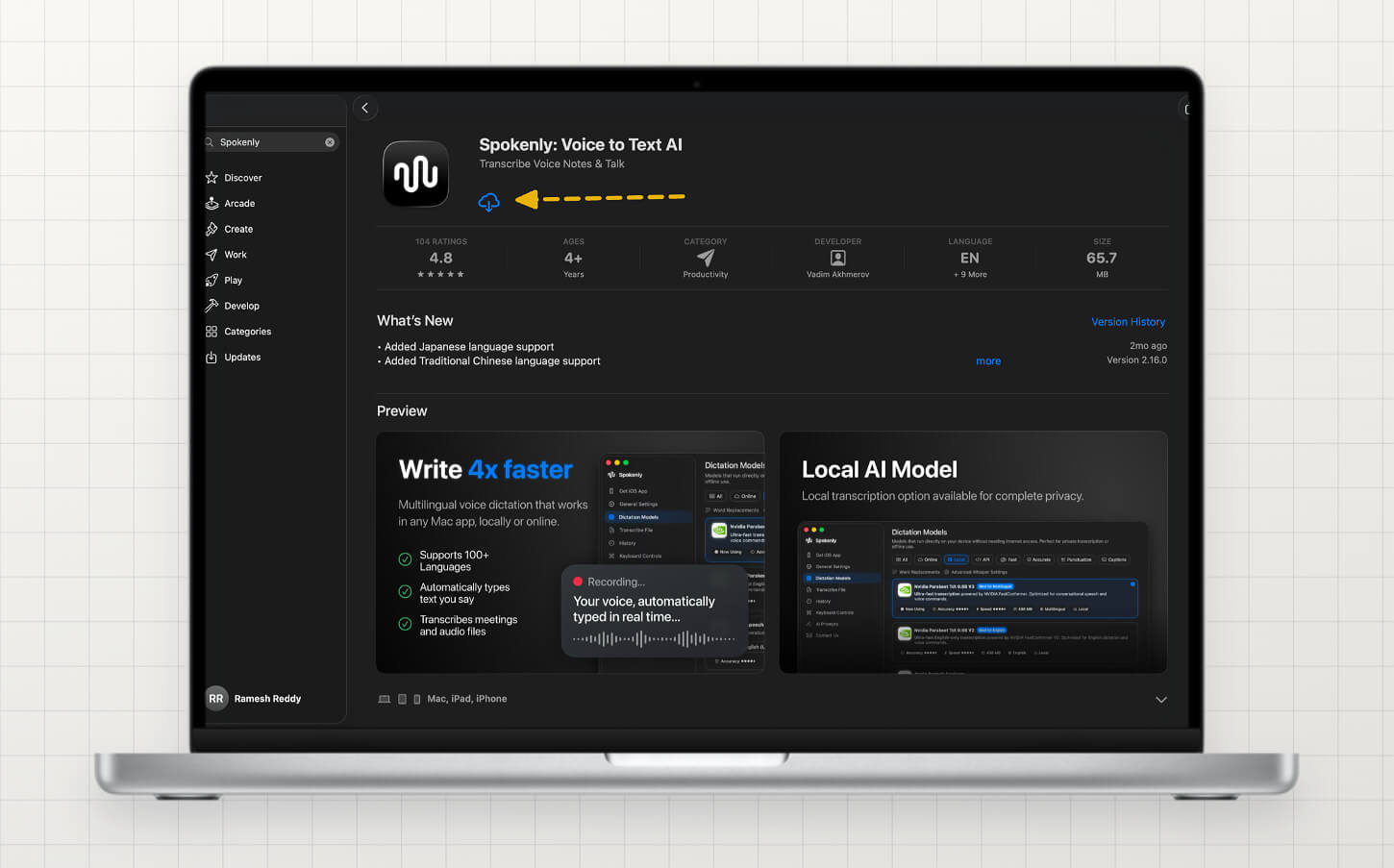
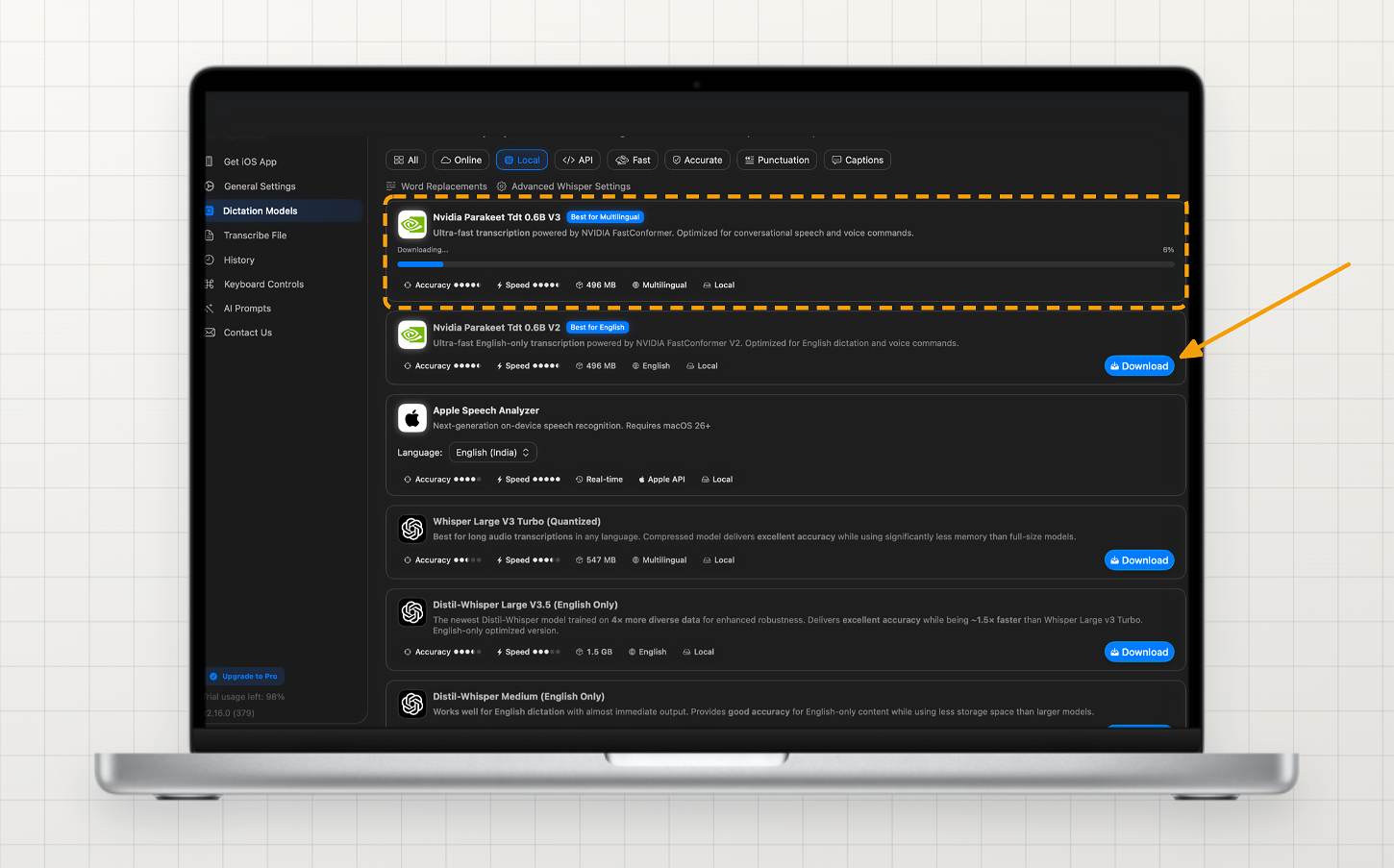
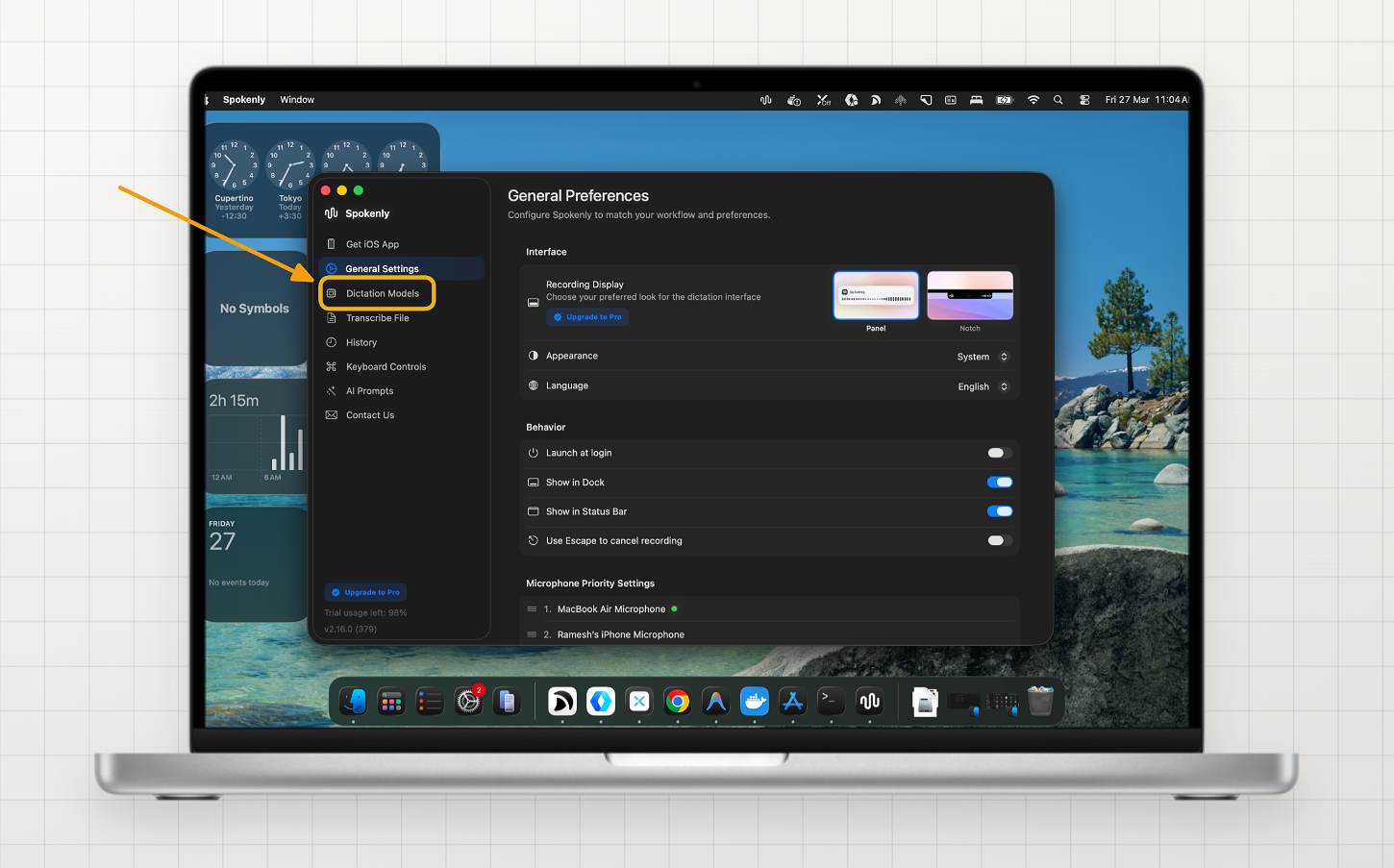
Step 2: Open the app and sign in with your account if prompted. You will be taken directly to the general settings screen. From there, use the sidebar to tap on the dictation models.
Step 3: Switch to the local tab. Here you can see all the local models available to use, from NVIDIA Parakeet to Whisper. Choose a model based on your preference - you can see both accuracy and speed scores for each.
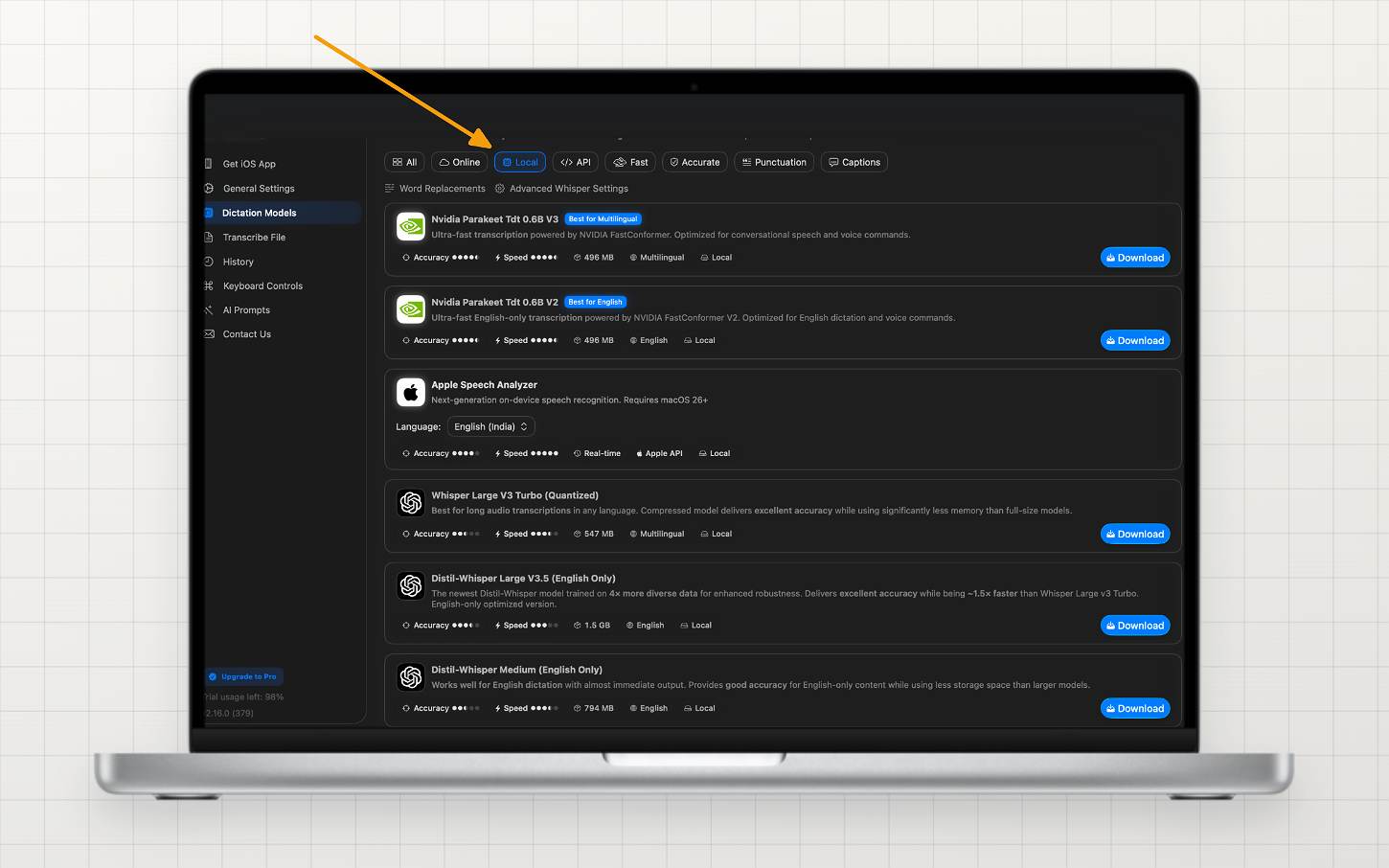
Step 4: Click the download button to download the model locally to your device and wait until it finishes downloading.