How to Enable Gemini Utilities on Android for Real Phone Control
Gemini's most useful Android feature is disabled by default. Enabling it turns Gemini into a true hands-free phone assistant.
Gemini is my default AI assistant on my smartphone, computer, and every device that I use. I use it occasionally to ask for something, get inspired, or create/edit images and videos, and that’s about it. Until now, this whole relationship was something like having a really smart assistant who just sat in the corner of the room and waited to be called on. Things changed when one day I genuinely needed help with my research for an article I found interesting, but had zero time to read, and had to reply to three WhatsApp messages while working.
And instead of using Gemini in the standard way, I used it the way it was probably meant to be used. The best part was that there was a fix hiding right inside the app, which I had overlooked. If you are still using Gemini like a fancy chatbot on your phone, then you are missing out on something very interesting.
Gemini Was Supposed to Be Better Than Google Assistant
Though It Was the Smartest, It Couldn’t Do Simple Stuff

When Google started pushing Gemini as the replacement for Google Assistant, the promise was exciting. A large language model (LLM), sitting right on your phone, handling everything your assistant used to do but in a much smarter way. However, when put into practice, the first few months felt like a step backward, especially with everyday tasks.
Asking it to set a timer, it would fumble. Ask it to turn on the flashlight, and it showed a web result instead. While the conversational part and all the other stuff it could do were impressive, the phone control part was a bit flimsy.
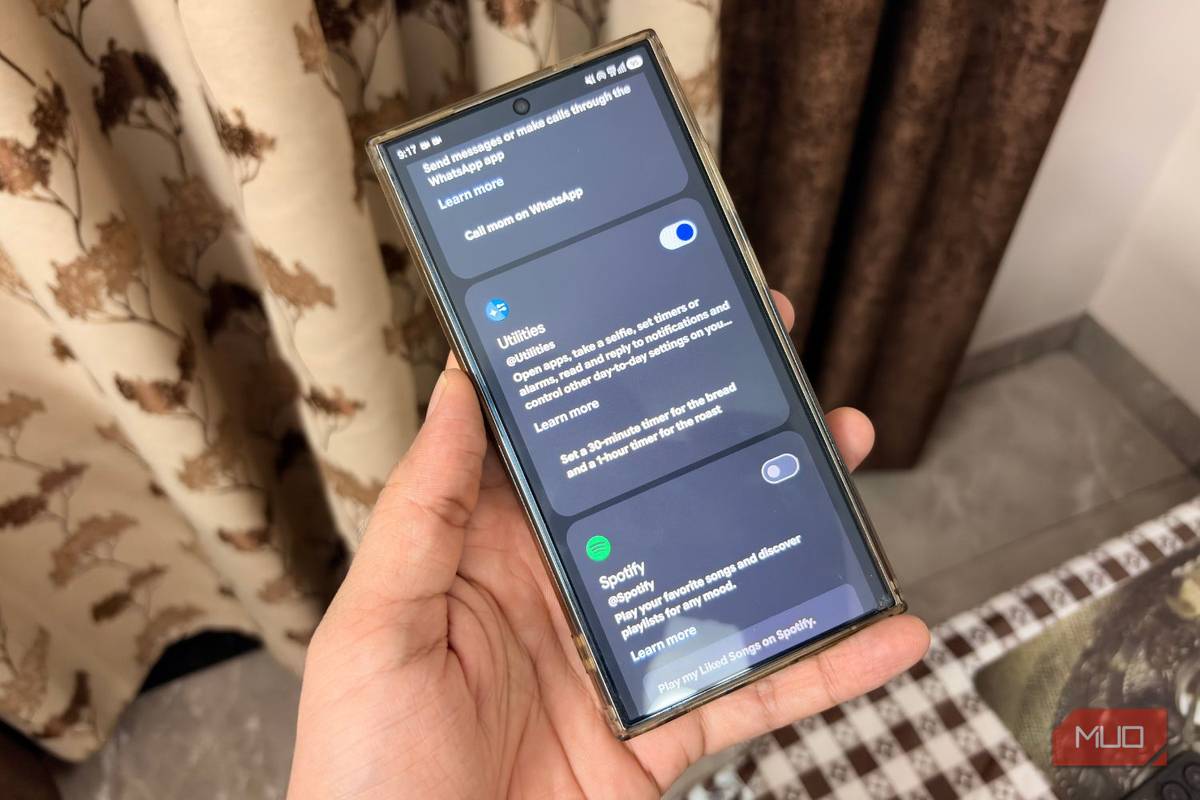
The problem wasn’t Gemini itself. It was a critical feature meant to outperform Google Assistant - the Utilities extension - that was sitting disabled in Settings. You have to manually turn on the Gemini Utilities extension so that Gemini can set alarms, control your device settings, and even open the camera to take a quick selfie.
Once you enable this feature, Gemini stops being just a chatbot trapped in an app and starts controlling your phone.
Enabling It Is Simple
A Few Steps and You Are Set
The Gemini Utilities option is disabled by default and must be enabled manually. Here’s how you can enable it in just a few steps:
- Launch the Gemini app on your phone.
- Tap on the two-line icon on the top-left.
- At the bottom, tap on the Profile icon and select Settings.
- Tap Connected apps.
- Scroll down and toggle Utilities on.
Unfortunately, the Utilities feature isn’t available on iOS devices, the Gemini web app, or even on live chats. Apple’s restrictions mean third-party apps can’t reach deep into system hardware. On Android, the Gemini Utilities feature is designed to run automatically, and you can disable it in your Connected Apps settings.
Also, while in Settings, enable Gemini on the lock screen and turn on “Use Gemini without unlocking”. This lets you fire off voice commands without unlocking your screen, making the whole setup hands-free.