Folder Lock: Password Protect and Hide Files via Drag and Drop
Folder Lock lets Windows users password-protect and hide files via drag and drop. Here's how it works and how it compares to built-in Windows encryption.
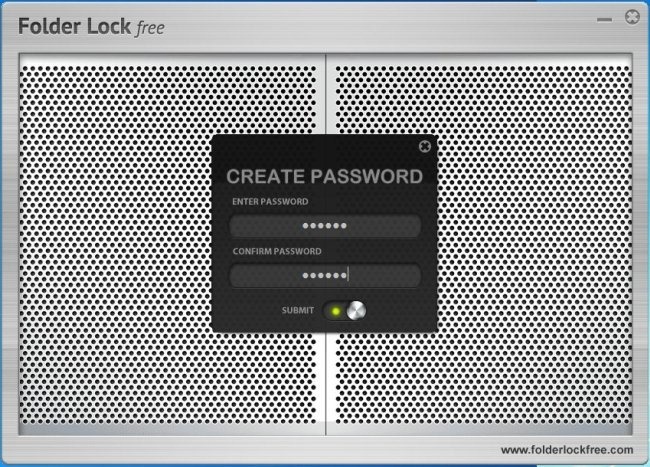
To protect your important files, it’s better to bury them behind a hard to crack encryption utility. Although Windows lets you password protect your user profile, someone can still access your account using unusual means. There are a large number of folder encryption utilities available that allow users to encrypt folders and files via staunch encryption algorithms. Even though such encryption tools provide a powerful way to protect confidential data, most users find it tedious to decrypt the encrypted folders and files every time they want to use their data. Obviously, this wastes a lot of time - as you cannot take a glass of water out of a vault just to drink it and put it back again, the same goes for encrypting and decrypting files back and forth. If you’re looking for a simple yet powerful tool that can password-protect your important folders, then Folder Lock is a solid pick. It’s an application for Windows that lets you quickly and conveniently add password protection to your confidential data via drag and drop. It can hide folders in such a way that it is not possible to disable their hidden attribute or locate them via Windows Search. For first-time usage, it asks you to enter the password you want to use to protect the application as well as folders from external, unauthorized access.
How to Use Folder Lock: A Full Walkthrough
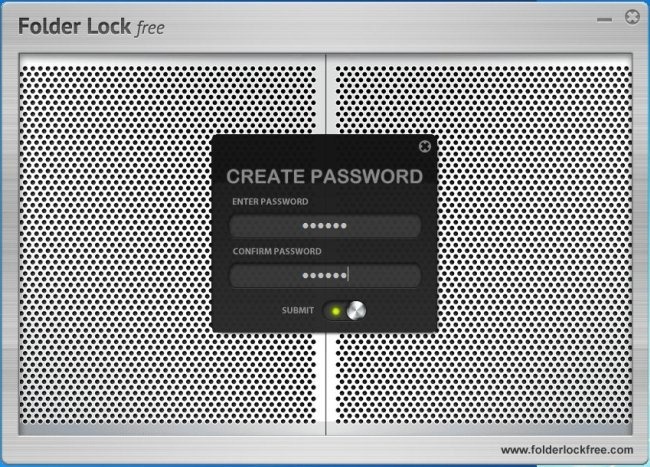
When you launch Folder Lock for the first time, the app will prompt you to create a master password. This password protects both the application itself and all the items you add to it, so choose something strong and store it somewhere safe - losing the master password means losing access to your protected files.
Once you are inside the app, you have two ways to add items:
- From inside the app: Click the Add Items button at the bottom of the main window and browse to the file or folder you want to protect.
- From Windows Explorer: If the right-click shell integration is active on your installation, you can right-click any file or folder directly in File Explorer and select the Folder Lock option from the context menu to add it instantly.
You can also drag and drop files and folders directly onto the application’s interface to add them quickly.
Locking vs. encrypting: It is worth understanding the difference between the two main protection modes. Locking a folder hides it from Windows and prevents access without the master password - the folder essentially disappears from File Explorer. Encrypting (available in the full paid version as Lockers) converts your data into an encrypted vault file, which is a stronger form of protection because the underlying data itself is scrambled, not just hidden. For sensitive financial or personal files, encryption is the better choice.
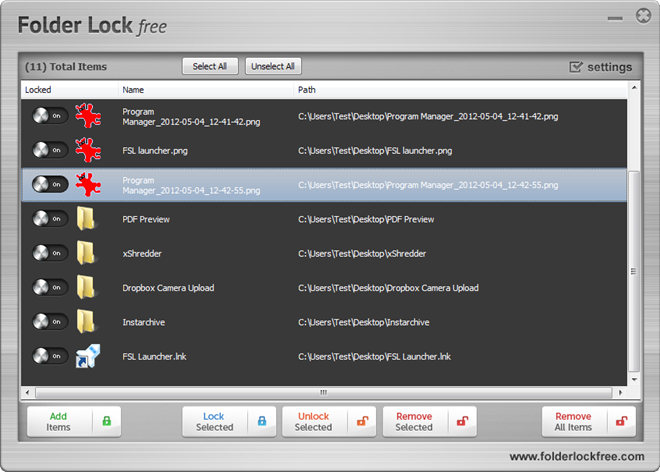
The main interface has Select All and Deselect All buttons at the top, while Add Items, Lock Selected, Unlock Selected, Remove Selected, and Remove All Items can be accessed from the bottom of the window. It shows you all the locked files, along with their names and source path. Unlocking folders and files is easy - just select the items you want to unlock and then select Unlock Selected.
To permanently remove an item from Folder Lock’s protection (returning it to normal), select it and click Remove Selected. The item will be restored to its original location and will no longer be managed by the app.
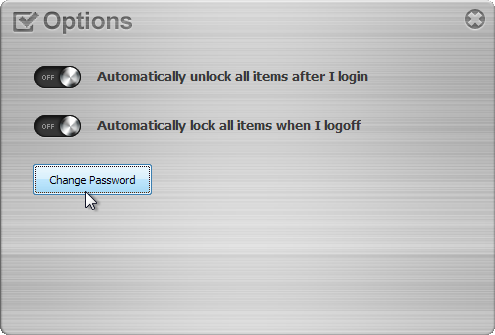
The Settings button allows you to specify default behavior of the application, including automatically unlocking all items upon login and automatically locking all items upon logoff. You can also change the master password using the Change Password button.
Additional tools in modern versions: Folder Lock has grown well beyond basic folder locking. Depending on the version you install, you may also have access to:
- File Shredder: Permanently deletes files so they cannot be recovered by data recovery software.
- Secure Wallets: An encrypted storage area for sensitive personal information like credit card numbers, passwords, and bank account details.
- Portable/USB Protection: Lets you protect files on removable drives so they stay encrypted even when the drive is used on another PC.
- Backup and Sync: Backs up your encrypted lockers to the cloud so your protected data is not lost if your hard drive fails.
- Stealth Mode: Hides the Folder Lock application itself from casual view, so others using the PC do not know the software is installed.
Trial vs. paid limitations: Folder Lock is available as a paid application with a free trial period. In trial mode, some features - particularly the encrypted Locker creation and backup functions - may be limited or capped. If you only need basic folder locking for a home PC, the trial gives you a good sense of the workflow, but full encryption and the advanced security tools require purchasing a license.
Folder Lock vs. Windows Built-In Folder Encryption
Before downloading any third-party app, it is worth knowing what Windows already offers. Windows does not have a simple universal “right-click and set a password” feature for folders - but Windows 10 and Windows 11 Pro (and Enterprise) editions do include Encrypting File System (EFS), which lets you encrypt folders using your Windows account credentials.
Here is how to use it:
- Right-click the folder you want to protect and select Properties.
- On the General tab, click Advanced.
- Check the box next to Encrypt contents to secure data.
- Click OK, then Apply. Choose whether to apply encryption to the folder only or to all subfolders and files inside it.
Windows will then mark the folder with a small padlock icon, and only your user account can open the files normally.
Limitations of EFS you need to know:
- It uses your Windows login, not a separate password. Anyone who logs in as you - or resets your Windows account - can access the encrypted files.
- Not available on Windows Home editions. EFS is only present on Pro, Enterprise, and Education versions of Windows 10 and 11.
- Not ideal for sharing. If you copy an EFS-encrypted file to another PC or send it to someone else, they will not be able to open it without the encryption certificate.
- You must back up your encryption certificate. If your Windows installation becomes corrupted or you reinstall Windows without exporting your EFS certificate first, your encrypted files can become permanently inaccessible.
When Folder Lock makes more sense: If you want to protect files with a dedicated, separate password that is independent of your Windows account, share a PC with other users who know your Windows password, need to lock files on a USB drive, or want extra tools like file shredding and secure wallets, then a dedicated app like Folder Lock gives you controls that EFS alone does not provide.
What Folder Lock Protects Against - and What It Does Not
It is important to have realistic expectations about what any local folder-locking app can and cannot do.
What it protects well: Folder Lock is effective at preventing casual access on the same Windows PC. If someone sits down at your computer while you step away, locked and hidden folders will not be visible in File Explorer and cannot be opened without the master password. The encrypted Locker feature adds a stronger layer by scrambling the underlying data.
What it does not fully protect against:
- Hiding is not the same as encrypting. A locked-and-hidden folder is concealed from normal Windows use, but determined users with advanced tools or boot-level access could potentially locate the files. Encryption - where the data itself is scrambled - is a stronger guarantee.
- Local protection does not travel with the file. Once an encrypted or locked file is copied to another drive, uploaded to cloud storage, or emailed, the protection you set up in Folder Lock does not automatically go with it. For files that leave your PC, use an encrypted archive (such as a password-protected 7-Zip file), a portable-drive encryption tool, or a password-protected cloud share.
- It does not replace a strong Windows account password. If your Windows login is weak or has no password at all, anyone who reaches your desktop can potentially work around local locking tools. Always use a strong Windows account password or PIN, and enable Windows Hello if your device supports it.
- It does not replace 2FA on cloud accounts. If your files are stored or backed up in a cloud service, enable two-factor authentication on that account. A local locking app cannot protect data stored online from an account compromise.
Think of Folder Lock as one practical layer in a broader approach to data security, not a single solution that covers every threat.
Folder Lock is a robust security application that works on both 32-bit and 64-bit versions of Windows XP, Vista, 7, and 8.
Update: Earlier reports indicated the Folder Lock website was down, but Folder Lock appears to still be actively distributed as a Windows security application. Based on coverage from reputable software review sources, Folder Lock continues to receive version updates and is available as a paid application with a free trial. It is not a free tool - the original free edition has been discontinued and the current product is trialware that requires purchasing a license for full functionality. To download Folder Lock safely, search for it on a reputable software directory such as Softpedia or the vendor’s official site, and verify you are downloading from an official or well-established source to avoid bundled installers.